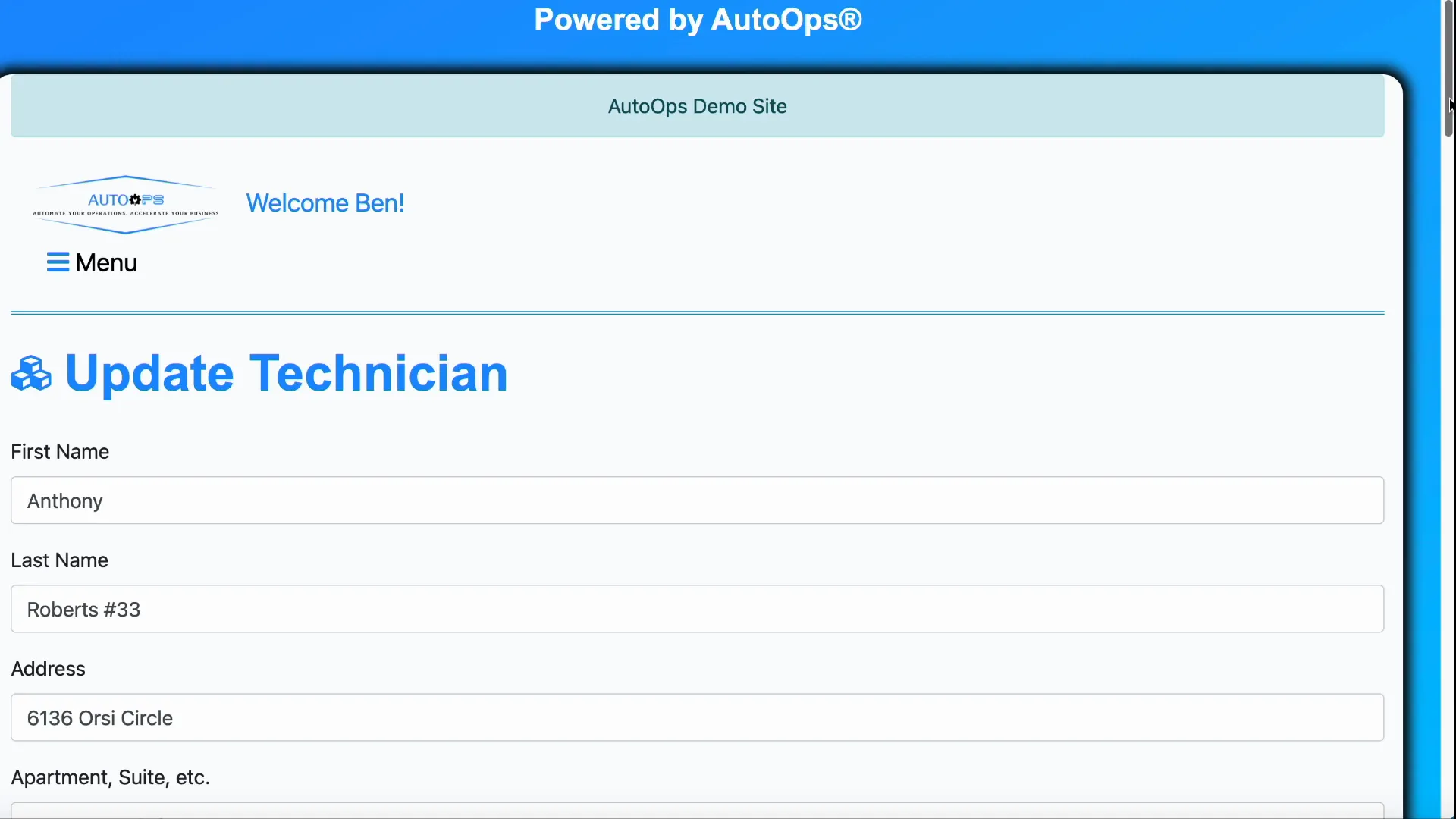
When you have an admin account you can configure how technicians interact with the system. This guide walks through each setting you can change for a technician, why it matters, and where to find it. Follow the steps below to update personal details, login options, qualifications, schedules, payroll-related flags, and audit history.
Table of Contents
- Quick navigation
- Accessing Technician settings
- Open the Update Technician screen
- Personal details and login options
- Job qualifications and strict booking
- Scheduling and schedule-only login
- Accounting, purchase orders, and invoice permissions
- Schedule versus hourly (payroll) flag
- Mobile number and audit history
- Saving your changes
- Summary checklist
- Frequently asked questions
- Related visuals
Quick navigation
- Accessing Technician settings
- Personal and login fields
- Job qualifications and strict booking
- Scheduling and schedule-only login
- Accounting, purchase orders, and invoice permissions
- Payroll-related settings
- Audit history and privacy
- Saving changes
Accessing Technician settings
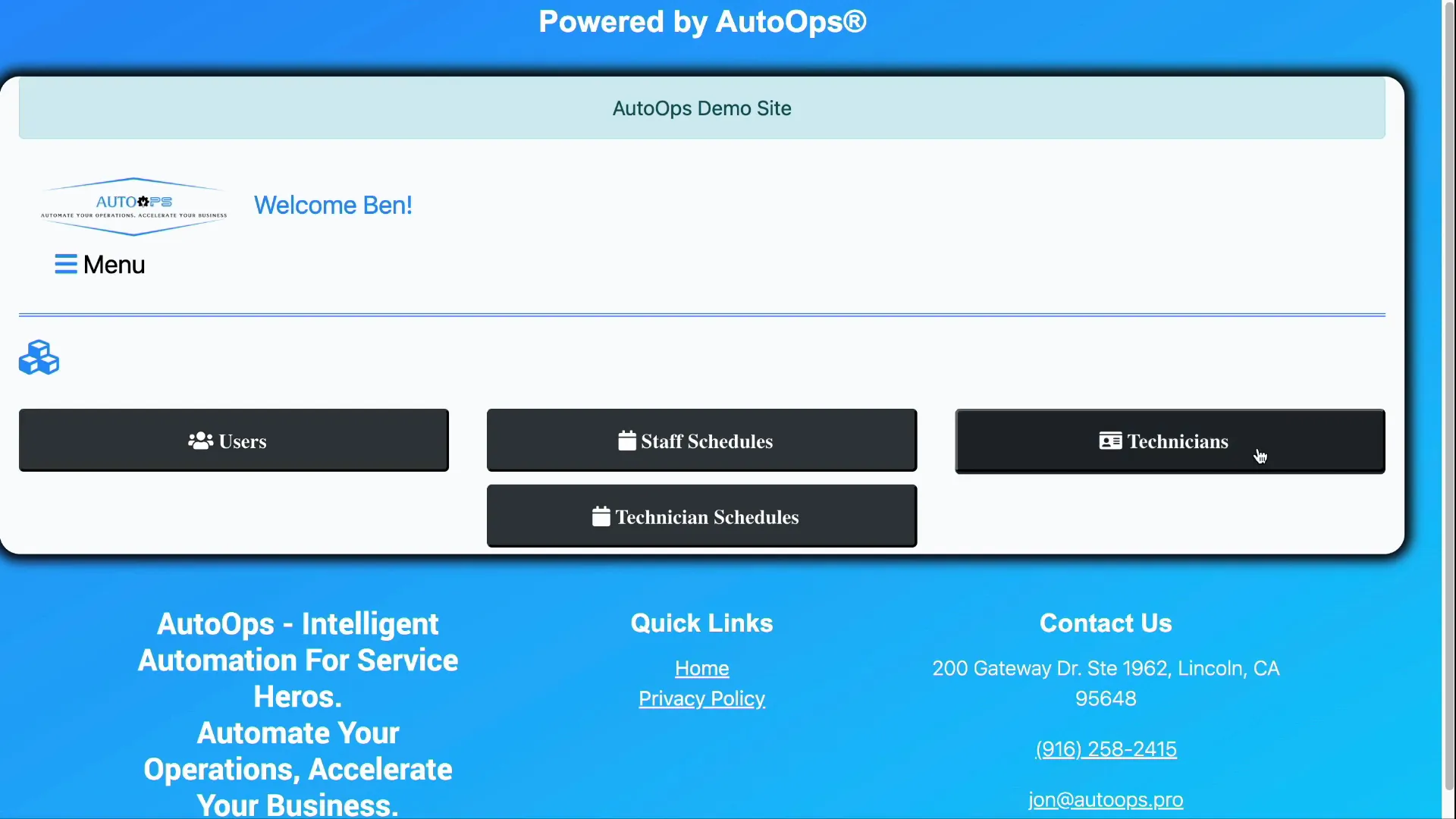
Start from Settings, then scroll to User Settings and click the button labeled Technicians. That opens a list of all technicians in the system where you can choose a record to update.
Open the Update Technician screen
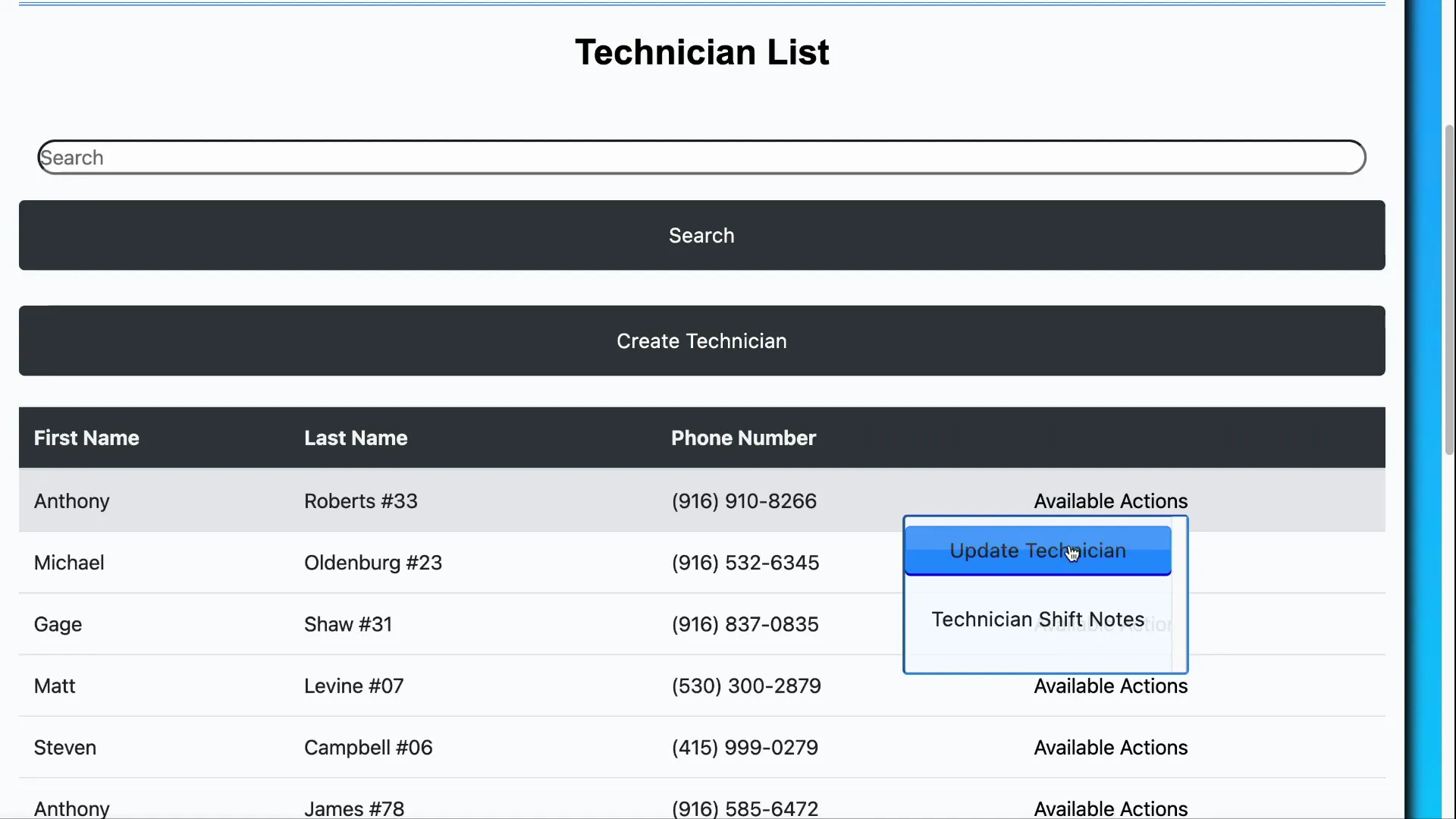
From the technicians list, open Available Actions and select Update Technician. This brings up the editable fields for that technician.
Personal details and login options
The Update Technician screen includes the standard contact fields and a few technician-specific items:
- First name and last name
- Address, city, state, and zip code
- Employee ID (if used)
- Technician Works toggle — controls whether the technician can access the system and whether they appear as selectable in the application
- Social Security number — required. The last five digits of the SSN are used as the technician PIN for PIN-based login
- Notes field for any freeform data about the technician
Turning off the Technician Works toggle will prevent that technician from logging in and will change their display in the application so they cannot be selected on jobs.
Job qualifications and strict booking
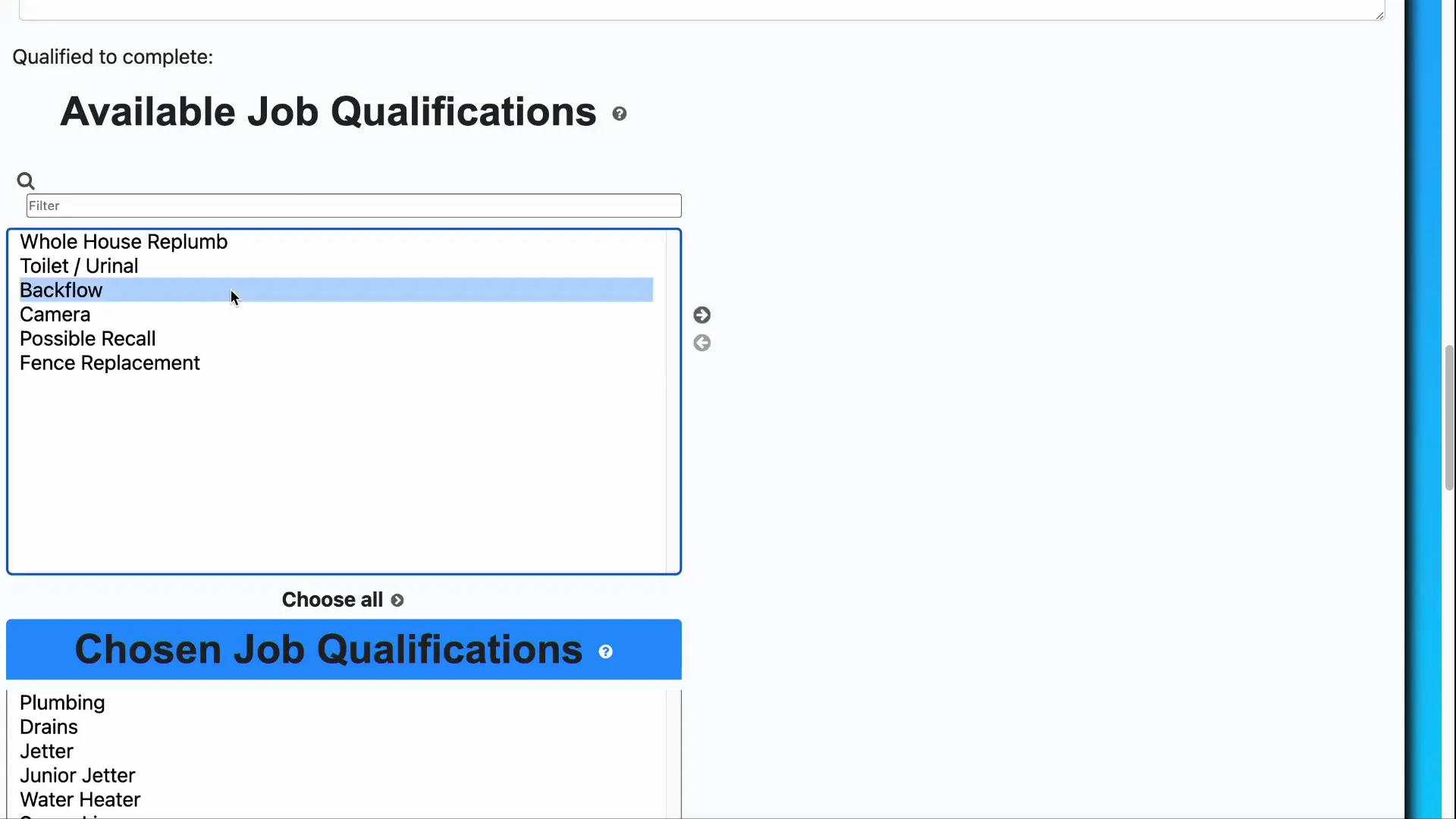
Technicians can have job qualifications assigned. These are used when strict booking mode is enabled so the scheduler only assigns technicians qualified to perform the job.
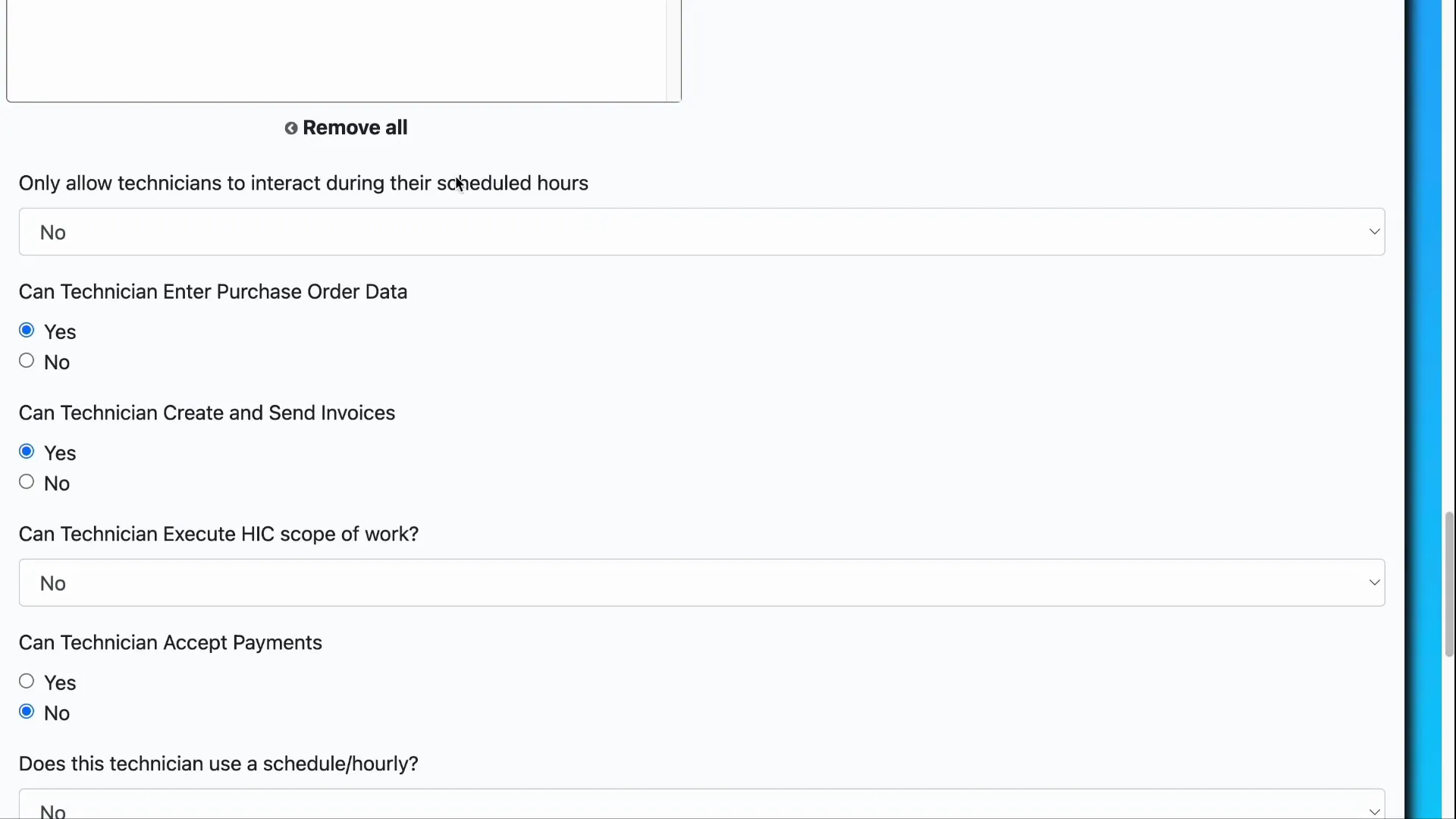
Use the available qualifications list to pick items and click the add button to move them to the approved list. To remove a qualification, select it from the approved list and click the remove arrow. The top list shows available qualifications and the bottom list shows the ones approved for the technician.
Scheduling and schedule-only login
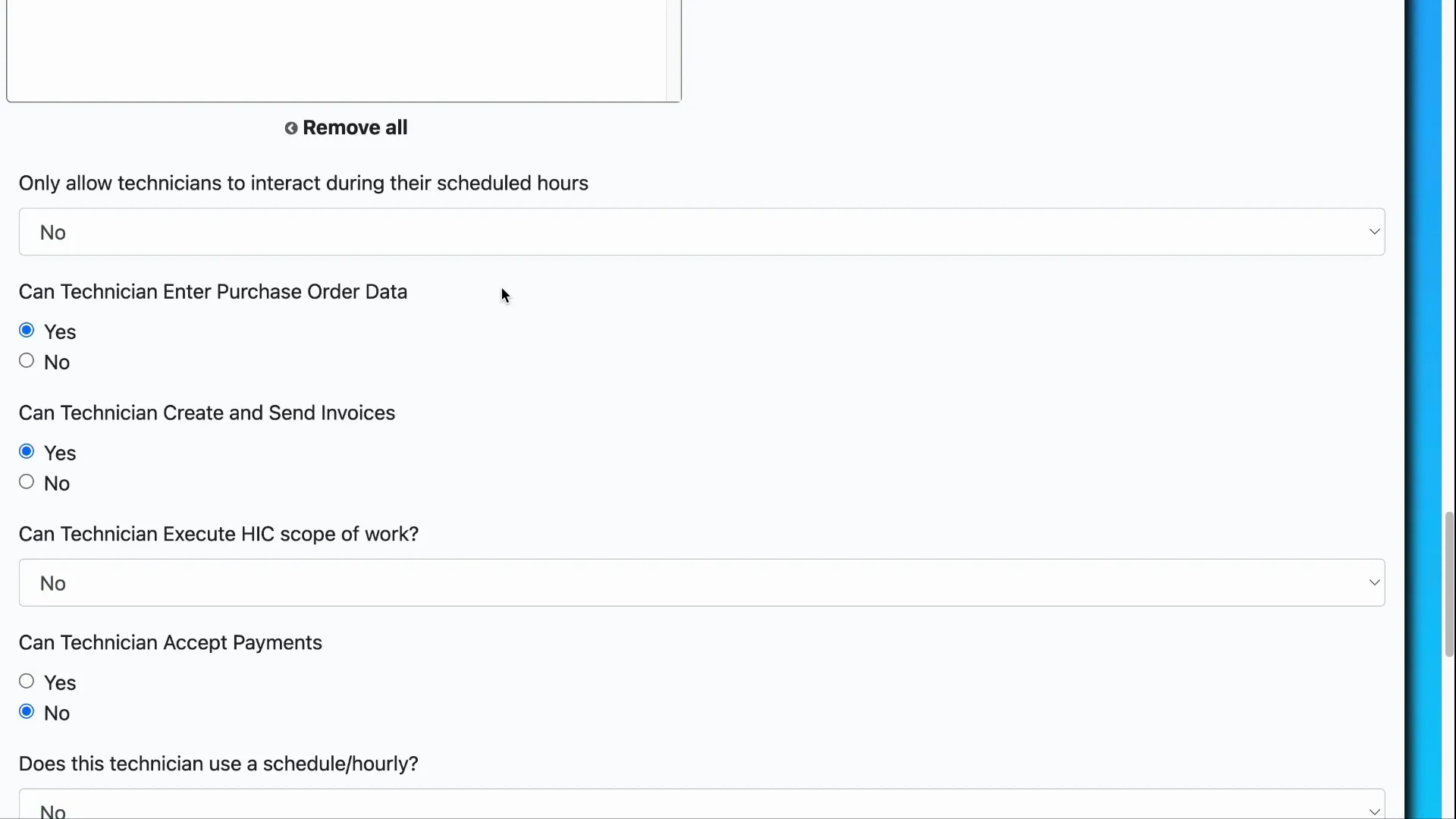
You can require technicians to interact with the application only during their scheduled hours. When enabled, technicians will only be able to log in and interact with the app during the schedule you assign.
Technician schedules are managed from the technician area: back out to the technicians page and open Technician Schedules to create or edit schedules assigned to a technician.
Accounting, purchase orders, and invoice permissions
The Update Technician page includes accounting-related controls that determine what technicians can enter on jobs. Use these to restrict access to certain fields and actions:
- Allow or restrict entry of purchase order data on jobs
- Allow or restrict the creation and sending of invoices by the technician
These settings let you control which technicians can record financial data or manage invoices from the field.
Schedule versus hourly (payroll) flag
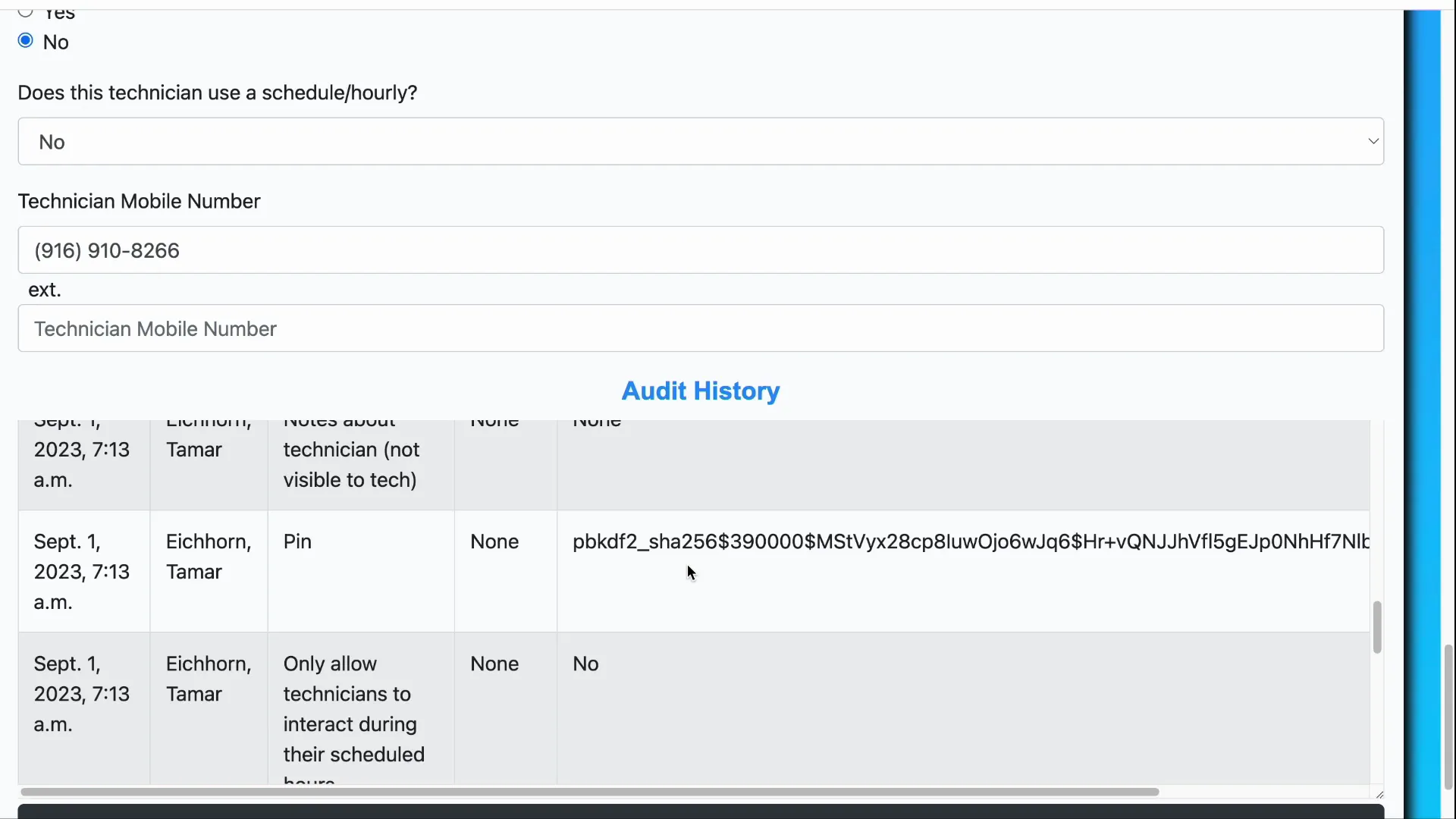
There is a setting to indicate whether a technician uses schedule/hourly payroll. This is related to the schedule-only access option but is primarily used for payroll purposes rather than access control. Ensure this flag matches how you track the technician for payroll to keep timesheet and payroll reporting accurate.
Mobile number and audit history
You can set a technician mobile number on the record for contact or notifications.
Every technician record includes an audit history. The audit history is a change log showing what fields were changed, when, and by whom. Sensitive fields such as PIN or Social Security number are masked or scrambled in the audit log for privacy. This scrambling is intentional to protect sensitive data while still providing an audit trail.
Saving your changes
After making changes, scroll to the bottom of the Update Technician page and click Save to apply the updates to the system. Always verify key fields such as the PIN and schedule flags after saving to ensure the intended access and payroll behavior.
Summary checklist
- Confirm Technician Works toggle reflects whether the tech should access the app
- Verify SSN and PIN setup for PIN-based login
- Assign job qualifications when using strict booking
- Set technician schedules and enable schedule-only interaction if desired
- Restrict purchase order and invoice permissions as needed
- Set schedule/hourly flag correctly for payroll
- Review audit history for recent changes
- Save changes
Frequently asked questions
How do I prevent a technician from logging into the app?
Turn off the Technician Works toggle on the technician record. This will disable their access and remove them as a selectable technician in the application.
What is the PIN for a technician?
The technician PIN is derived from the last five digits of the technician Social Security number. The SSN is required on the record so the system can generate the PIN.
How do I ensure a technician is only allowed to work during scheduled hours?
Enable the option only allow technicians to interact during their scheduled hours and assign or edit their schedule via the Technician Schedules screen. When enabled, the technician can only log in and interact with jobs during their assigned schedule.
How do job qualifications affect scheduling?
Job qualifications designate what a technician is approved to perform. When strict booking mode is turned on, the system will only schedule technicians who have the required qualifications for a job.
Can technicians create invoices from the field?
That capability is controlled by permissions on the technician record. You can allow or restrict technicians from creating and sending invoices and from entering purchase order data on jobs.
Why are some values scrambled in the audit history?
Sensitive values such as the PIN or Social Security number are intentionally masked in the audit history to protect privacy while still preserving a change log for auditing purposes.
Related visuals
Use the screenshots above to match the fields and options discussed. Refer to the Technician Schedules area to manage availability and to the Update Technician screen to make edits and save changes.