

With an admin account you can make all the necessary changes to customers in the system. I’ll walk you through the customer list, how to create and update customers, how account types and custom fields work, and the important credit, rate, and special instruction settings that affect invoicing and job workflows.
Table of Contents
- Accessing the customer list and creating a customer
- Customer basic information and account types
- Invoice and contact settings that matter
- Alerts and additional information
- Creating and managing custom fields
- Customer documents and special instructions
- Credit and rate settings explained
- How special instructions accumulate across multiple customers
- Summary
- FAQ
Accessing the customer list and creating a customer
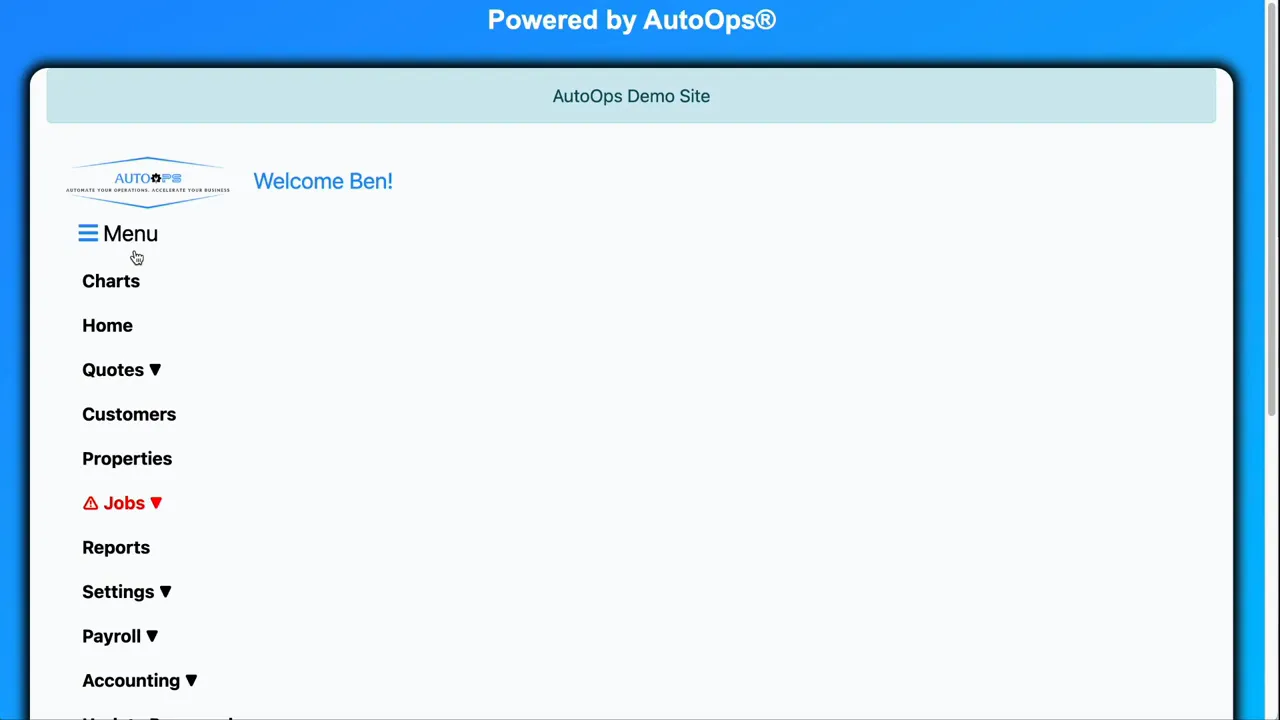
Start by clicking Menu and then Customers. You will see a list of existing customers and a Create Customer button to add new records. The customer list is the first building block that captures the information we need about individuals and properties before we reach the invoice stage.
Customer basic information and account types
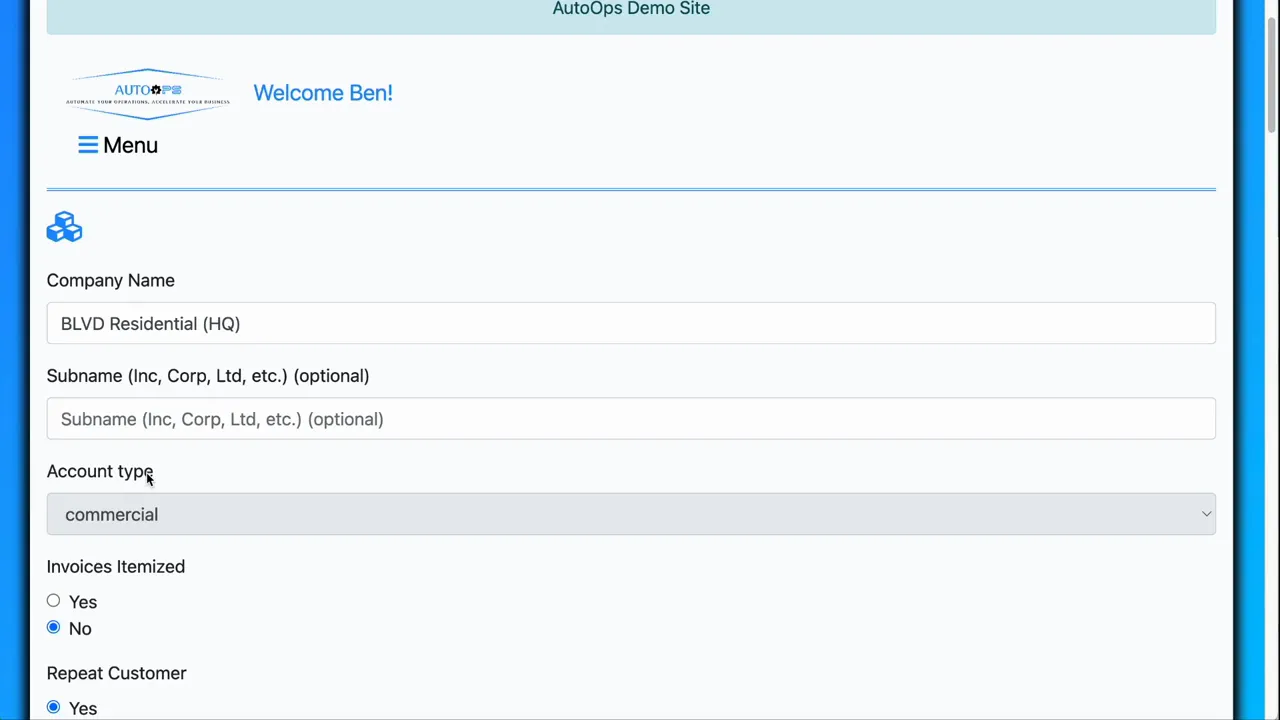
When creating or updating a customer you will enter basic information such as Company Name. For residential accounts enter First Name and Last Name into the name fields; for commercial accounts the subname field is optional.
The account type field identifies whether the customer is commercial or residential. You cannot change the account type directly from the edit screen if the customer already exists. That is intentional because existing fields and values may be specific to the current account type.
If you do need to change the account type, go to Available Actions and choose Alter Account Type. That process removes data specific to the old account type and prompts you to enter the fields required for the new type. This prevents mixing residential-specific data onto commercial accounts and vice versa.
Invoice and contact settings that matter
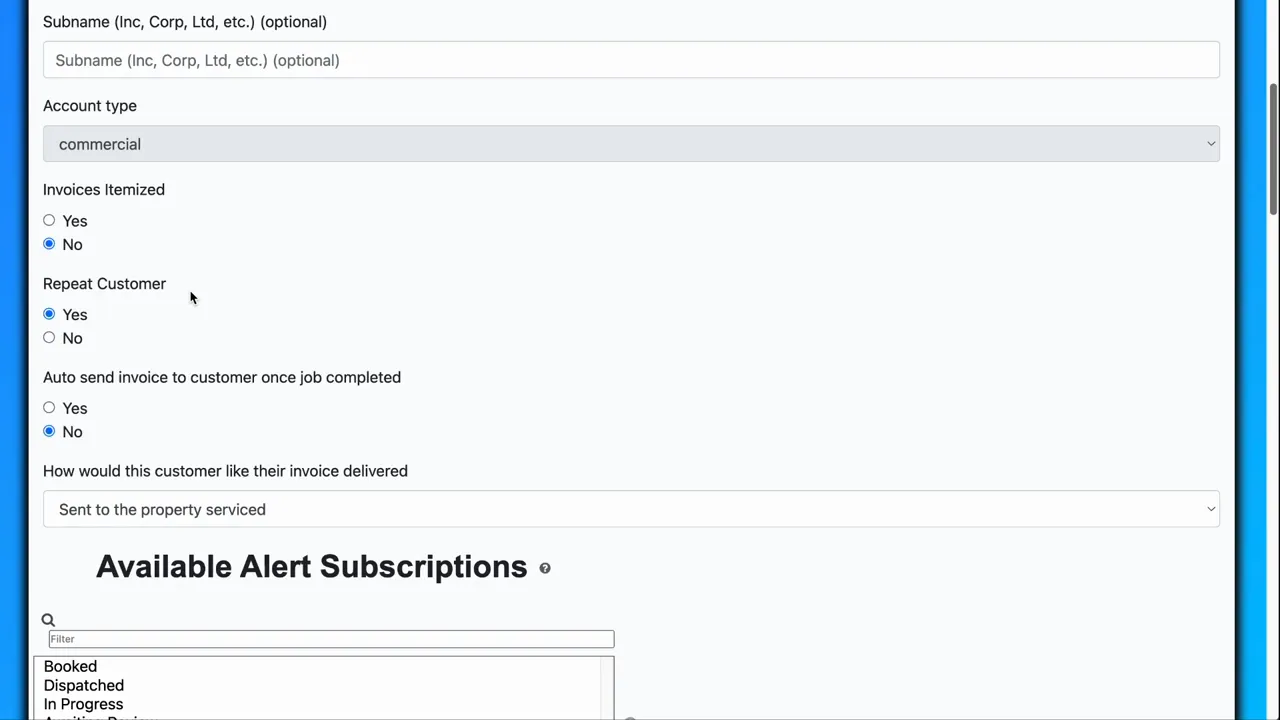
Several customer settings affect how invoices are created and sent:
- Invoices itemized — When enabled the system will create a tax line item on invoices.
- Repeat customer — The system automatically flips this to yes if the customer has had a previous job. That is useful for repeat discounts or targeted marketing at new customers.
- Auto-send invoice once job is completed — The job will be moved to build and the invoice sent automatically only if the invoice delivery method is set to email and there is a valid email contact that accepts invoices.
Alerts and additional information
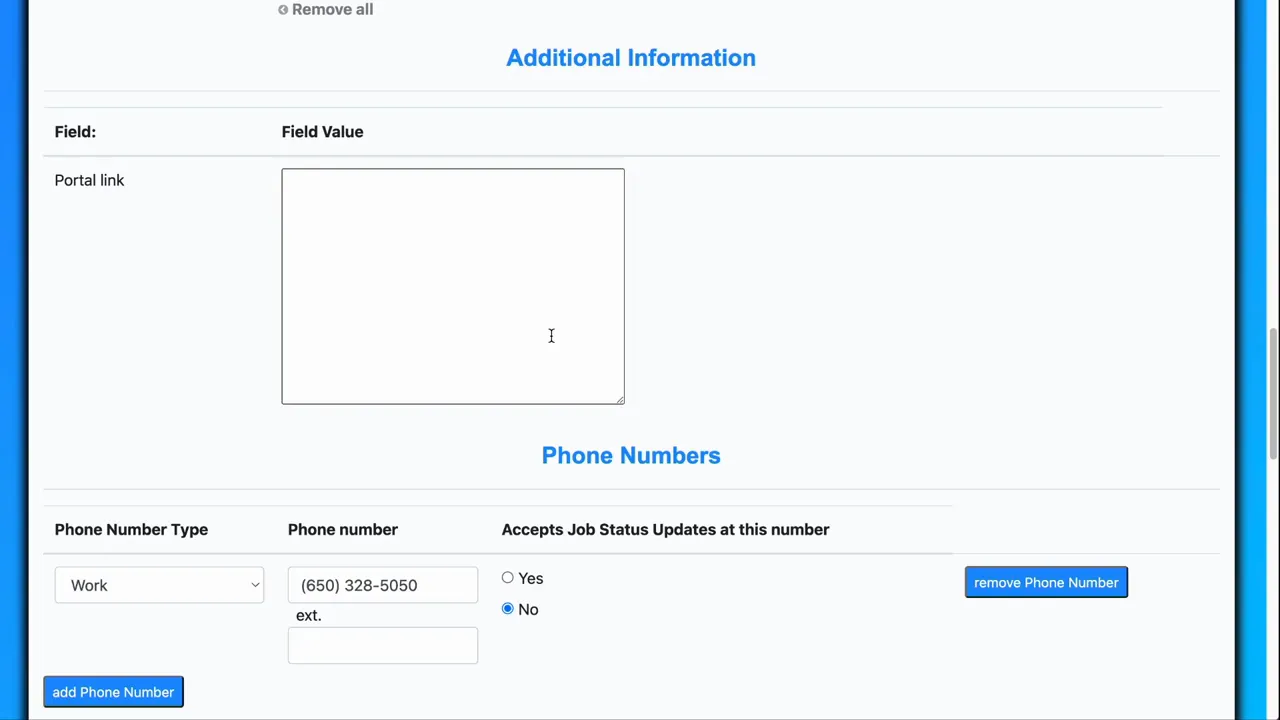
There is an alerts section on the customer record; we treat alerts in more detail elsewhere but you will see the section listed on the customer page. Under Additional Information you will find custom fields for the customer, for example a portal link or other metadata you want attached to that customer.
Creating and managing custom fields
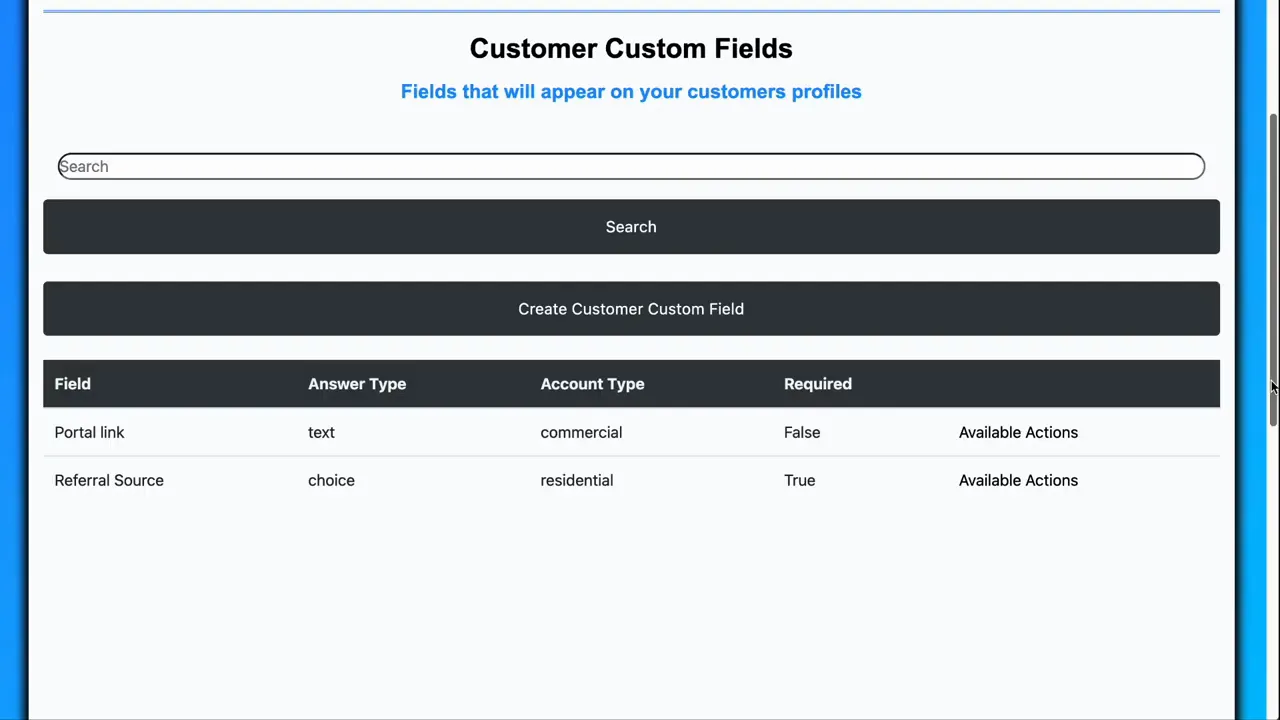
Custom fields let you attach your own data to a customer. To add or edit customer custom fields go to Settings and then Customizations and click Customer Custom Fields.
- Add a new custom field with the Add button. Update an existing field via Available Actions.
- Choose the data type: Boolean (yes or no), custom choices, free text, number, or date.
- Specify whether the custom field applies to residential customers, commercial customers, or both.
- Set a field as required so that creating a new customer forces an entry for that field.
Example: if you use a residential discount you can create a required custom field called Discount Info that applies to residential customers. When someone adds a new residential customer the system will require a Discount Info value before allowing the save.
Customer documents and special instructions
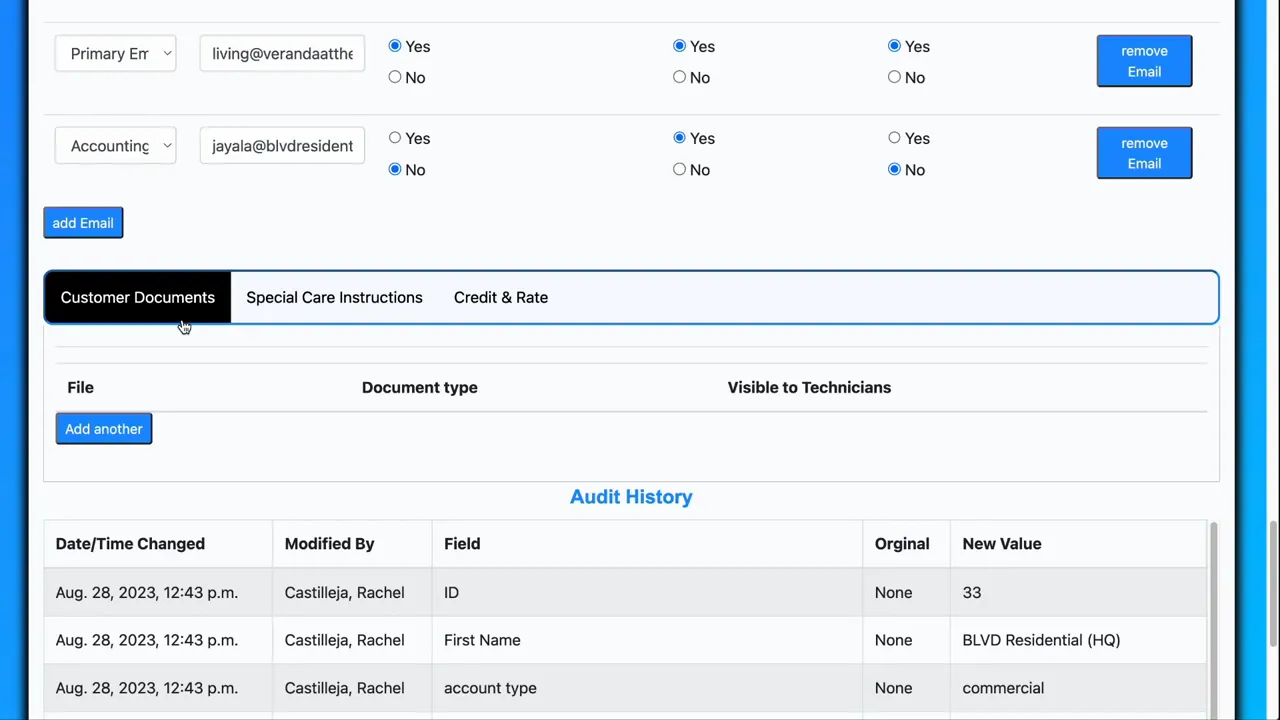
The customer record has a Customer Documents tab where you can upload files related to the customer. Click Add Another to attach more documents.
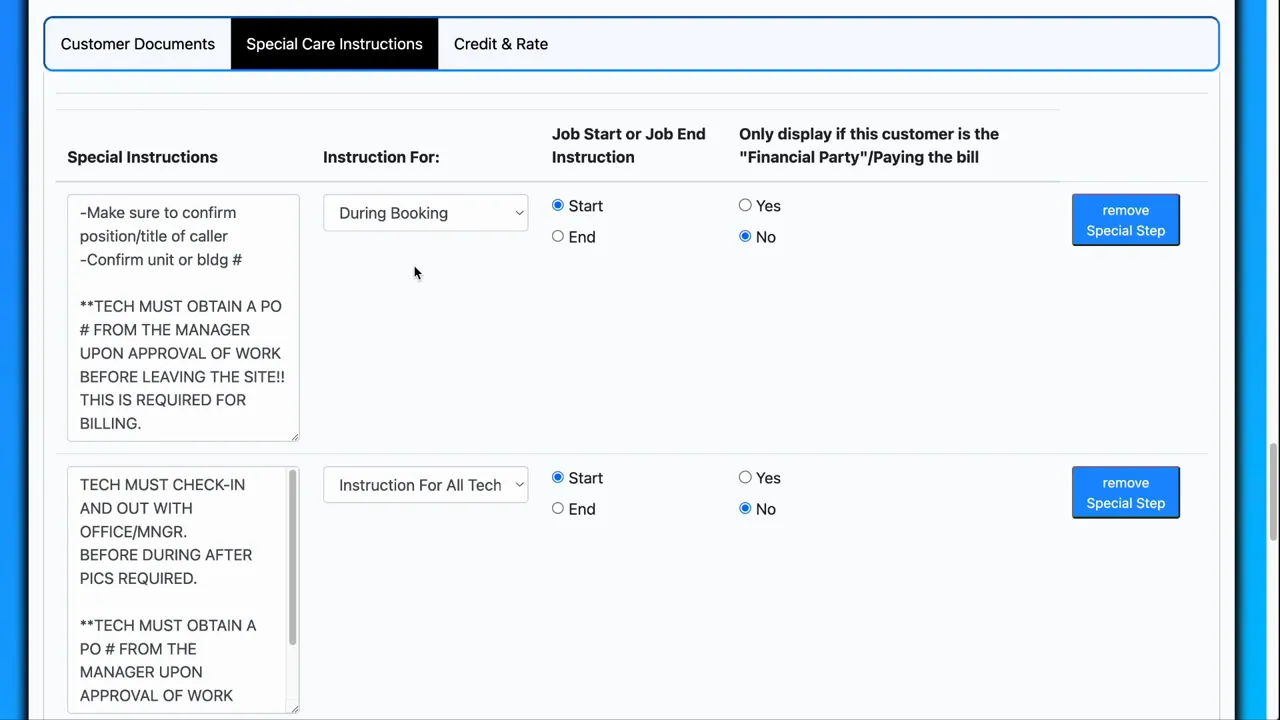
Special instructions are customer-specific care notes that show up during workflows. You could add instructions to each job manually, but adding them to the customer saves time and ensures consistency.
- Visibility can be configured so instructions show to all technicians, only primary technicians, or only secondary technicians.
- Instructions can be set to appear at specific parts of the workflow. Add the same instruction at the start and at the end if you want technicians to see the note twice.
- These messages are just messages. They do not change system logic or calculations.
Examples: a message during Taking Payment reminding a technician which payment method to use, or a note during Quality Checking to verify hourly rates.
Credit and rate settings explained
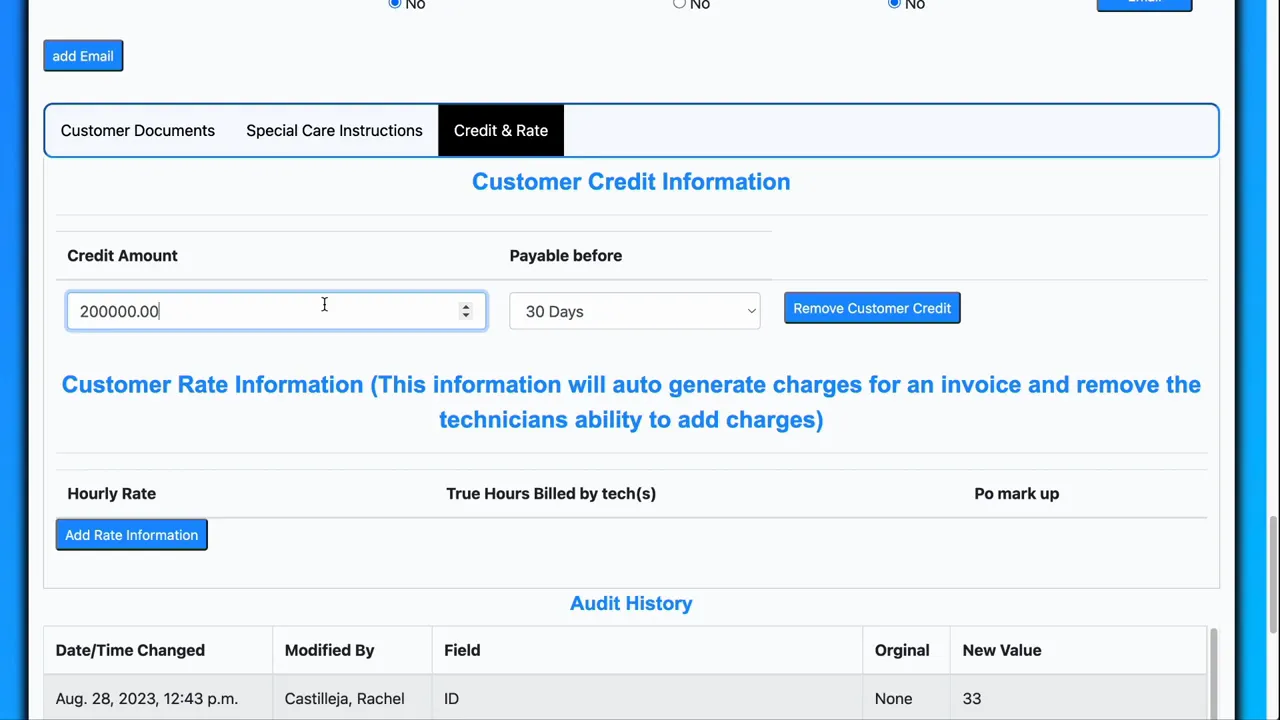
The Credit and Rate tab controls accounting and auto-invoicing behavior:
- Credit amount — Set an allowed outstanding balance and payment frequency. When credit is granted the customer becomes a house account.
- If any invoice goes overdue beyond the specified days or outstanding invoices exceed the credit limit, the system shows a red warning: customer is violating credit terms. If a customer is in violation, a pop-up warning appears when you try to book a call with them if they are selected as the financially responsible party.
- Customer rate — Used for auto-generated invoices. If a rate is entered and an invoice is auto-generated, technicians will not be able to add additional charges on that invoice.
- True hours — If set to yes invoices bill the actual time passed. If set to no, time rounds up to the nearest hour. For example, if true hours is no and two technicians each work 1.5 hours, the system rounds each tech to 2 hours and invoices for 4 hours total.
- Purchase order markup — This is a linear percentage markup. A $100 purchase order with a 15 percent markup becomes $115 on the invoice.
How special instructions accumulate across multiple customers
If a property has multiple customers associated with it, special instructions from all associated customers accumulate. For example, if three customers linked to a single property each have different special instructions, all three sets of instructions will be shown when booking for that property or during the job, depending on when each instruction was configured to appear.
Summary
Creating and updating customers captures the core information you need to control invoicing, job behavior, and technician workflows. Key things to remember:
- Account type changes must be done via Available Actions to avoid data mismatches.
- Invoice and contact settings determine whether invoices get itemized and whether they can be auto-sent.
- Custom fields let you enforce data collection and store custom metadata per customer.
- Special instructions save time and ensure technicians see the notes they need at the right workflow steps.
- Credit and rate settings directly affect invoicing, booking warnings, and billing calculations.
FAQ
How do I change a customer from commercial to residential?
Use Available Actions and select Alter Account Type. That process removes data tied to the old account type and prompts you to enter fields required for the new type so you do not mix residential and commercial data.
How can I make a custom field required for new customers?
Go to Settings then Customizations and open Customer Custom Fields. Create or edit the field and set the Required option. You can also limit the field to residential or commercial customers.
When will the system auto-send an invoice after job completion?
The system auto-sends an invoice only if Auto-send invoice once job is completed is enabled for the customer, the invoice delivery method is set to email, and there is a valid contact email that accepts invoices.
What does True Hours mean on the rate settings?
If True Hours is yes you bill actual time passed. If False you round up to the nearest hour. For example, two technicians working 1.5 hours each would be billed as 4 hours total when True Hours is no because each 1.5 hour gets rounded to 2.
Do special instructions from multiple customers conflict?
Special instructions are accumulated. All instructions from customers associated with a property will be shown according to the workflow timing you selected. They do not automatically override one another; they all apply.
