

Managing technician access within your operational system is crucial for maintaining workflow efficiency and compliance. Whether you’re an admin overseeing a team of technicians or a manager looking to tailor the technician experience, understanding how to configure access settings is essential. In this article, we’ll walk you through the key technician access settings that you can customize to fit your company’s needs.
This guide is based on insights from AutoOps, a trusted resource for operational software solutions, helping you navigate the settings that control what your technicians can see and do within the system.
Table of Contents
- Getting Started: Accessing Technician Job Settings
- Key Technician Access Settings Explained
- Saving Your Changes
- Conclusion
- Frequently Asked Questions (FAQs)
Getting Started: Accessing Technician Job Settings
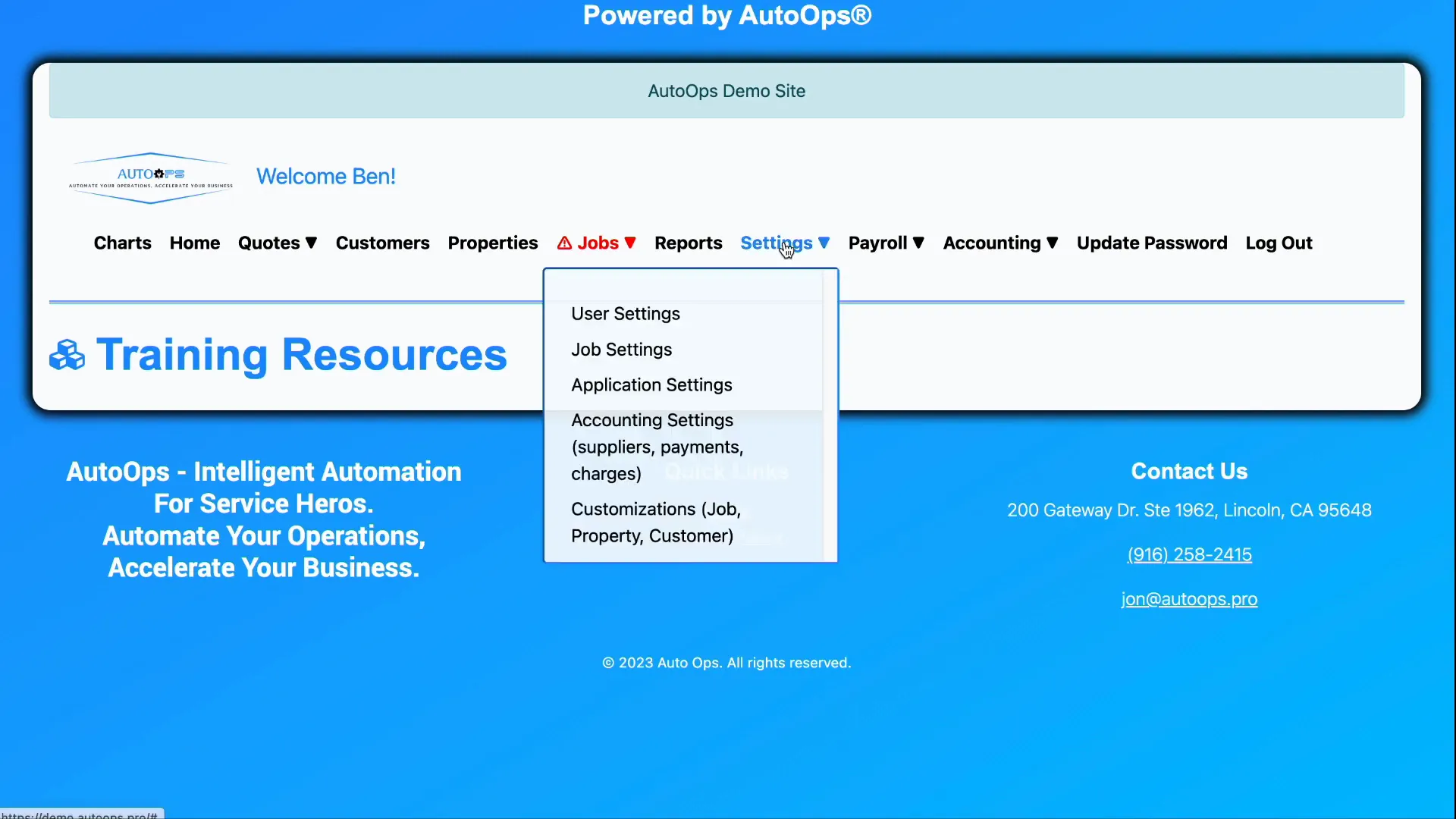
As an administrator, your first step is to log in to the system with your admin account. From there, you’ll navigate to the Settings menu, then proceed to Application Settings. Within this section, you will find the Technician Job Settings, which houses all the controls for technician access.
These settings allow you to apply constraints and permissions that define how technicians interact with their side of the application, ensuring they have the right level of access for their roles.
Key Technician Access Settings Explained
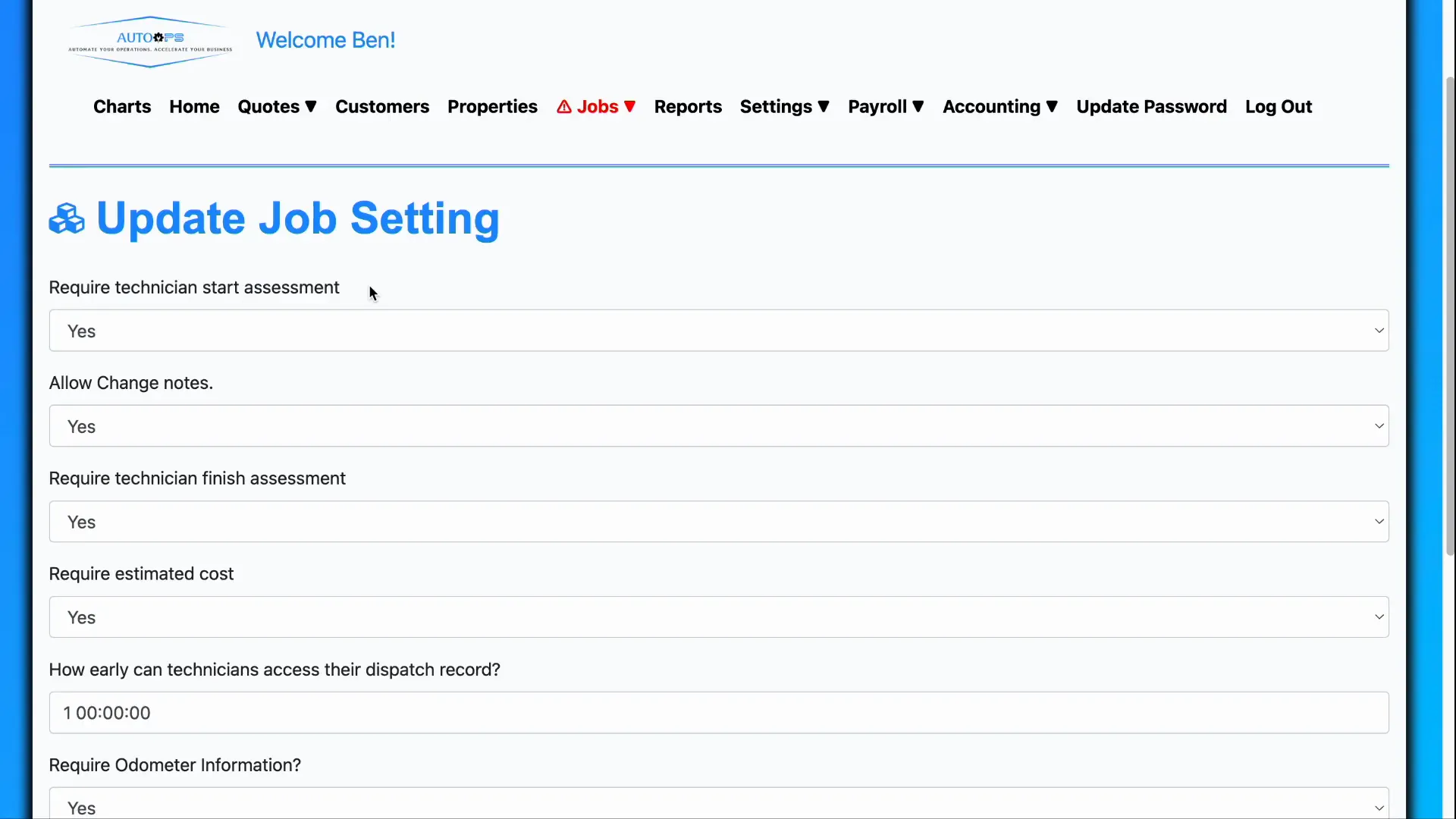
1. Require Technician Start Assessment
This setting determines whether a technician is required to start or complete specific assessments within their workflow. For example, you might want technicians to perform a start assessment to verify initial conditions or a finish assessment to confirm job completion.
If this requirement is unnecessary for your operations, you can simply set this field to No, allowing technicians to bypass these steps.
2. Require Estimated Cost
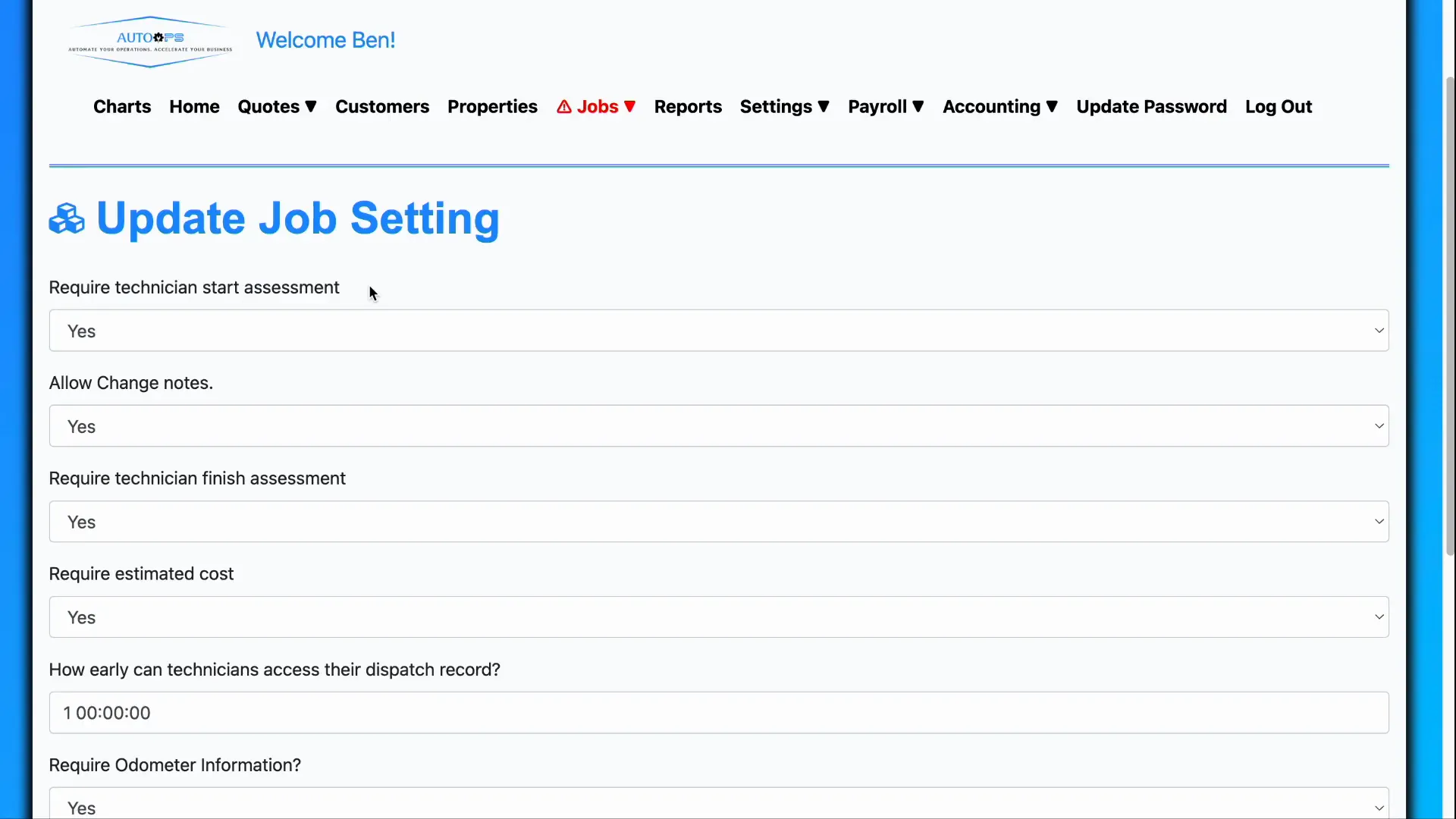
Particularly relevant for companies working with home improvement contracts, this setting mandates that technicians enter an estimated cost before a contract is executed.
Setting this option to Yes ensures that cost estimates are documented upfront, which is essential for compliance and transparency.
However, if your company operates differently—such as pre-bid companies where prices are already agreed upon—you can disable this requirement by setting it to No. This flexibility accommodates various business models and workflows.
3. Early Access to Dispatch Records
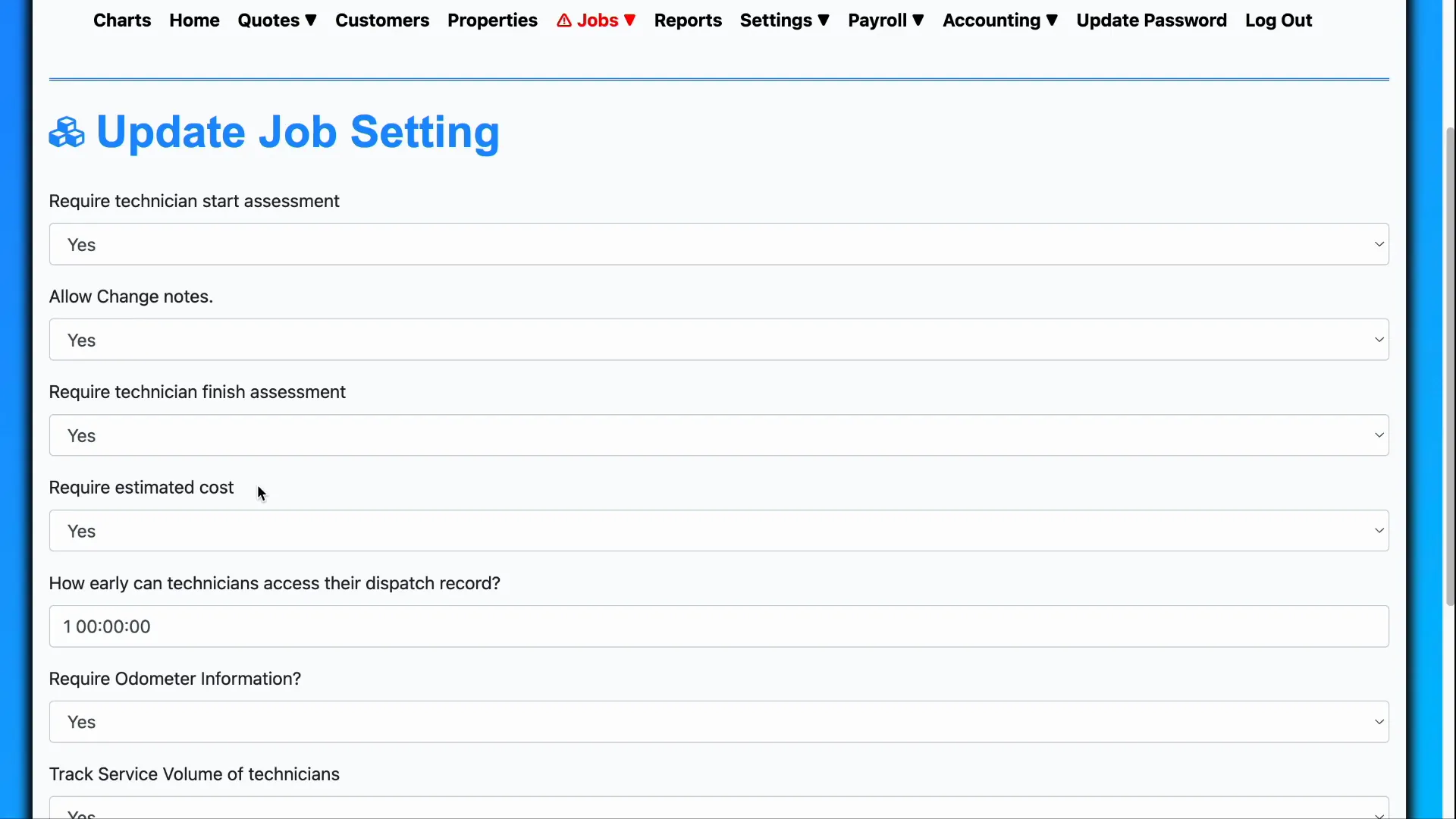
Sometimes, you may want technicians to have early visibility into their dispatch schedules. This setting controls whether technicians can see their upcoming dispatch records ahead of time.
You can limit this visibility by restricting how far in advance they can access their schedule—whether it’s one day, one hour, or any other timeframe you choose. This helps manage expectations and reduce scheduling conflicts.
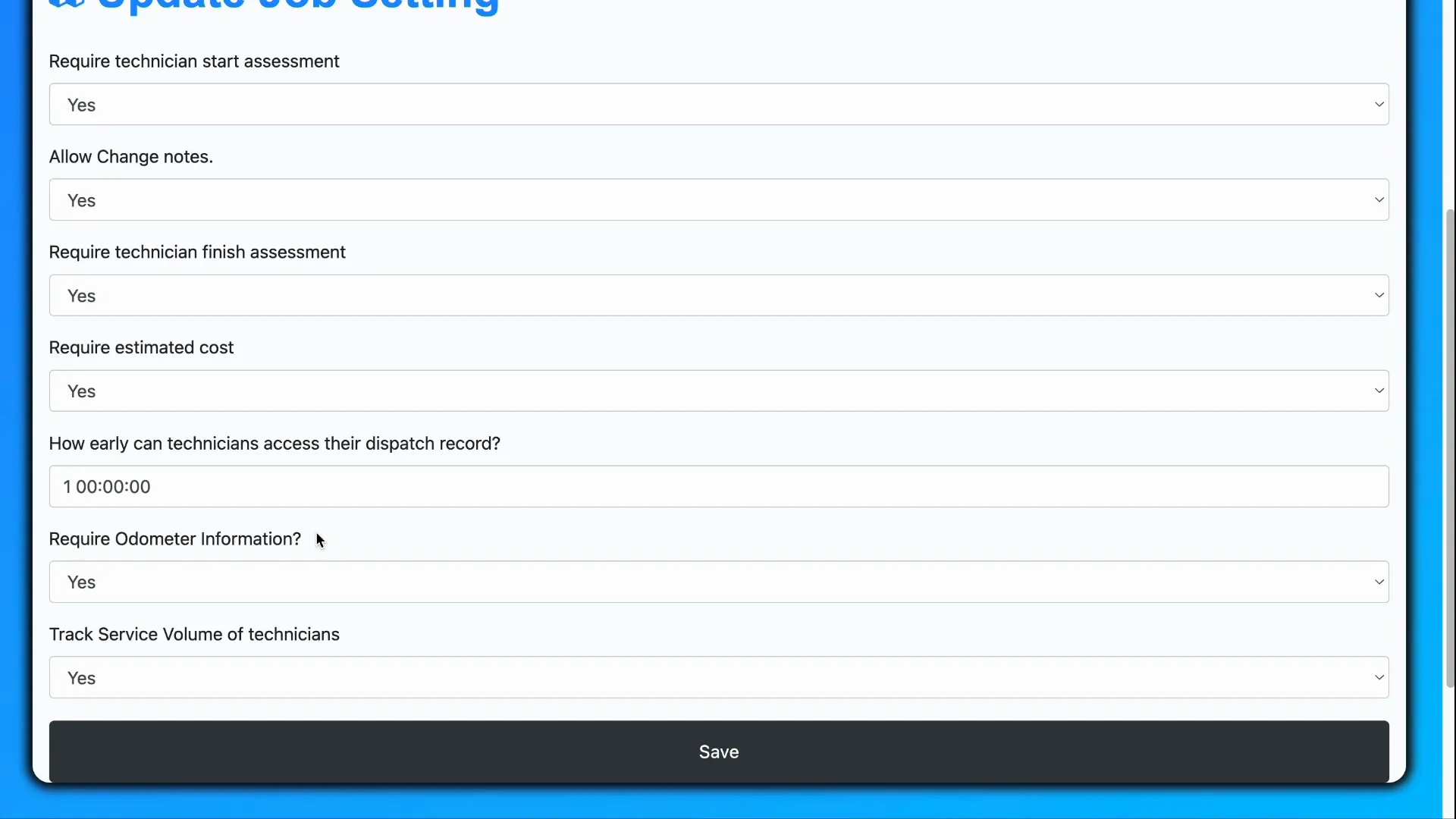
4. Odometer Information Requirement (California Law Compliance)
For companies with technicians driving their own vehicles, especially in California, there’s a legal requirement to log odometer readings. This ensures technicians are reimbursed accurately for mileage.
When enabled, this field appears on the job page, prompting technicians to enter their odometer information.
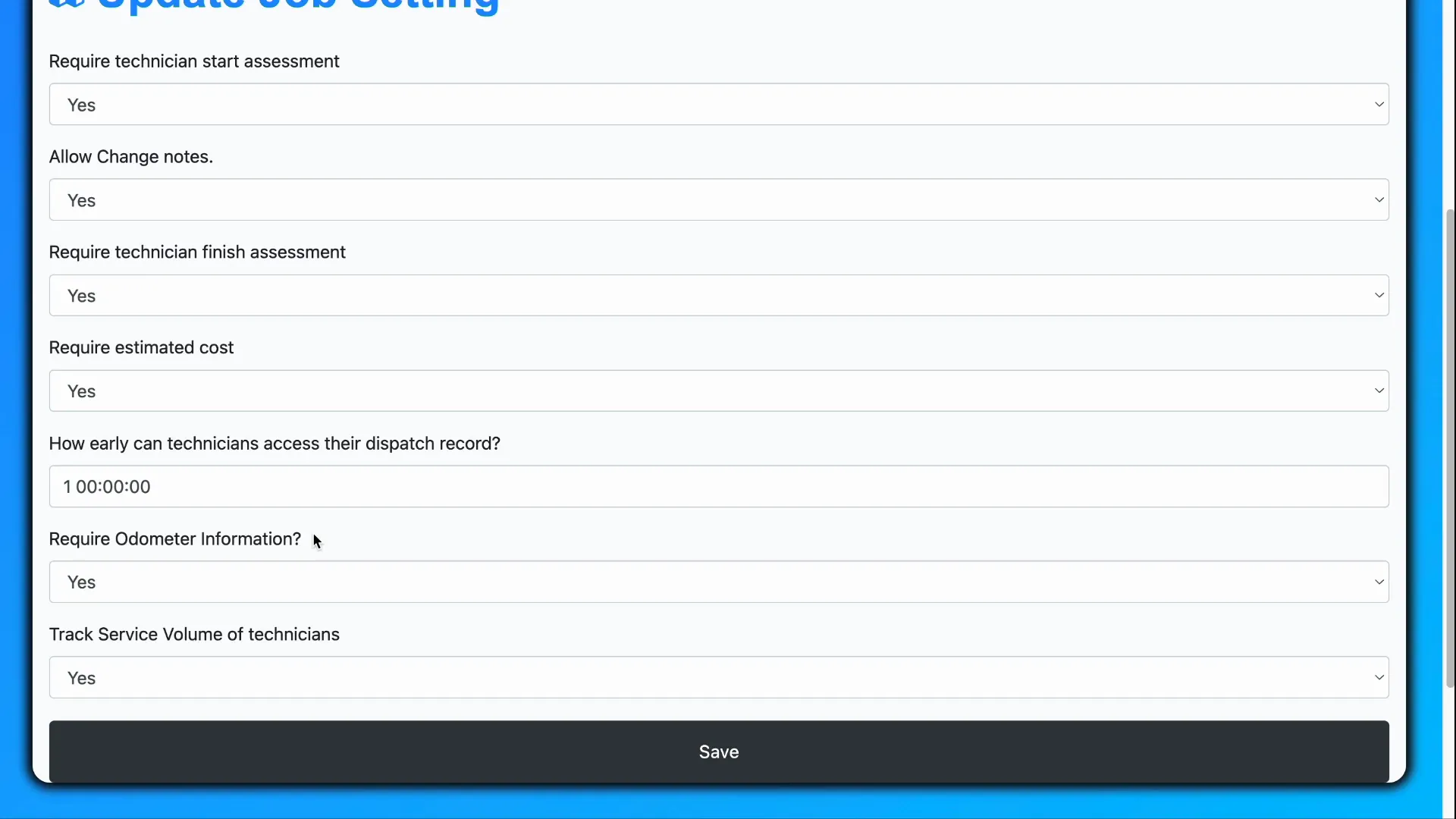
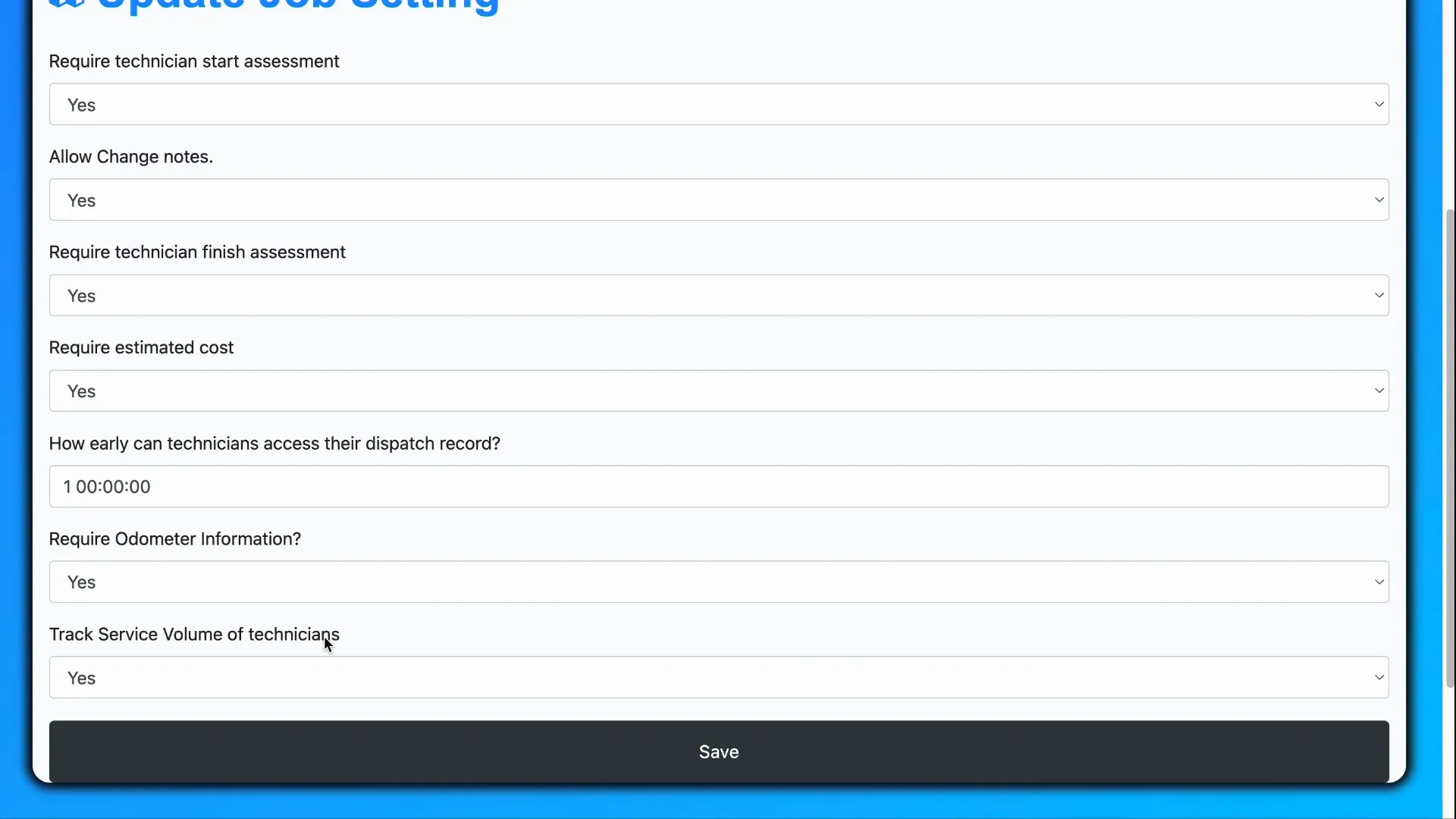
5. Service Volume for Commission Calculations
Many companies compensate technicians based on commission, which requires tracking service volume data. Enabling this setting opens a field where the relevant calculation data can be entered and saved within each job record.
This feature simplifies commission tracking and ensures accurate payment based on performance.
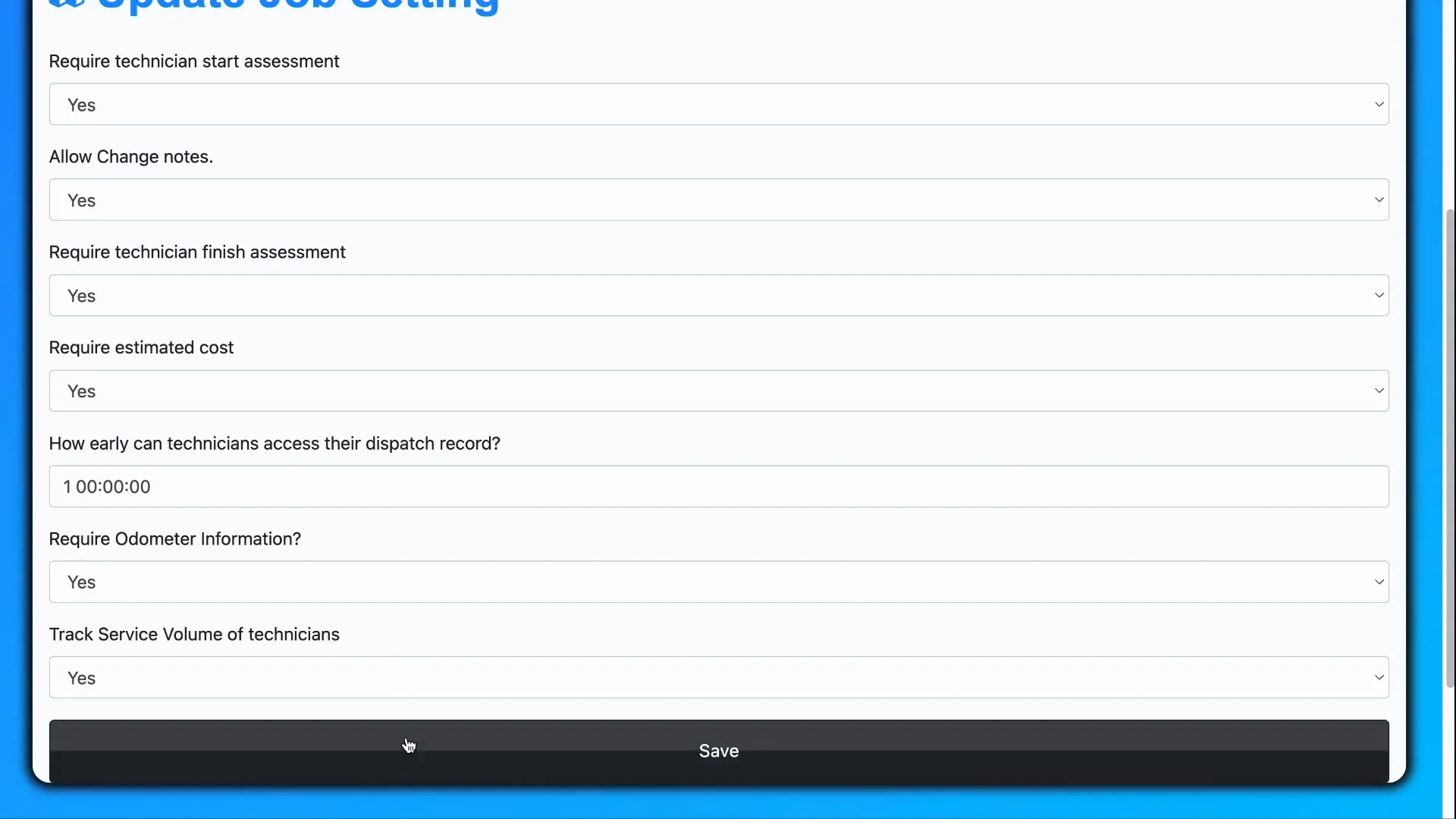
Saving Your Changes
After adjusting any of these settings, don’t forget to click the Save button to apply your changes. This ensures that your customized technician access settings are activated and reflected in the system immediately.
Conclusion
Customizing technician access settings is a powerful way to tailor your system to meet operational needs, compliance requirements, and business workflows. From controlling assessments and cost requirements to managing dispatch visibility and mileage reimbursement, these settings give you full control over how technicians interact with their jobs.
By leveraging these options, you can improve efficiency, maintain regulatory compliance, and provide your technicians with the right tools and permissions to succeed.
Frequently Asked Questions (FAQs)
Q1: Can I disable the requirement for technicians to start or finish assessments?
Yes, you can toggle the Require Technician Start Assessment setting to No if assessments are not necessary for your workflow.
Q2: Is it mandatory for technicians to enter estimated costs for every job?
No, the estimated cost requirement is primarily for home improvement contracts. If your company operates on pre-agreed prices, you can disable this requirement.
Q3: How can I limit what dispatch information technicians see and when?
You can control early access to dispatch records by setting a time limit, such as one day or one hour before the job, to restrict how far in advance technicians can view their schedules.
Q4: Why do technicians need to enter odometer information?
In certain states like California, technicians using their personal vehicles must log odometer readings to be reimbursed for mileage driven on the job.
Q5: What is the service volume setting used for?
This setting is for companies that pay technicians on commission, allowing them to record and save service volume data for commission calculations.
By understanding and utilizing these technician access settings, you can optimize your operational system to better support your technicians and your business goals.
