

I’m AutoOps, and in this guide I’ll walk you through the Jobs list and the main job actions available in the system. If you manage invoices, dispatches, or field work, this walkthrough explains how to find jobs, use filters, communicate with customers, create related subjobs, and handle recalls. Below you’ll find step‑by‑step explanations, screenshots from the interface, and a short FAQ to answer common questions.
Table of Contents
- Accessing the Jobs List
- Filters and Views — Pick the job list you need
- Available Actions: What you can do from the Jobs list
- Sending Customer Communication
- Creating Subjobs
- Linking Recall Jobs
- Wrapping Up
- FAQ
Accessing the Jobs List
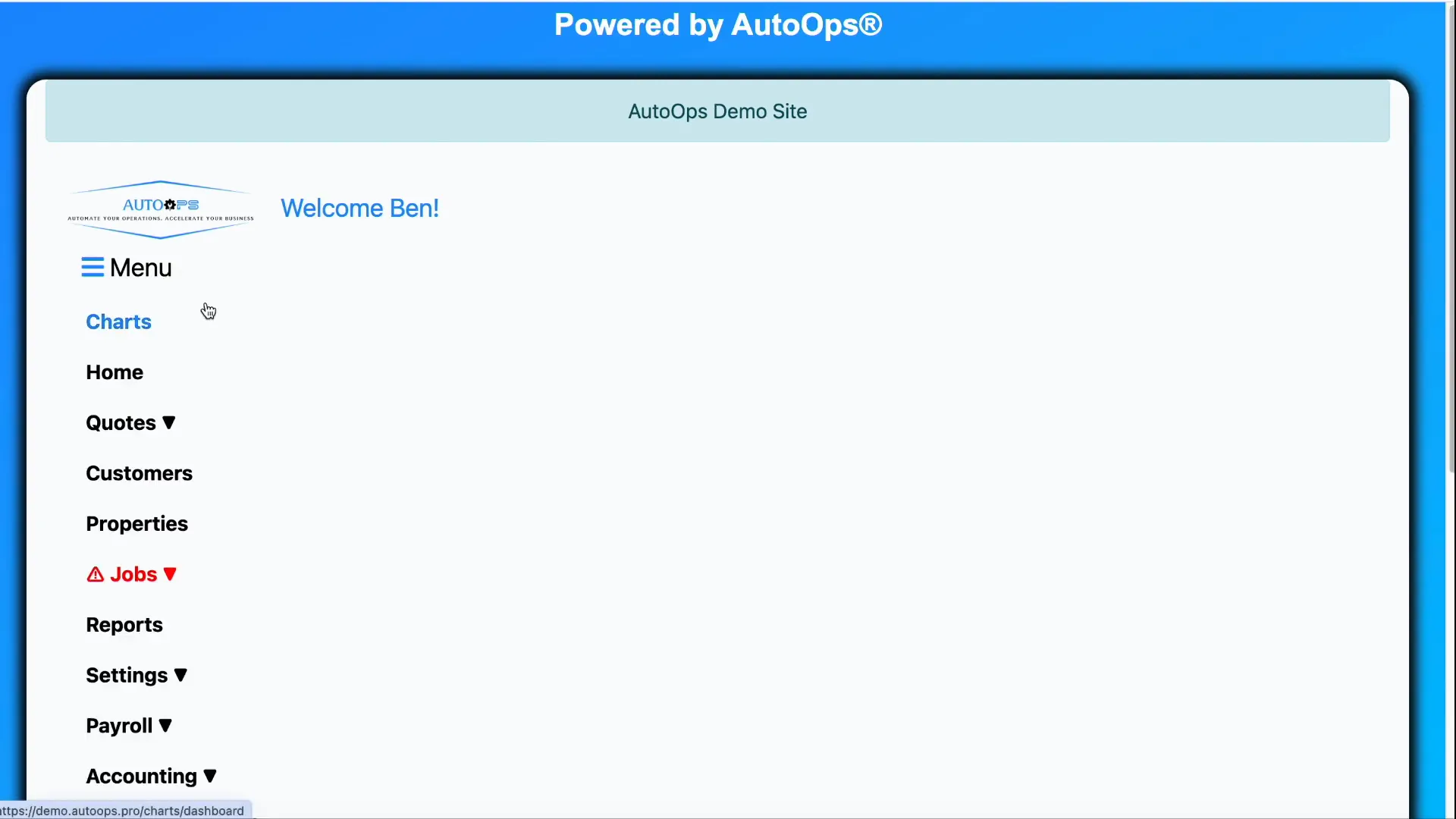
To get started, log into the system, go to the home page, open the menu, and click Jobs. The Jobs list (also commonly referred to as the invoices section) is where you’ll find every job and invoice record tied to properties and customers.
Filters and Views — Pick the job list you need
The drop‑down at the top of the Jobs list contains filters that let you limit what you see. These filters make it simple to find the jobs you care about without wading through everything.
- All Jobs — shows every job without filtering.
- Completed jobs scheduled today — shows jobs that were completed and were scheduled for today.
- Workflow step filters — includes views like open dispatch records, jobs in progress, jobs awaiting quality check, jobs awaiting billing, and jobs awaiting payment.
- Deferred jobs — a custom status you can use for any situation that doesn’t fit the standard workflow.
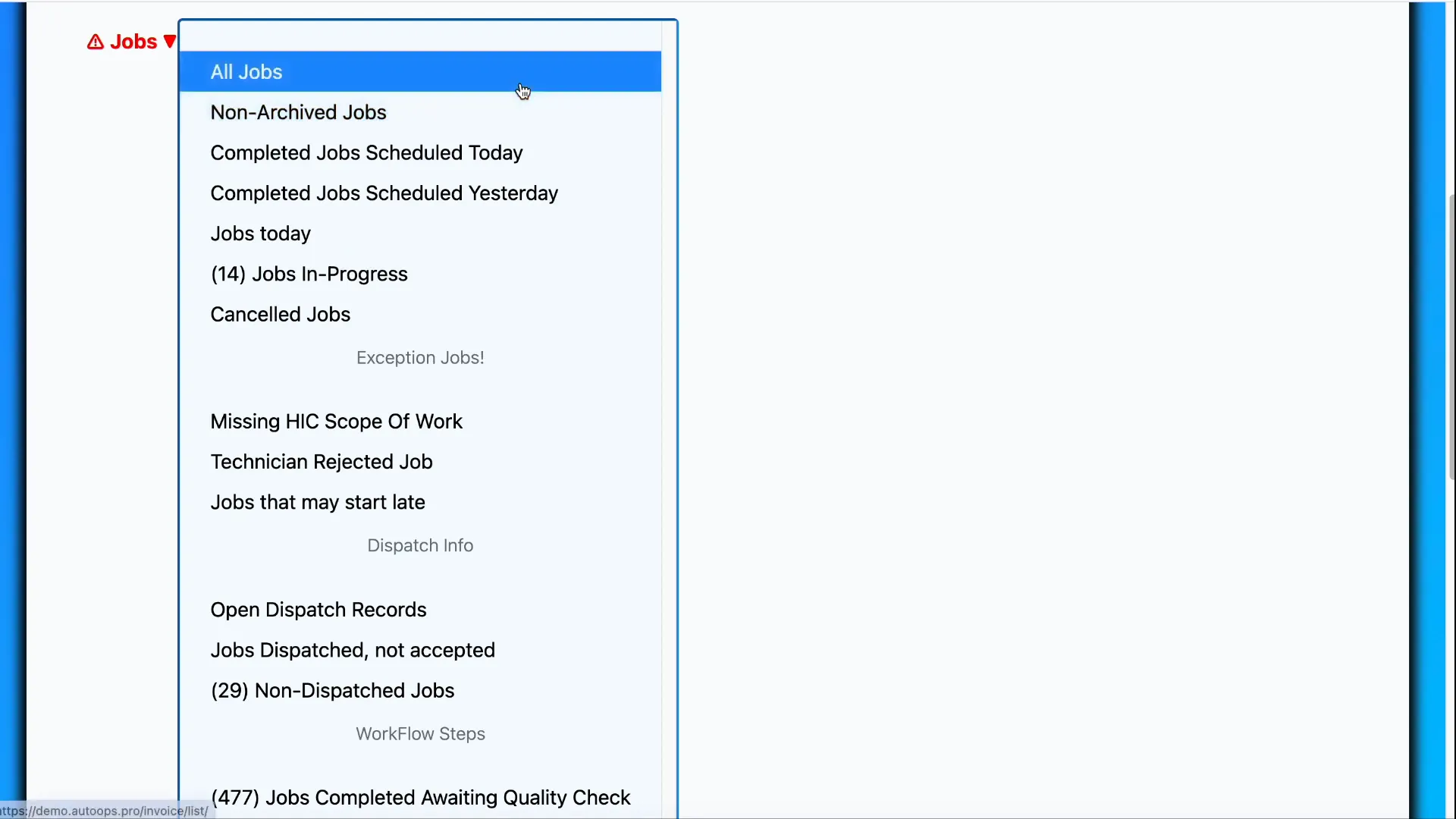
After you select a filter option from the drop‑down, scroll down to see the matching list of jobs.
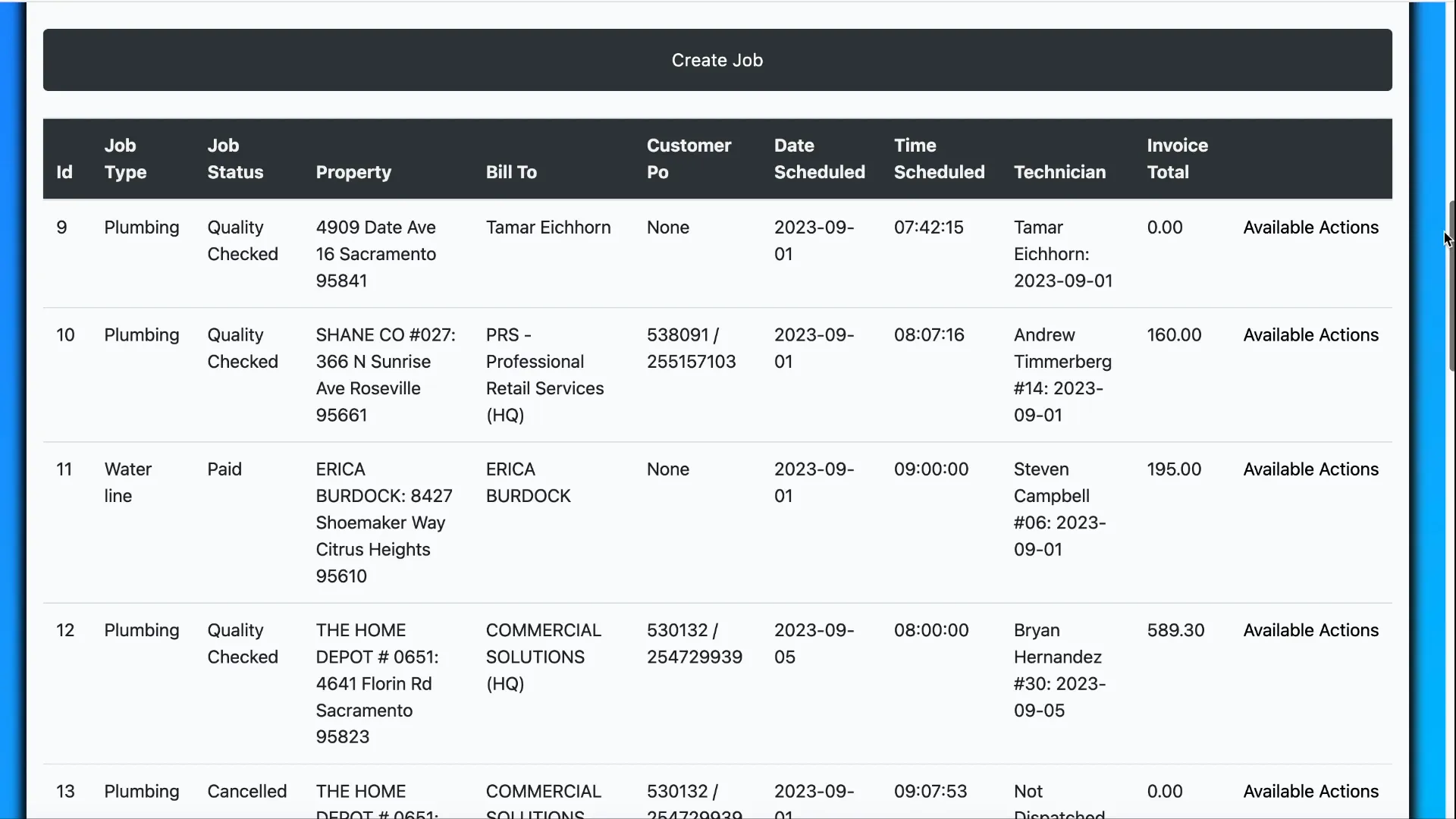
Available Actions: What you can do from the Jobs list
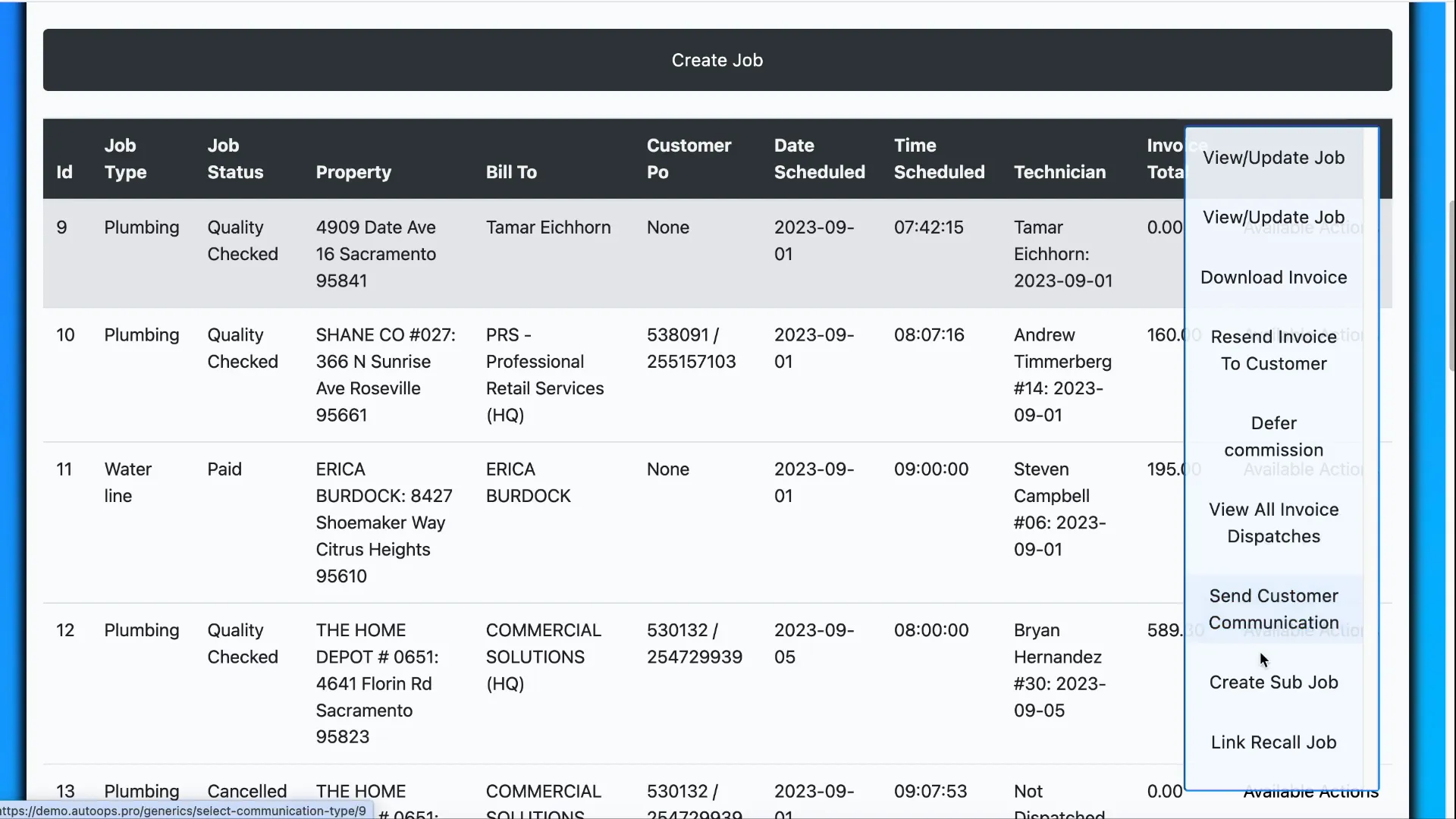
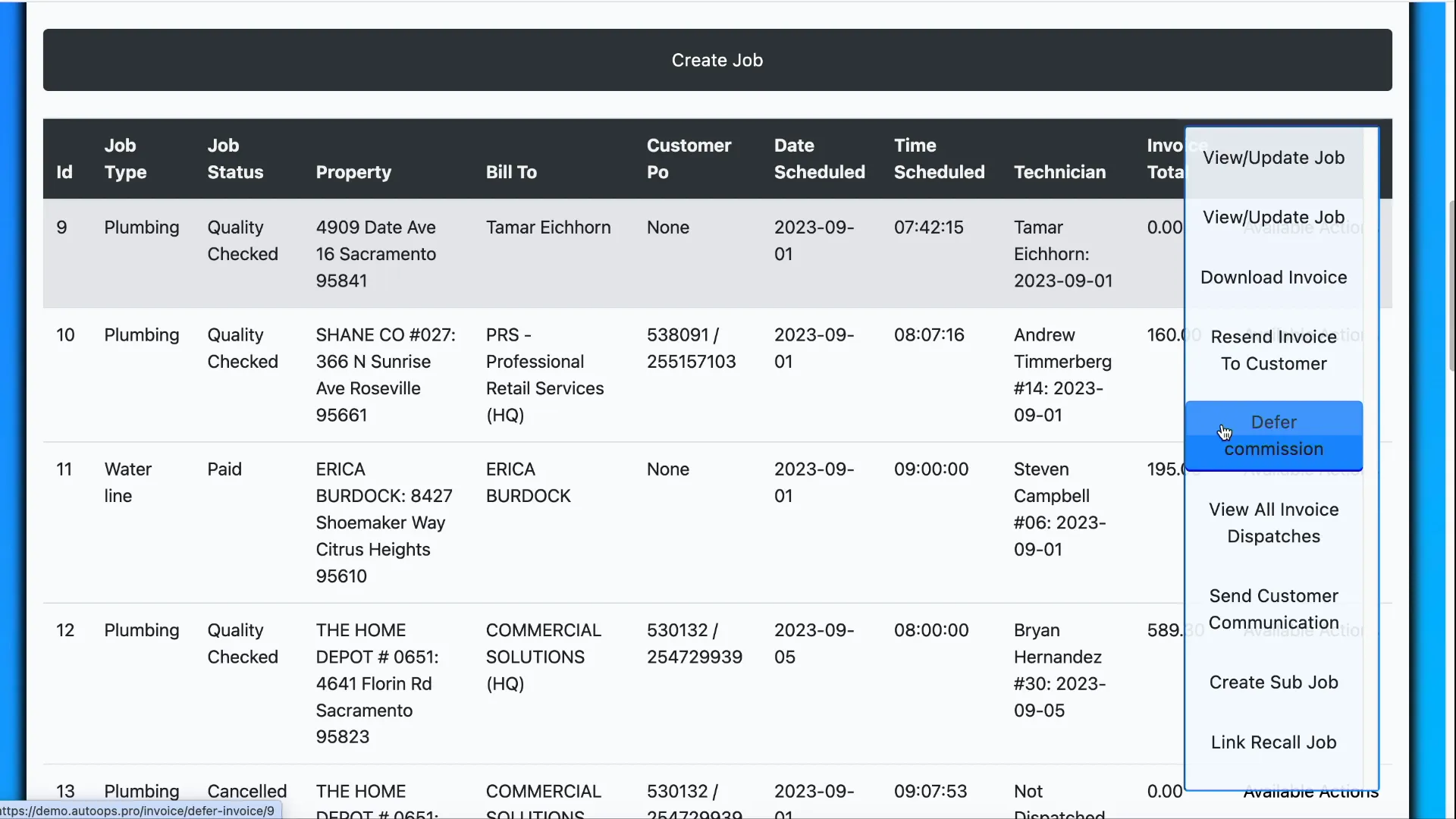
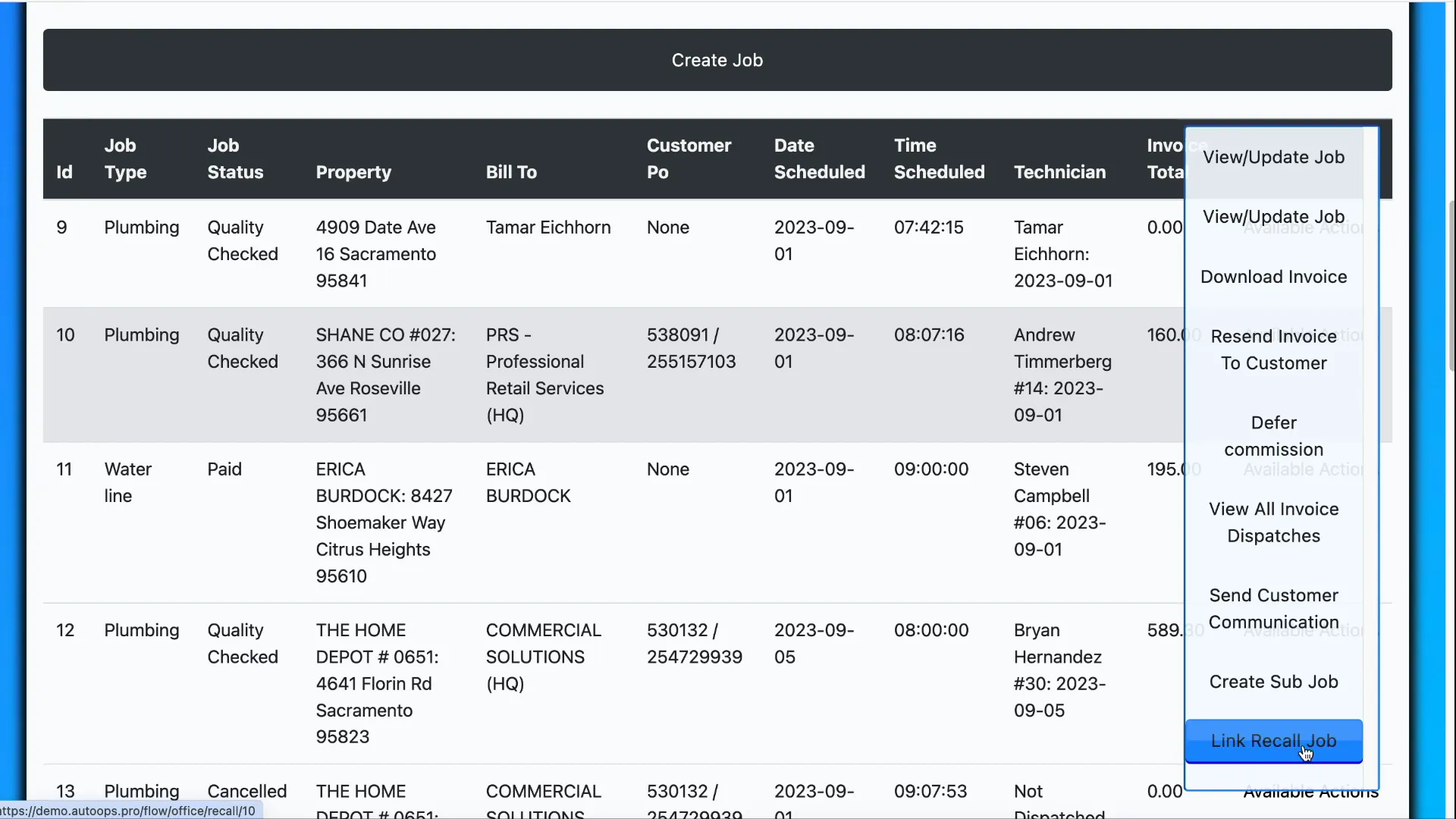
Each job in the list has an Available Actions menu. These are the common actions you’ll use frequently:
- Download an invoice
- Resend invoice to customer
- Defer commission (mark job as deferred)
- View all invoice dispatches
- Send customer communication (text or email)
- Create subjob
- Link recall job
Defer Commission / Deferred Status
The Defer commission button marks a job as deferred. This deferred status acts as a flexible, custom job status you can use whenever the job doesn’t neatly match the standard workflow categories.
Sending Customer Communication
From the actions menu you can send messages directly to customers. You have two options: text message or email message.
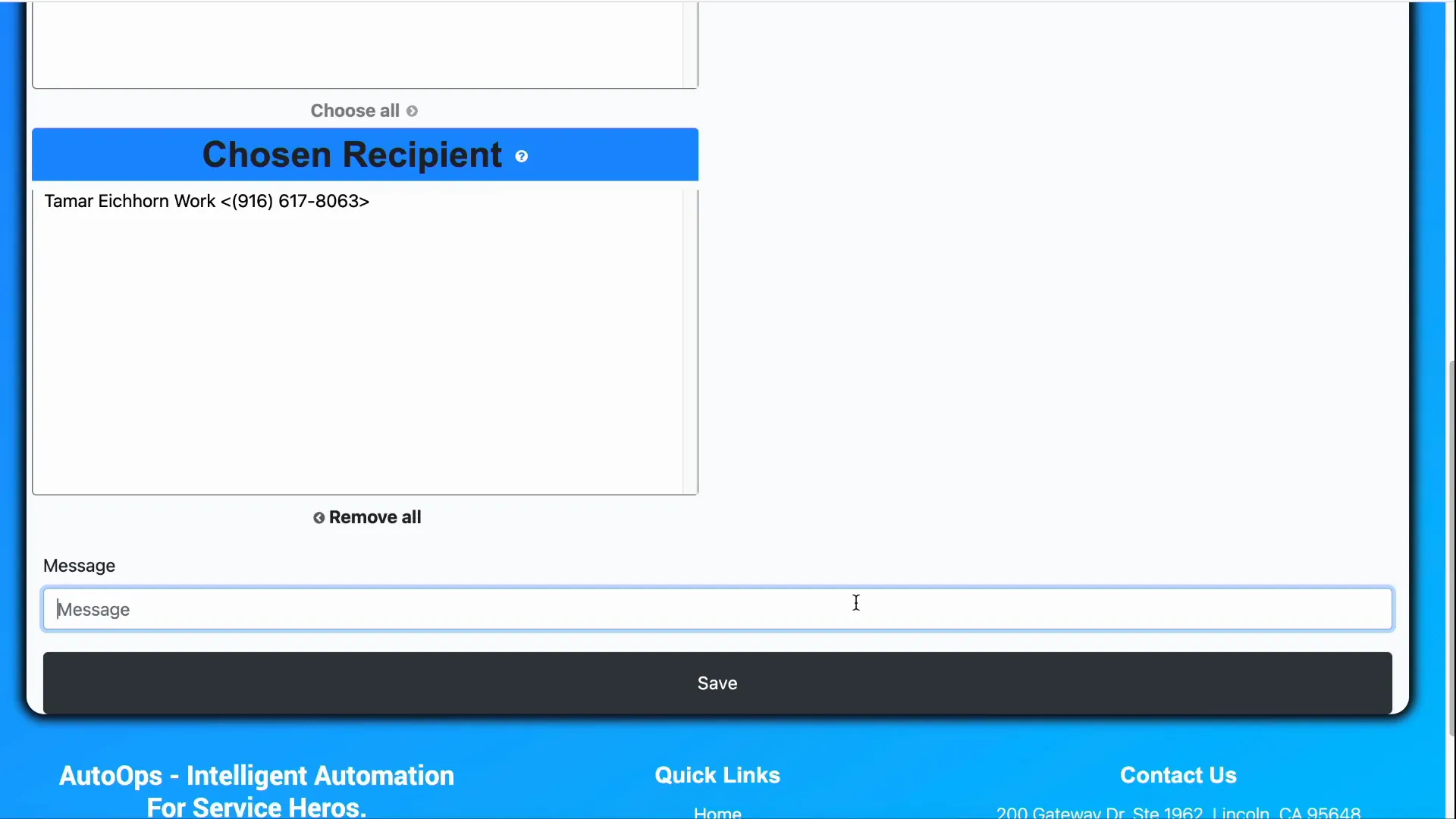
Text Messages
Text messages are simple and concise. Choose Text message, pick one or more recipients from the recipient list, and type your message. Keep in mind there’s a 160‑character limit for texts.
Tip: Use text messages for quick status updates, arrival windows, or short confirmations.
Email Messages
Emails are more flexible. When you choose Email message you can:
- Select recipient(s) just like with text messages
- Set a subject line
- Write a full email body
- Attach photos (progress photos, finished photos)
- Attach any documents uploaded to the property or the job invoice — including the invoice itself
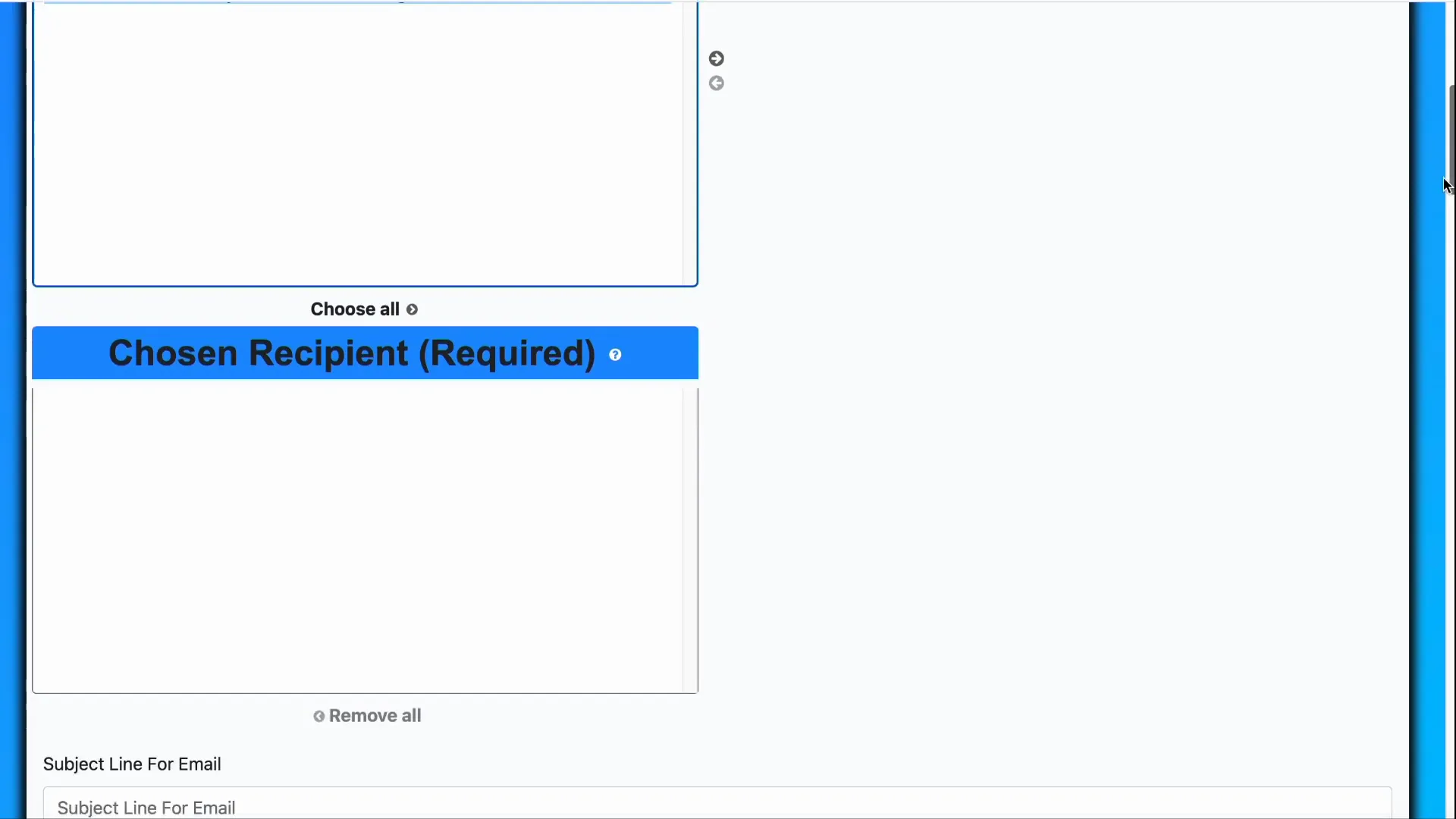
Once your message is composed and attachments selected, hit Save to send or queue the communication.
Creating Subjobs
Subjobs let you create jobs that are related to a parent job. This is especially helpful for tracking progress payments and staged work.
Example: Suppose a job will take five days to complete. You could set up:
- A subjob to bill 20% on day 1
- Another subjob to bill 20% on day 3
- The final subjob to bill the remaining 60% on day 5
Subjobs make it easy to track different payment dates, charges, or accounting entries that belong to the same overall job.
Linking Recall Jobs
The Link recall job action ties a new service call (a recall/warranty visit) back to the original job. This is optional, but useful when you need to:
- Track warranty work associated with a prior job
- Handle commission chargebacks for commission‑based clients (chargebacks may be calculated based on what the technician who fixed the issue would normally charge)
Wrapping Up
The Jobs list is your central hub for tracking work, invoices, and customer communications. Use filters to focus your view, the Available Actions menu to perform common tasks quickly, and subjobs or recall links to maintain accurate accounting and service history. These tools streamline dispatch, billing, and customer follow‑up so your field operations run smoothly.
FAQ
Q: Can I use the Jobs list and Invoices section interchangeably?
A: Yes. The Jobs list is often referred to as the invoices section — it’s fine to use either term.
Q: What is a deferred job and when should I use it?
A: Deferred is a custom status you can apply when a job doesn’t fit the default workflow states. Use it for special cases like pending approvals, disputed charges, or other situations that require custom tracking.
Q: How do I send photos or the invoice to a customer?
A: Choose Email message from the Send Customer Communication action, then attach progress photos, finished photos, or documents. You can also attach the invoice itself.
Q: Why would I create a subjob instead of multiple invoices on one job?
A: Subjobs let you track related work items separately — especially useful for staged billing, different payment dates, or if accounting needs separate records while still associating everything to one parent job.
Q: When should I link a recall job?
A: Link a recall job when a warranty or follow‑up visit is performed as a result of a prior job. It helps with service history and is important for commission reconciliation when chargebacks apply.
