
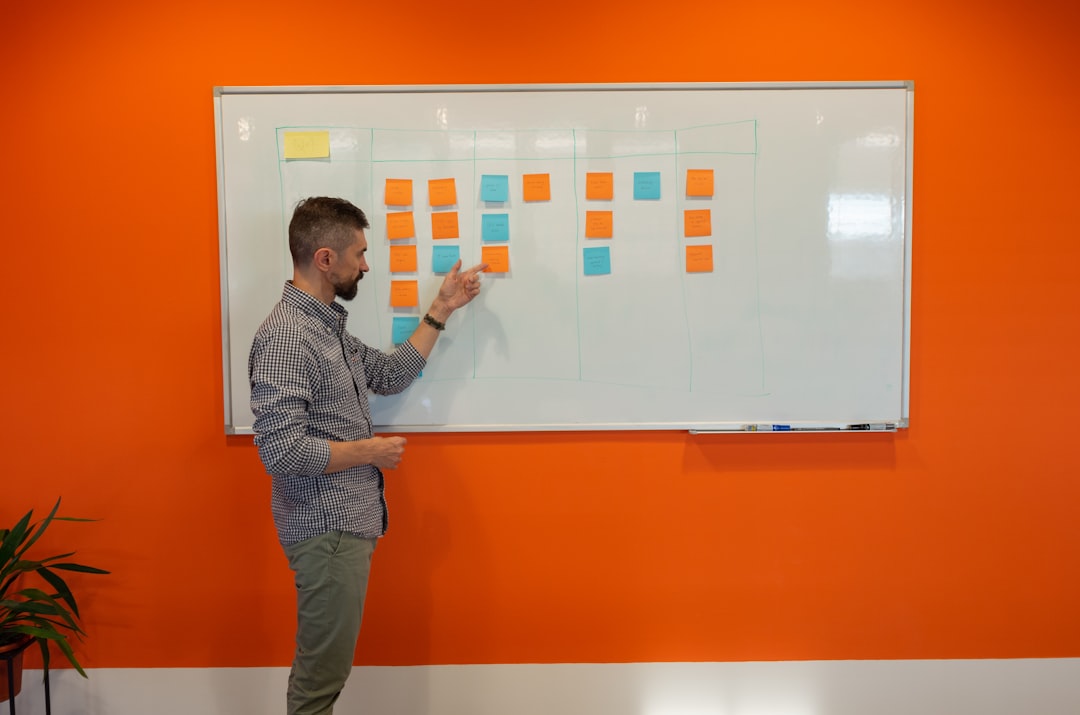

Dealing with a messy whiteboard schedule can be a real headache. Whether it’s smudged writing, erased appointments, or just a general lack of clarity, a physical whiteboard often creates more problems than it solves when it comes to managing a schedule. The good news is, there are a ton of fantastic software alternatives out there that can not only replace your old whiteboard but significantly upgrade your scheduling process. The best software to replace whiteboard scheduling really depends on your specific needs, but generally, you’ll be looking for tools that offer clear visualization, easy editing, collaboration features, and ideally, some automation. We’ll dive into some top contenders, categorized by their strengths, to help you find the perfect fit.
Before we jump into specific tools, let’s quickly touch on what makes a physical whiteboard so challenging and what features you should prioritize in a digital replacement.
The Headaches of Physical Whiteboards
- Messy and hard to read: Smudges, different handwriting, and limited space make them hard to parse quickly.
- Not easily scalable: Adding more information means more clutter, or completely erasing and rewriting.
- Lack of version control: No way to track changes, who made them, or revert to previous versions.
- Limited access: You have to be physically present to see or update the schedule.
- No notifications or reminders: Easy to miss appointments or tasks if not constantly checking.
- Prone to errors: Easy to accidentally erase or overwrite important information.
- No data insights: Can’t easily analyze trends, resource utilization, or identify bottlenecks.
Essential Software Features to Priorize
When scouting for a digital whiteboard replacement, keep these features in mind:
- Visual Clarity: The software should present information in a clean, easy-to-understand format. Think drag-and-drop interfaces, color-coding, and customizable views.
- Easy Editing & Updating: Making changes should be quick and intuitive, without the fuss of erasing and rewriting.
- Collaboration: Multiple users should be able to view, edit, and comment on the schedule in real-time.
- Accessibility: Cloud-based access from anywhere, on any device (desktop, tablet, mobile) is key.
- Notifications & Reminders: Automated alerts for upcoming tasks, deadlines, or changes.
- Integration Capabilities: Can it connect with other tools you use (calendars, project management software, communication apps)?
- Reporting & Analytics: The ability to pull data on scheduling trends, resource allocation, and task completion.
- Security & Permissions: Control over who can view and edit what.
Best for Visual Task Management & Project Planning
If your whiteboard is primarily used for outlining tasks, managing project timelines, or visualizing workflow, these tools offer robust solutions with strong visual components.
Trello: The Kan-ban King
Trello really shines for its simplicity and visual appeal, built around the Kanban board methodology. If you’re currently using your whiteboard to track tasks through different stages (e.g., “To Do,” “In Progress,” “Done”), Trello is a natural and powerful upgrade.
How Trello Works
You create “boards” for different projects or teams. On each board, you have “lists” (which can be your workflow stages) and “cards” (which represent individual tasks or items). You can drag and drop cards between lists as they progress.
Key Features for Scheduling
- Intuitive Drag-and-Drop Interface: Moving tasks is incredibly easy and visually satisfying.
- Customizable Cards: Each card can hold a wealth of information: descriptions, checklists, due dates, attachments, comments, and assigned members.
- Color-Coded Labels: Quickly categorize tasks by priority, type, or team.
- Power-Ups (Integrations): Extend Trello’s functionality with integrations like Calendar View, Slack, Google Drive, and more.
- Team Collaboration: Assign tasks, add comments, and track activity history for each card.
- Calendar View Power-Up: While Trello’s core isn’t a calendar, this power-up transforms your card due dates into a visual calendar, making it excellent for deadline-driven whiteboards.
Why it Replaces a Whiteboard Well
It provides a clear, visual representation of tasks, their status, and who’s responsible. The ability to add detailed information to each “card” means you’re not limited by physical space, and the real-time updates ensure everyone is always looking at the most current version. No more ambiguity about what’s next or whose turn it is.
Asana: Comprehensive Task & Project Management
Asana is a more robust option than Trello, offering diverse views and extensive features for managing complex projects and teams. While it can handle simple task lists, it truly excels when you have multiple tasks, sub-tasks, and dependencies.
Diverse Project Views
Asana offers several ways to visualize your work, making it highly adaptable to different scheduling needs:
- List View: A traditional task list, great for outlining sequential steps.
- Board View (Kanban): Similar to Trello, visualizing tasks moving through stages.
- Timeline View (Gantt Chart): Perfect for project scheduling, showing task durations, dependencies, and overall project timelines. This is a game-changer if your whiteboard often features complex timelines.
- Calendar View: See due dates and scheduled events in a familiar calendar format.
Advanced Scheduling Capabilities
- Task Dependencies: Link tasks so that one can’t start until another is complete, crucial for project planning.
- Workload Management: See at a glance who is overloaded and reassign tasks as needed (available in higher tiers).
- Subtasks & Sections: Break down large tasks into manageable components.
- Custom Fields: Add specific data relevant to your business, like priority levels, client names, or estimated hours.
Why it Replaces a Whiteboard Well
Asana takes the concept of a whiteboard schedule and adds layers of organizational power. The timeline view directly replaces complicated hand-drawn Gantt charts, providing dynamic, editable schedules that update automatically. Its extensive collaboration features ensure everyone is on the same page, and its ability to handle projects of varying complexity makes it suitable for almost any whiteboard use case.
Best for Team Scheduling & Resource Management

If your primary use of the whiteboard is to schedule shifts, book resources (rooms, equipment, people), or manage appointments, these tools are built specifically for that purpose.
When I Work: Employee Scheduling Simplified
When I Work is designed specifically for businesses that need to schedule employees, volunteers, or shifts. It addresses common whiteboard scheduling issues like shift conflicts, availability, and communication.
Built for Shift Scheduling
- Drag-and-Drop Schedule Builder: Easily create and adjust shifts on a calendar interface.
- Employee Availability: Employees can submit their availability and time-off requests directly through the app, which the scheduler can then approve or deny. This instantly removes the “who’s free when” challenge of a whiteboard.
- Shift Swapping & Dropping: Employees can self-manage shifts (with or without manager approval), reducing administrative overhead.
- Labor Forecasting & Budgeting: Tools to help optimize staffing levels and control labor costs.
Communication & Reminders
- In-App Messaging: Communicate directly with individual employees or teams.
- Automated Notifications: Employees receive alerts about new shifts, changes, and shift reminders, eliminating “I didn’t see the schedule” excuses.
- Time Clock Integration: Track actual hours worked, compare against scheduled shifts, and simplify payroll.
Why it Replaces a Whiteboard Well
This software completely digitizes and automates the entire employee scheduling process. It eliminates the need for employees to physically check a whiteboard, reduces human error in scheduling, and provides a clear, always-accessible schedule for everyone. The communication features are a huge upgrade from sticky notes or hurried conversations.
Skedda: Booking Spaces & Resources
Skedda focuses specifically on booking physical resources like meeting rooms, sports facilities, equipment, or even shared desk spaces. If your whiteboard is covered in room bookings or resource reservations, Skedda is an excellent, specialized solution.
Intuitive Booking Interface
- Interactive Floor Plans/Calendars: Users can see exactly which resources are available and when.
- Self-Service Booking: Users can book resources themselves, reducing administrative burden.
- Rules & Restrictions: Set up complex rules for bookings (e.g., only certain user groups can book specific rooms, maximum booking durations, prerequisites). This is far more sophisticated than anything a whiteboard can offer.
Management & Automation
- Automated Confirmations & Reminders: Users receive email confirmations and reminders about their bookings.
- Payment Integration: If you charge for resource usage, Skedda can handle payments.
- User Management: Create different user groups with varying access and booking privileges.
- Usage Reports: Gain insights into how your resources are being used, identify popular times, and optimize utilization.
Why it Replaces a Whiteboard Well
Skedda offers a clear, real-time view of resource availability that a whiteboard simply can’t match. It prevents double-bookings, simplifies the booking process for everyone involved, and adds a layer of automated management that frees up staff time. The rules engine allows for a level of control and sophistication that makes a handwritten whiteboard look almost comically inadequate.
Best for General Purpose, Flexible Whiteboard Replacement
Sometimes, your whiteboard isn’t just for one specific thing. It’s a general hub for brainstorming, basic task tracking, quick notes, or even drawing simple diagrams. These tools offer that versatility.
Miro: The Infinite Canvas
Miro is a digital whiteboarding platform that goes far beyond simple scheduling. If your physical whiteboard is a dynamic space for brainstorming, flowcharts, stick notes, and occasional scheduling, Miro is the ultimate upgrade.
Endless Possibilities
- Infinite Virtual Canvas: No more running out of space! You have an unlimited canvas to work with.
- Templates Galore: Miro offers hundreds of templates for various uses: Kanban boards, mind maps, flowcharts, user story maps, meeting agendas, and yes, even basic scheduling templates.
- Virtual Sticky Notes: Just like real sticky notes, but digital, searchable, and infinitely rearrangeable.
- Drawing & Diagramming Tools: Create freehand drawings, connect ideas with lines, and build diagrams.
- Embedding & Attachments: Add documents, images, videos, and links directly to your board.
Collaboration & Presentation
- Real-time Collaboration: Multiple users can work on the same board simultaneously, seeing each other’s cursors and contributions.
- Commenting & Voting: Facilitate discussions and decision-making directly on the board.
- Presentation Mode: Turn your board into a presentation, guiding participants through key sections.
- Video Chat Integration: Conduct meetings directly within Miro, making it a hub for remote collaboration.
Why it Replaces a Whiteboard Well
Miro excels because it mimics the freeform nature of a physical whiteboard but supercharges it with digital capabilities. You can use it to create a custom “schedule” by simply drawing a calendar and adding sticky notes, or you can use a pre-built template. The real power lies in its flexibility to adapt to almost any visual organizational need that a whiteboard might fulfill, while adding the benefits of digital persistence, collaboration, and searchability. It’s perfect for those whiteboards that serve as a mix of project planning, ideation, and occasional scheduling.
Google Jamboard (or Google Workspace Integration): Simple & Familiar
If you’re already deeply embedded in the Google ecosystem, Google Jamboard (the digital whiteboarding app) or leveraging other Google Workspace tools can be a straightforward replacement, particularly for basic whiteboard needs.
Jamboard for Basic Whiteboarding
- Simple Interface: Very easy to use, mimicking the basic functions of a physical whiteboard (pen, eraser, sticky notes, shapes, images).
- Real-time Collaboration: Multiple users can contribute to a Jamboard simultaneously.
- Integration with Google Drive: Jamboards are saved to Drive, making them easily shareable and accessible.
- Built for Remote Teams: Designed for collaborative brainstorming during video calls.
Leveraging Other Google Tools for Scheduling
- Google Calendar: For general appointments and team schedules, Calendar is powerful and widely used. You can create shared calendars for teams, specific projects, or resources. Color-coding events, inviting participants, and sending reminders are all standard features.
- Google Sheets: While not a “whiteboard” in the visual sense, a well-structured Google Sheet can act as a highly effective, collaborative scheduling tool. You can create columns for “Date,” “Task,” “Assigned To,” “Status,” and use conditional formatting for visual cues. It’s incredibly flexible for custom scheduling grids.
Why it Replaces a Whiteboard Well
Jamboard itself is best for quick brainstorming and visual notes, not complex scheduling. However, for those who rely on a physical whiteboard for simple shared information, it’s a quick digital transition. The real power here, though, comes from integrating your “whiteboard” needs with the broader Google Workspace. Using Google Calendar for official appointments and perhaps a shared Google Sheet for task tracking can effectively replicate and enhance much of the whiteboard’s scheduling functions, all within a familiar environment. No more rewriting the same recurring appointments!
Things to Consider Before You Choose
| Software Name | Features | Price | Integration |
|---|---|---|---|
| Monday.com | Customizable boards, automation, time tracking | Starting at 8/user/month | Slack, Zoom, Google Calendar |
| Trello | Card-based organization, collaboration, power-ups | Free, or 10/user/month for Business plan | Slack, Google Drive, Evernote |
| Asana | Task management, project tracking, calendar view | Starting at 10.99/user/month | Slack, Google Drive, Microsoft Teams |
Picking the right software isn’t just about features; it’s also about fitting it into your existing workflow and team culture.
Team Size & Technical Comfort
- Small, Tech-Averse Teams: Opt for simpler tools like Trello or Google Calendar. The learning curve should be minimal.
- Larger, Tech-Savvy Teams: Can handle more complex platforms like Asana or Miro, which offer deeper functionality.
Specific Scheduling Needs
- Employee Shifts: When I Work, Homebase.
- Resource/Room Bookings: Skedda, Microsoft Bookings.
- Project Timelines & Tasks: Asana, Trello.
- Brainstorming & Flexible Layouts: Miro, Google Jamboard.
- General Appointments/Events: Google Calendar, Outlook Calendar.
Budget & Scalability
- Free Tiers: Many tools offer robust free versions for small teams or individual use (Trello, Asana, Google Workspace tools, Miro).
- Paid Plans: Paid tiers typically unlock advanced features, increased storage, more users, or dedicated support. Consider your growth plans.
- Subscription Models: Most are subscription-based. Factor this into your operational costs.
Integration with Existing Tools
Does the new software play well with your current communication tools (Slack, Teams), CRM, or other essential business applications? Seamless integration can save a lot of time and reduce data silos.
Training & Adoption
No matter how great the software, it’s useless if your team doesn’t adopt it. Plan for some basic training, highlight the benefits, and lead by example. Make the transition as smooth as possible.
Making the Switch: A Practical Approach
Transitioning from a physical whiteboard to a digital solution doesn’t have to be overwhelming.
Start Small
Don’t try to digitize everything at once. Pick one area of your whiteboard that causes the most pain (e.g., employee shift scheduling, room bookings) and implement a software solution for that specific need.
Get Team Buy-In
Explain why you’re making the switch and how it will benefit the team (e.g., “no more smudged names,” “you’ll get reminders directly to your phone”). Involve them in the selection process if possible.
Phased Rollout
Consider running the digital solution alongside your physical whiteboard for a short period. This allows the team to get comfortable with the new system while having the old one as a backup.
Provide Training & Support
Even for intuitive tools, a quick tutorial or a Q&A session can make a big difference. Designate someone as the go-to person for questions during the transition.
Be Flexible
The first solution you try might not be the perfect fit. Be open to feedback and willing to adjust if something isn’t working as expected. Many tools offer free trials for a reason!
Ditching the physical whiteboard might feel like a big step, but the benefits of a digital alternative — clarity, accessibility, collaboration, and automation — far outweigh the effort. By choosing the right software tailored to your specific needs, you’ll not only banish whiteboard chaos but also streamline your operations and empower your team.
