

Managing cancellations and payment deferrals keeps your job data accurate and payroll fair. Two simple lists—job cancellation reasons and job deferral reasons—help standardize why work stops or payments are delayed. Configure them in Settings so the whole team can pick consistent, meaningful options when a job changes status.
Table of Contents
- Where to find these settings
- Job cancellation reasons: what they are and how to use them
- Job deferral reasons: managing custom status and payroll impact
- Best practices for both lists
- Frequently asked questions
- Final notes
Where to find these settings
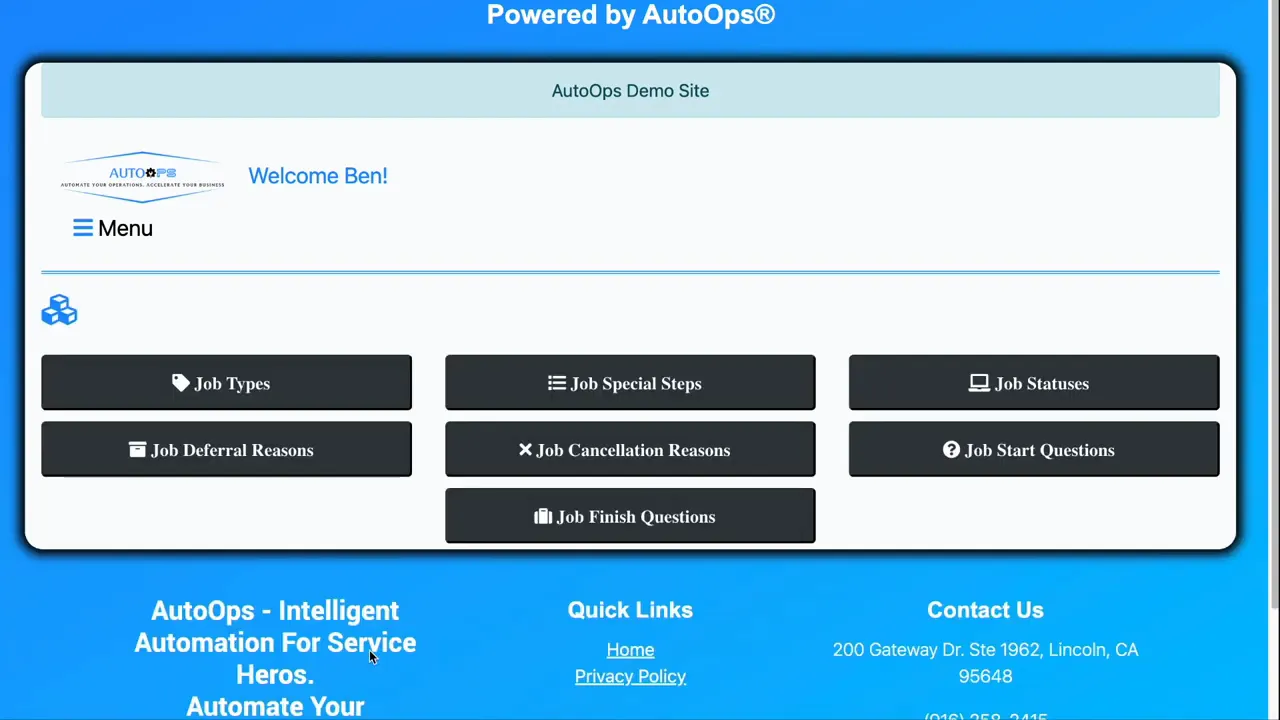
Both lists live under Settings → Job Settings. From there choose either Job Cancellation Reasons or Job Deferral Reasons to view, create, or edit the entries that your team will use.
Job cancellation reasons: what they are and how to use them
A job cancellation reason is a predefined label you assign when a job is cancelled. Using a controlled list prevents free-form notes and ensures reports and analytics remain useful.
Key fields to configure
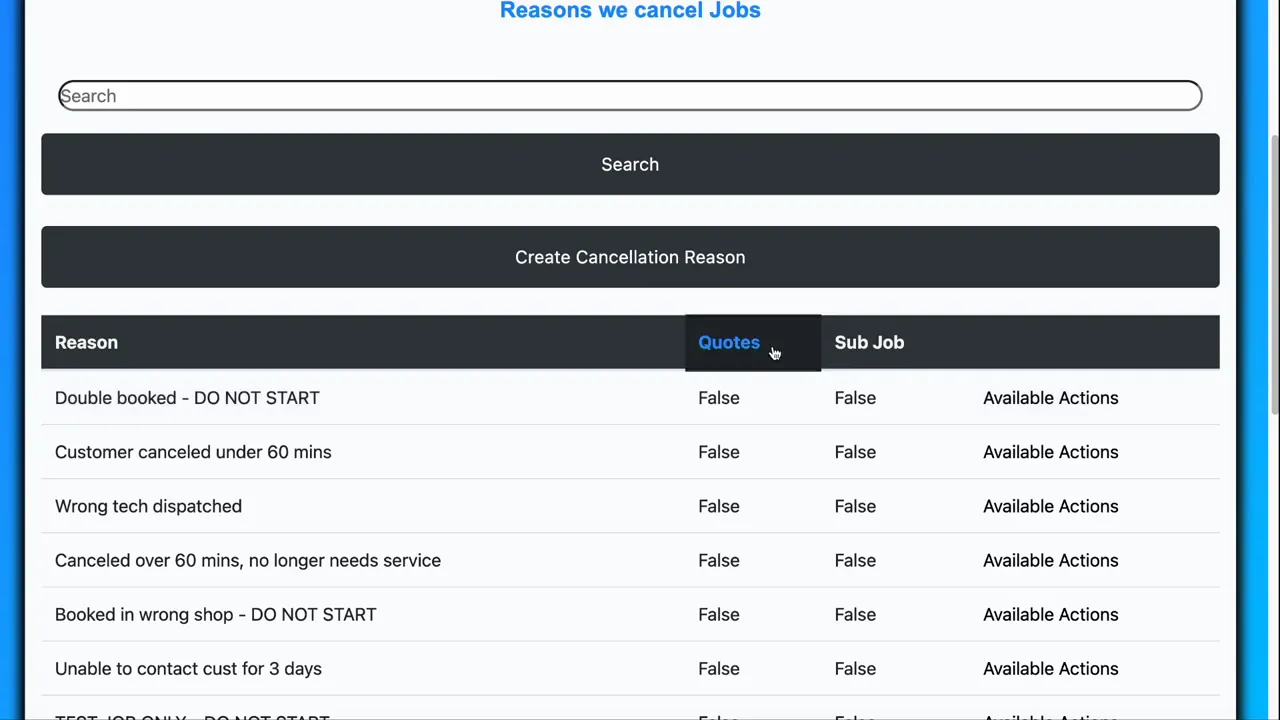
- Name — Clear, concise reason text such as “Customer declined quote” or “Scheduling conflict”.
- Applies to Quotes — Toggle this if the reason is only valid during the quoting stage.
- Applies to Subjobs — Toggle this if the reason is only relevant to subjobs.
The quotes and subjob flags keep cancellation reasons from being selected in inappropriate stages. For example, “Quote declined by customer” should not be applied to a job that has already been started.
How to create or edit a cancellation reason
- Open Settings → Job Settings → Job Cancellation Reasons.
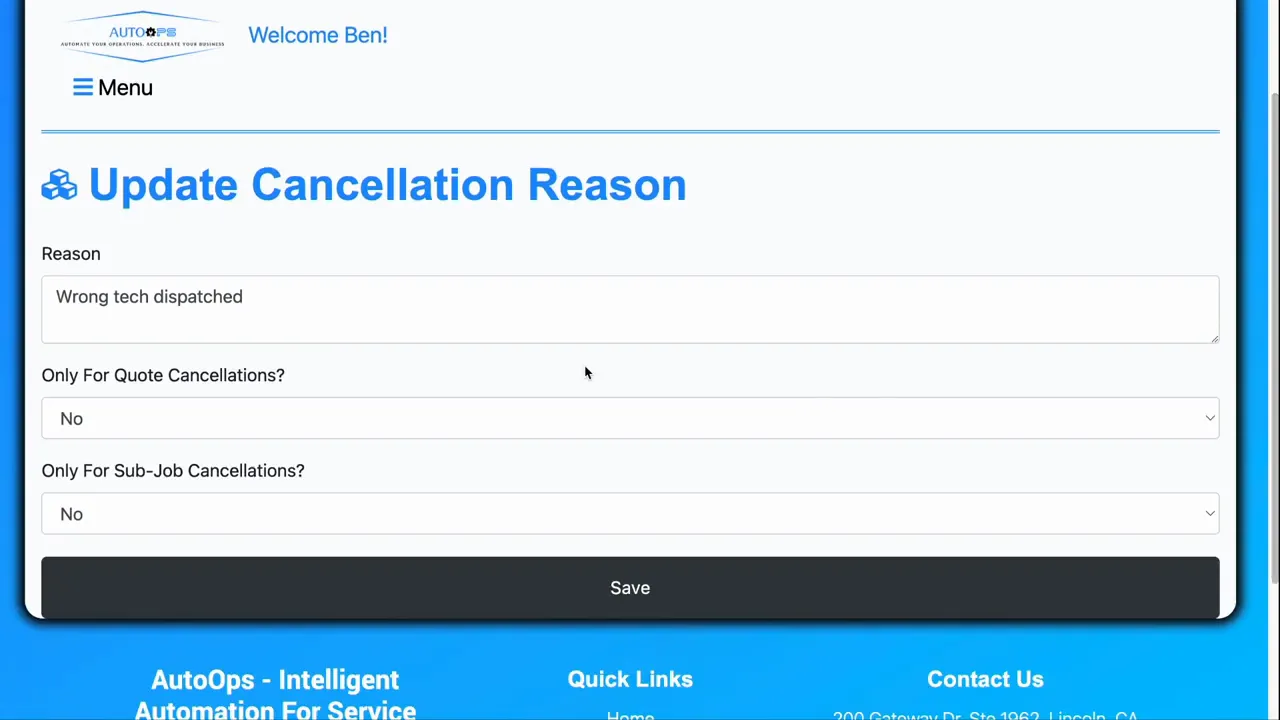
- Click Create to add a new reason, or choose Available Actions → View / Update to edit an existing one.
- Update the name and set the Quotes and Subjob toggles to reflect when this reason is valid.
- Click Save.
Job deferral reasons: managing custom status and payroll impact
Deferral reasons function like custom statuses and can also control how payroll handles a job. They are particularly useful when payment depends on external conditions.
Why use deferral reasons
- Act as a custom job status for tracking work that is paused.
- Control payability inside payroll—useful for commission-based technicians.
- Provide clear audit trails for delayed payments, helping finance and operations align.
Payable toggle and a common example
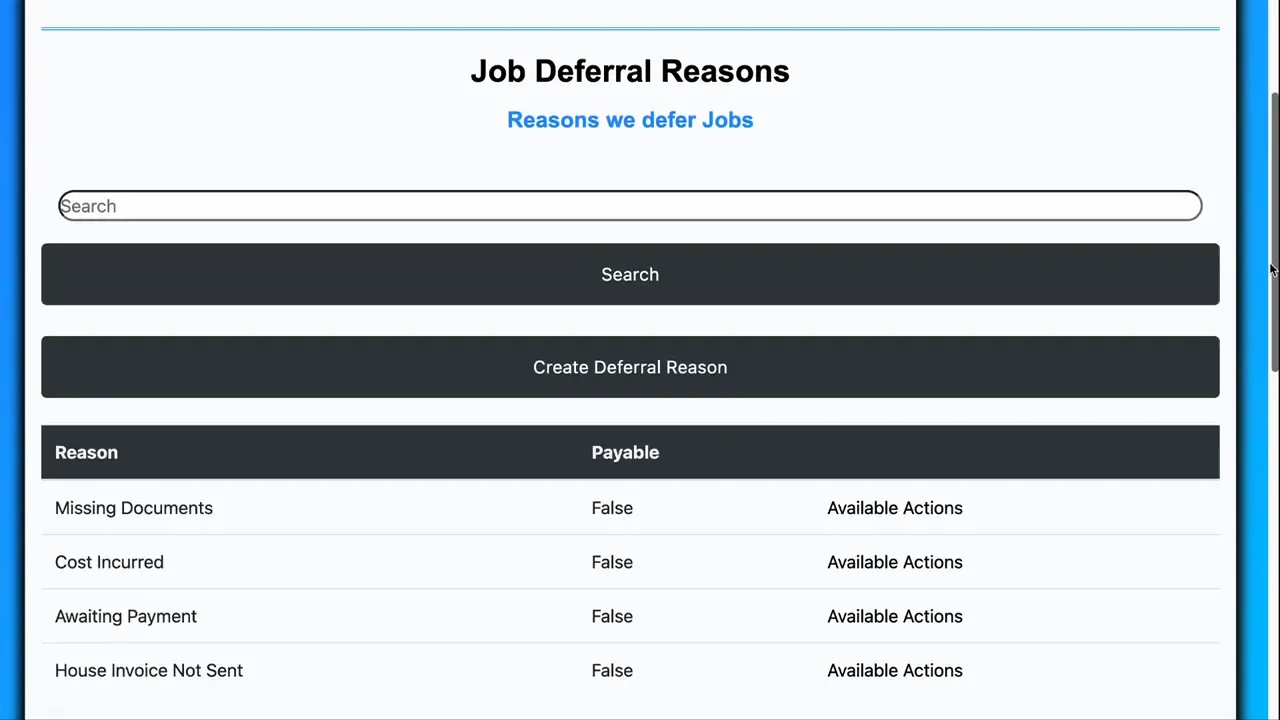
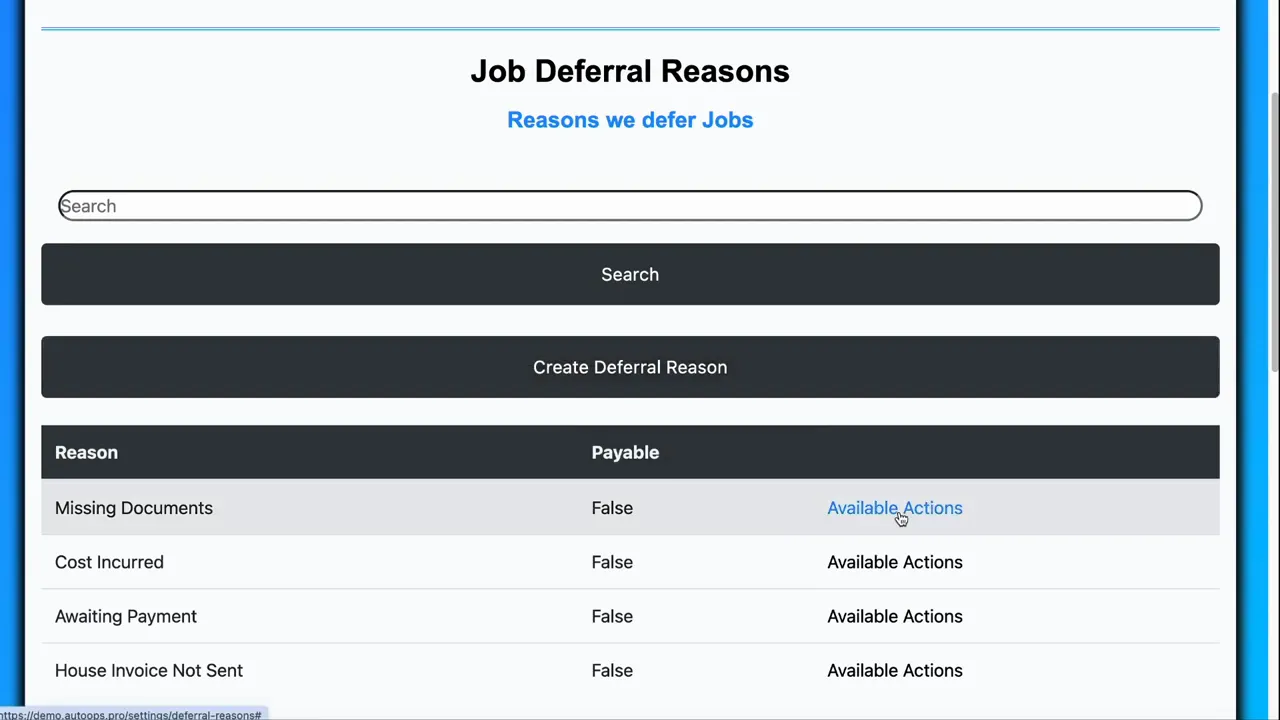
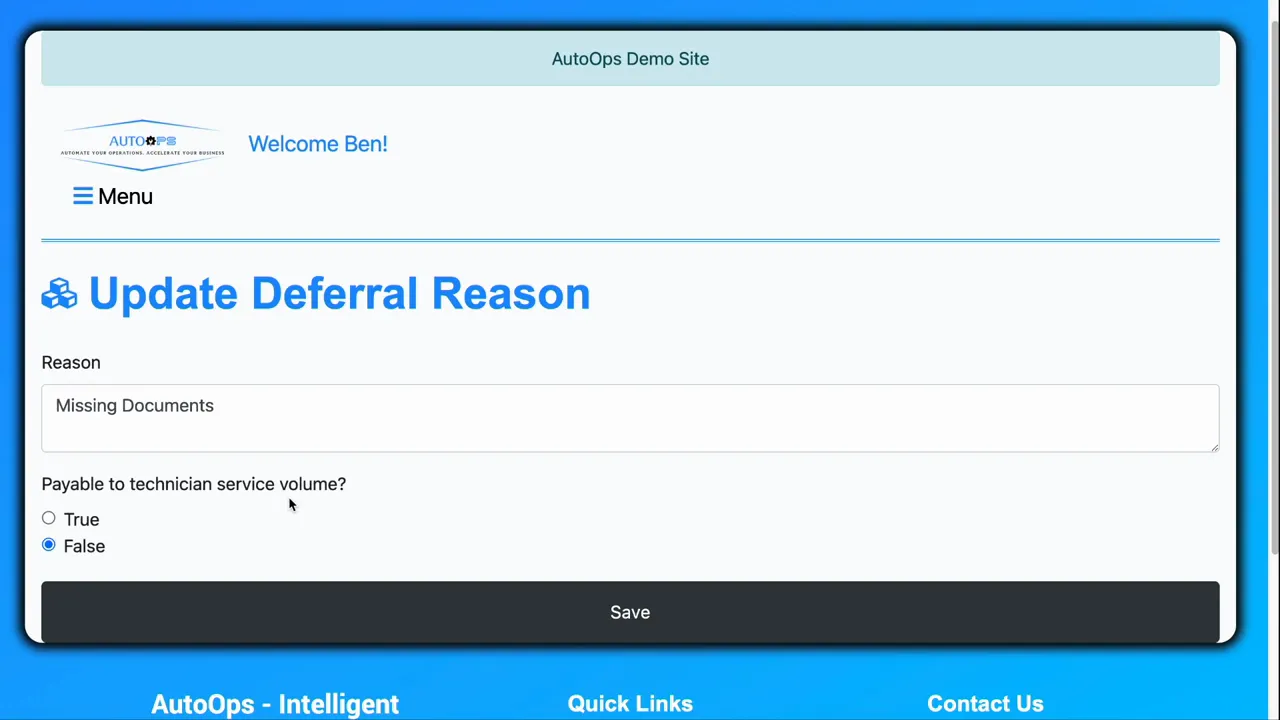
Each deferral reason has a payable option. Toggle payable to false when a deferral should prevent commission or other pay until conditions are met.
Example: If required documents from a customer are missing and payment cannot be processed, set that deferral reason’s payable to false so technicians do not receive commission until the issue is resolved.
How to create or edit a deferral reason
- Open Settings → Job Settings → Job Deferral Reasons.
- Click Create to add a new deferral, or choose Available Actions → View / Update to edit one.
- Set the name and toggle whether the status affects payment.
- Click Save.
Best practices for both lists
- Keep reason lists short and specific. Too many options increase confusion and reduce consistent usage.
- Name reasons clearly. Use actionable text that nontechnical team members will understand.
- Use the Quotes and Subjob flags correctly. Prevent inappropriate reason selection by matching flags to the job lifecycle stage.
- Test payroll interactions. When toggling payable, run a quick payroll scenario to confirm the expected outcome for commission-based technicians.
- Document changes. Maintain a changelog so operations and payroll teams know when a reason was added or its settings changed.
Frequently asked questions
How is a cancellation reason different from a deferral reason?
A cancellation reason explains why a job was cancelled and is selected when work stops permanently. A deferral reason marks a job as paused or delayed and can also control whether payment is allowed while the job is deferred.
Can deferral reasons prevent technicians from receiving commission?
Yes. Each deferral reason includes a payable toggle. Set payable to false for conditions such as missing customer documents so commission is withheld until the issue is resolved.
When should I set a reason to apply only to quotes or only to subjobs?
Choose Quotes when the reason is only relevant before work begins, for example “Quote declined by customer.” Choose Subjobs when the reason is specific to subtask behavior. These flags prevent logically inconsistent selections during later stages of a job.
Can I delete a reason after it has been used?
Deleting reasons that are already in use can create gaps in historical data or break reports. Prefer deactivating or renaming reasons and document the change so past records remain interpretable.
How do I add a new cancellation or deferral reason?
Go to Settings → Job Settings, select the appropriate list, click Create, enter a clear name, set relevant flags (Quotes, Subjob, Payable), and Save.
Final notes
Standardizing cancellation and deferral reasons reduces errors, improves reporting, and aligns operations with payroll. A few precise, well-documented reasons are more valuable than a long list of ambiguous choices.
Keep reason names meaningful, set flags thoughtfully, and test payroll behavior whenever payable is involved.
