

Welcome! In this article, we’ll walk you through the essential steps to edit and customize document templates and document types within your system. Whether you are managing invoices, quotes, or contracts, having control over your document layouts and categories is crucial for efficient business operations. This guide is inspired by the expertise shared by AutoOps and aims to help you master these customizations with ease.
Table of Contents
- Getting Started with Document Templates
- Organizing Your Documents with Document Types
- Summary
- Frequently Asked Questions (FAQ)
Getting Started with Document Templates
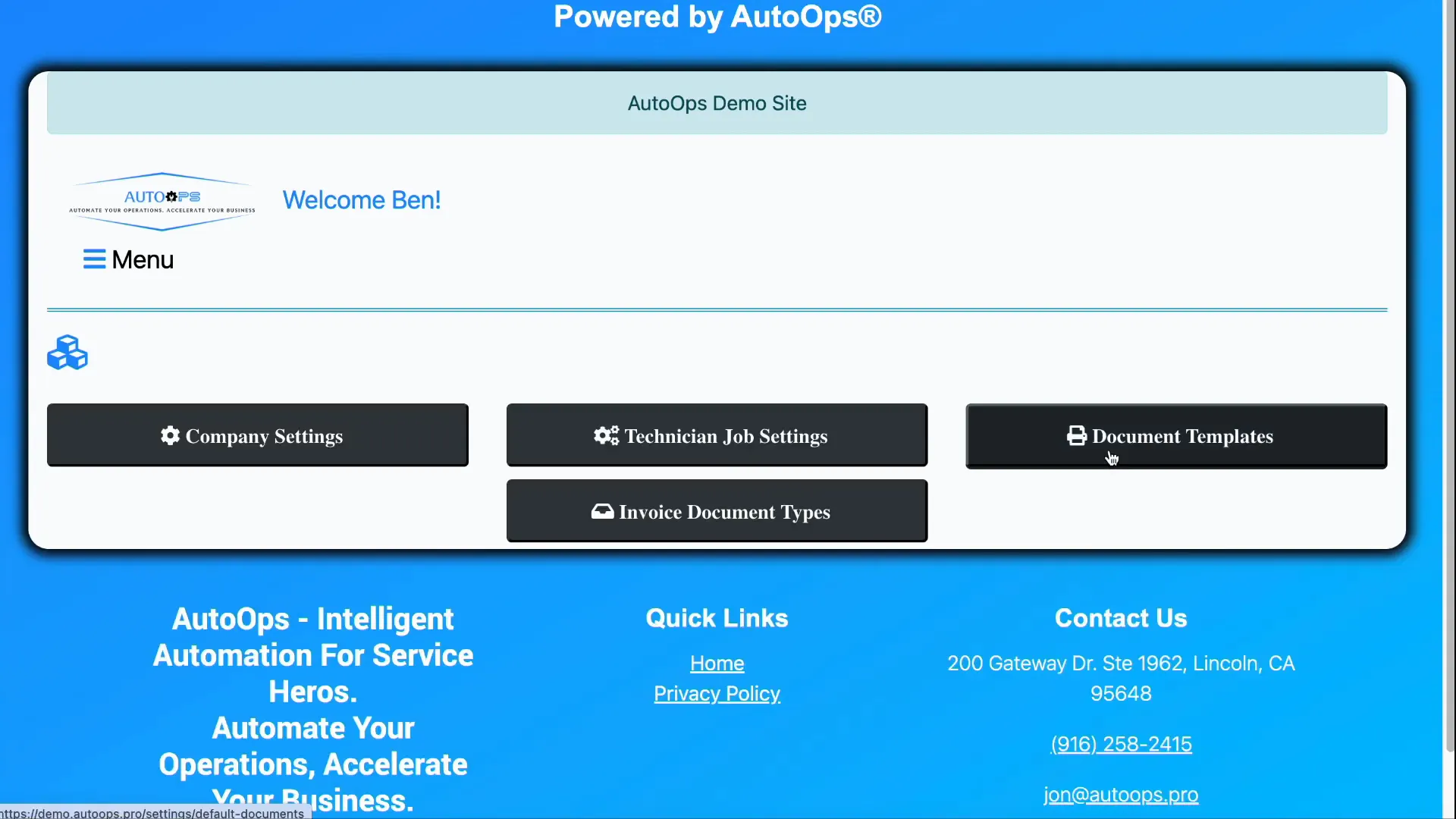
As an administrator, you have the ability to modify document templates that the system uses for generating various documents such as invoices and quotes. To access these settings, start by navigating to the main menu, then scroll down to Settings, and select Application Settings. From here, click on the button labeled Document Templates.
On the Document Templates page, you can upload your own customized templates. The system currently supports three customizable document types:
- Quotes
- Invoices
- Home Improvement Contracts
The process for editing each template type is similar, relying on what are called template tags. These tags act as placeholders within your document template that dynamically insert relevant data when the document is generated.
Understanding Template Tags
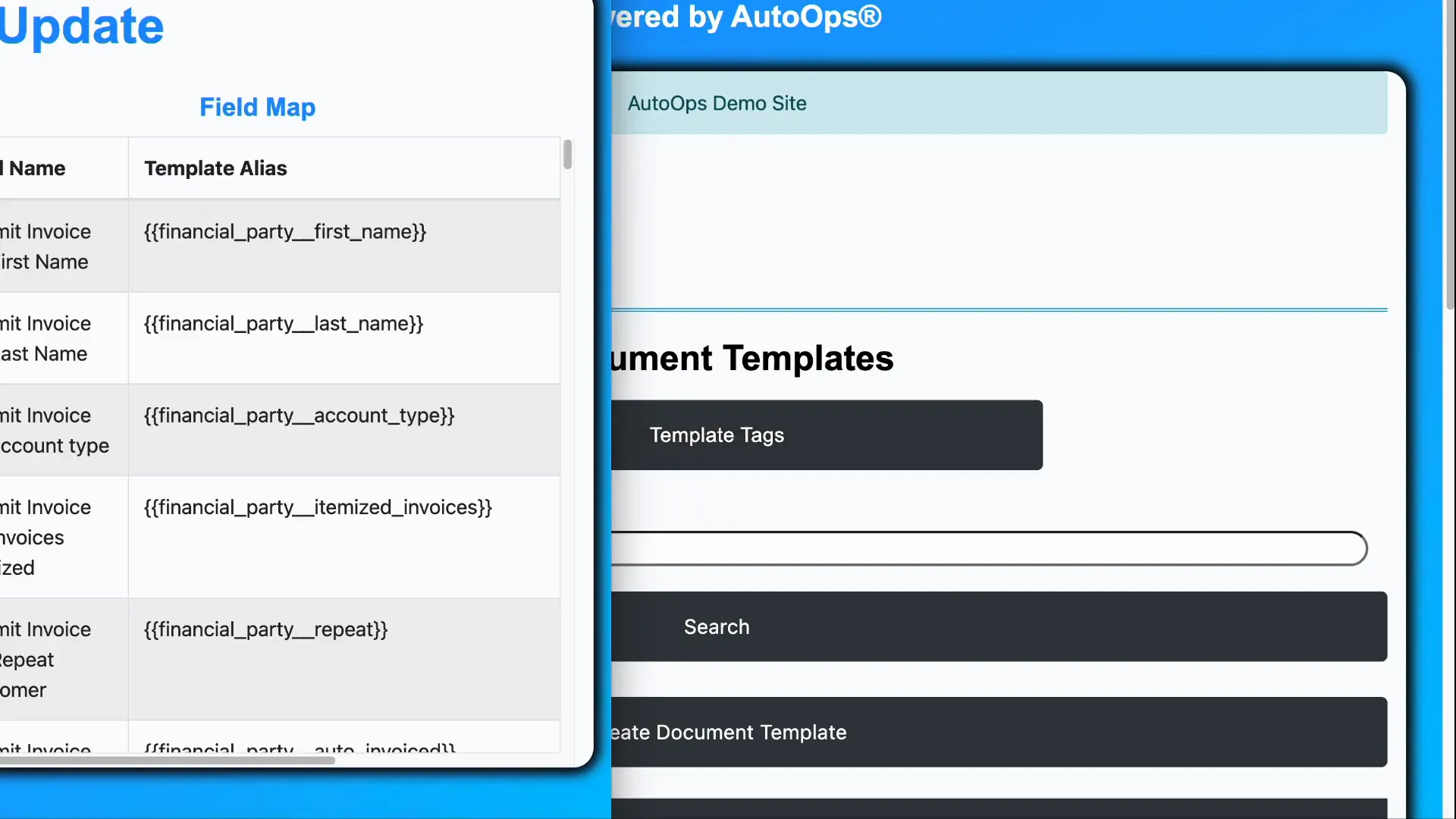
Template tags are specific strings you insert into your document where you want certain information to appear. For example, a tag might represent an address, a customer name, or an invoice number. When you generate the actual document, these placeholders are automatically replaced with the real values.
To view the full list of available tags, you simply click a button that opens a window displaying all the placeholders you can use. This list is extensive, providing flexibility to tailor your documents precisely to your needs.
Editing Your Template
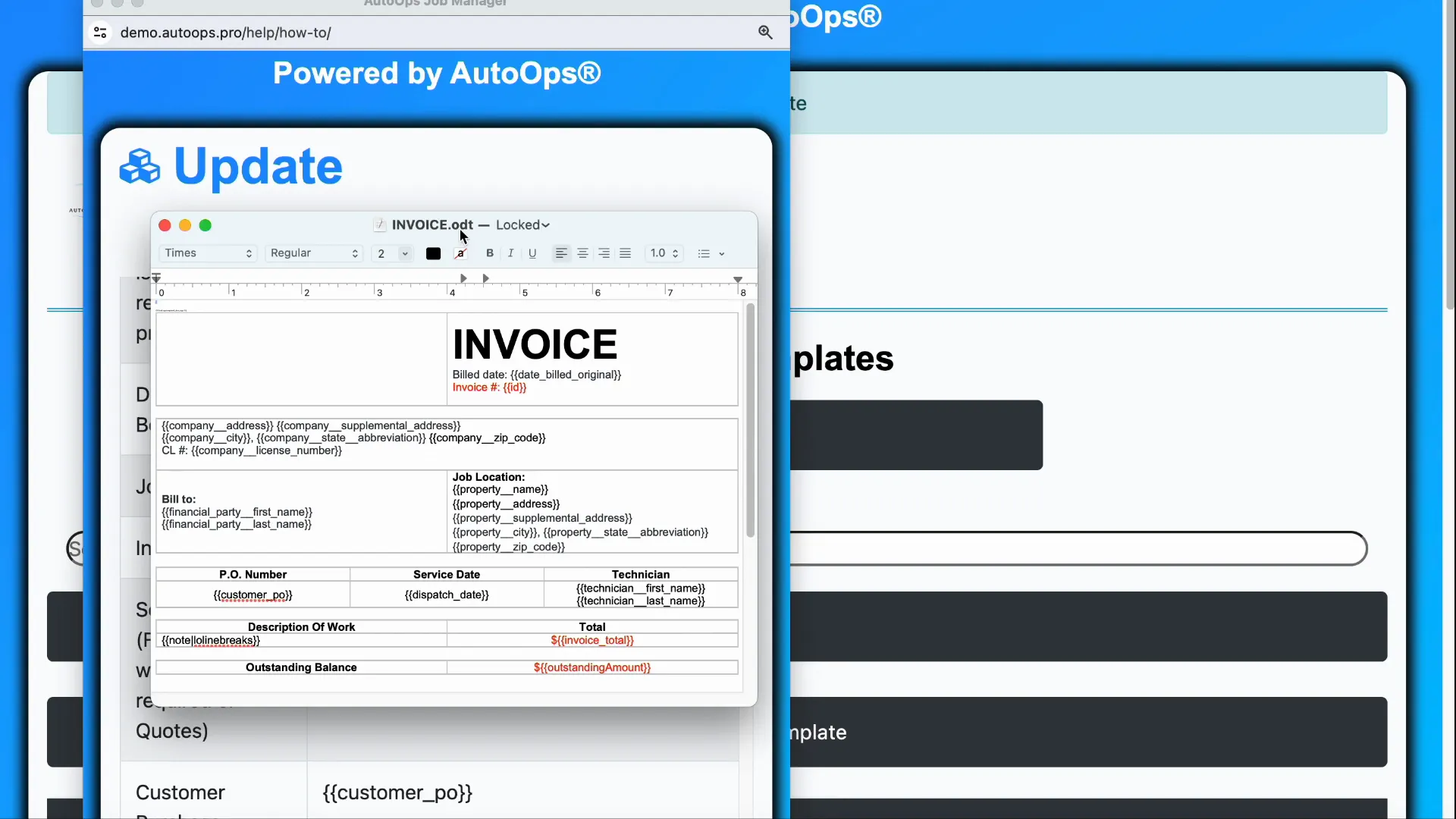
Once you have the list of tags, open your preferred word processing software—such as Microsoft Word, LibreOffice, or OpenOffice—and incorporate these tags into your document template. It’s important to save your template in the .odt format, which is compatible across these applications and supported by the system.
Here’s an example of an invoice template featuring several placeholder strings. When the invoice is generated, these placeholders will automatically populate with the actual invoice data.
Managing Templates in the System
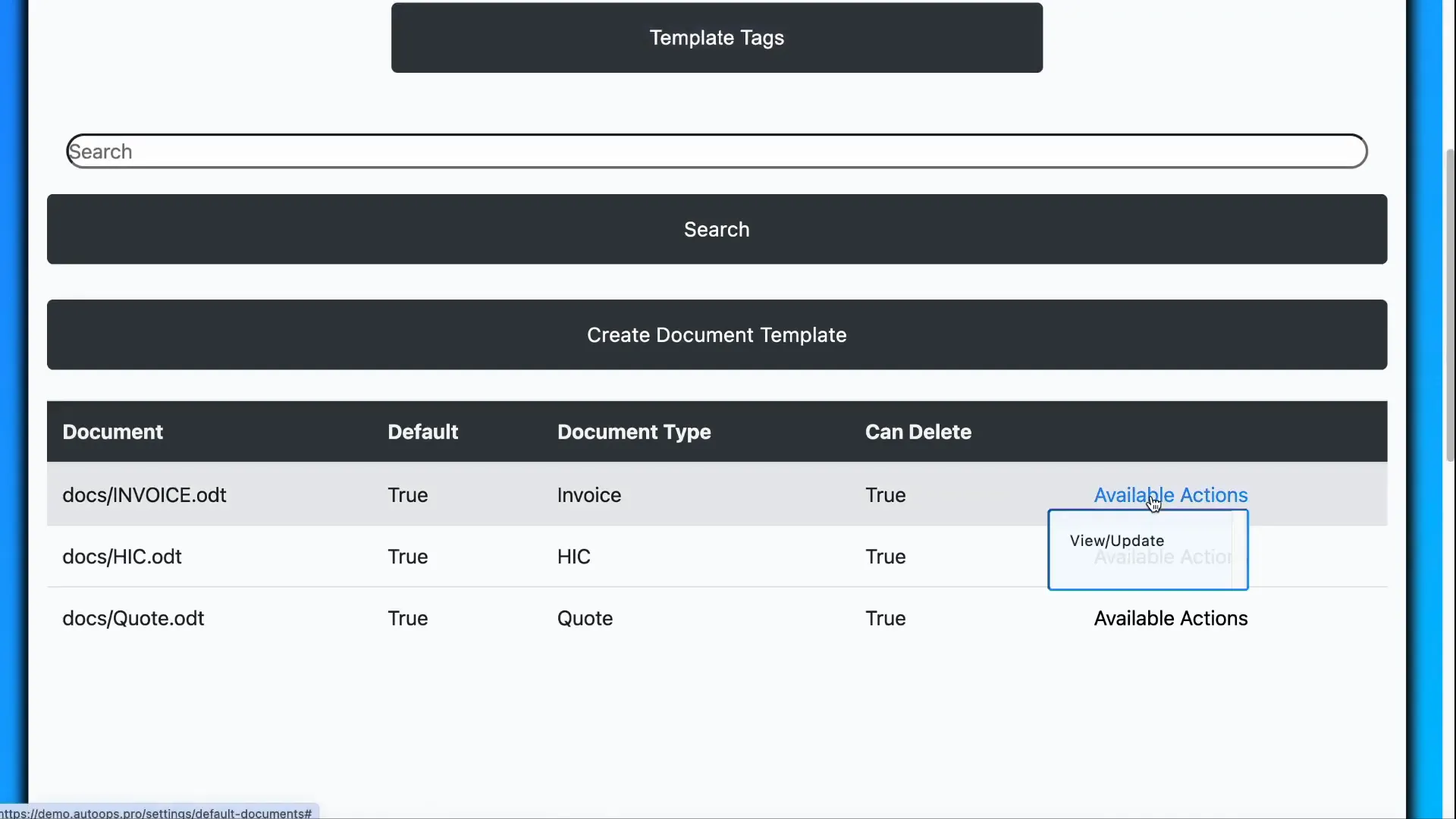
Back in the system, you can view a list of all document templates currently uploaded. For each template, you have options to:
- View the template
- Update the template by uploading a new
.odtfile - Set the template as the default for its type
- Change the document type category it belongs to
After making any changes, be sure to save your updates to apply them.
Organizing Your Documents with Document Types
Another powerful feature is the ability to organize your documents using document types. This helps categorize and manage your documents efficiently within the system.
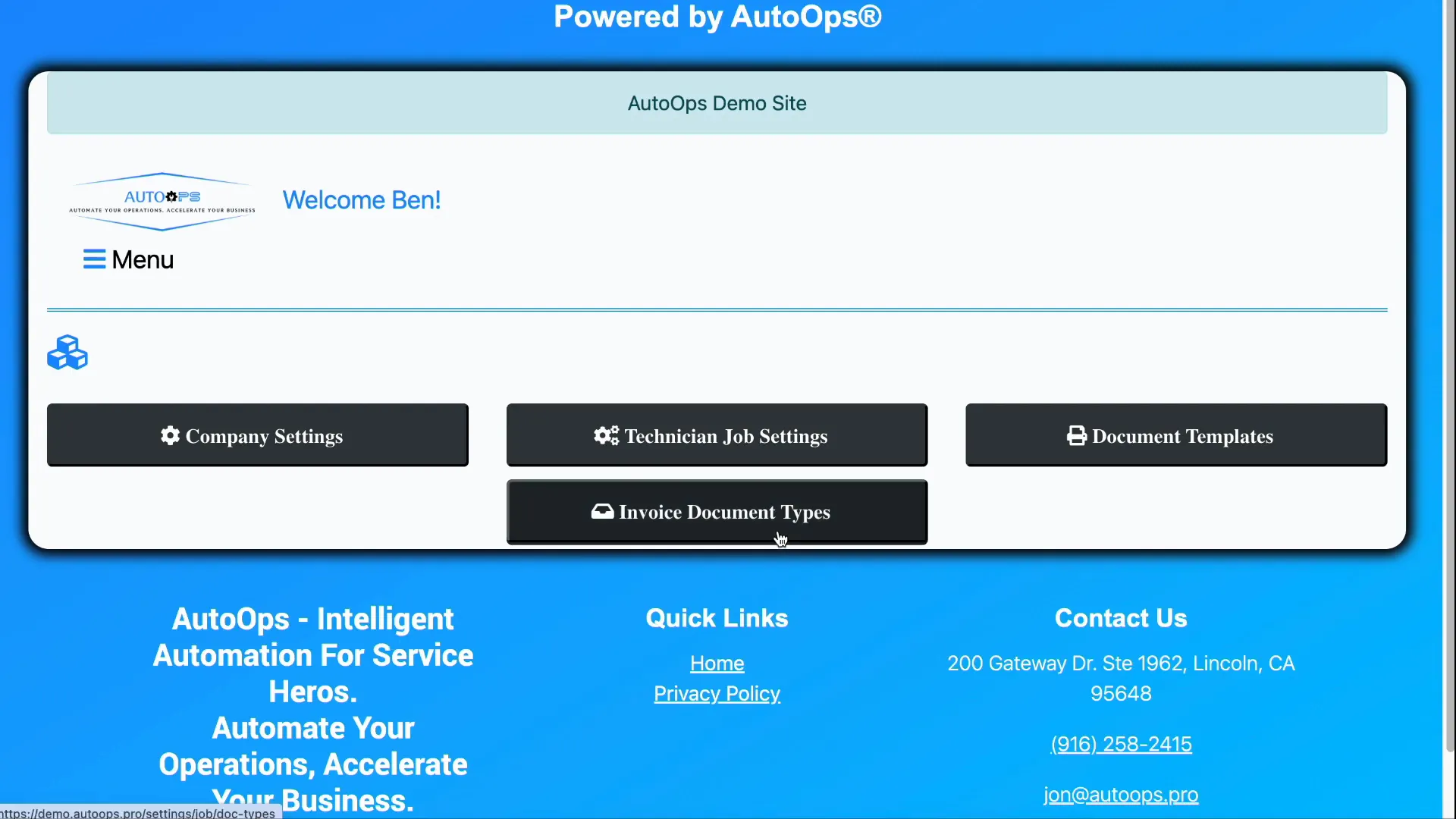
To access document types, go to Settings > Application Settings again, and click on the button labeled Invoice Document Types.
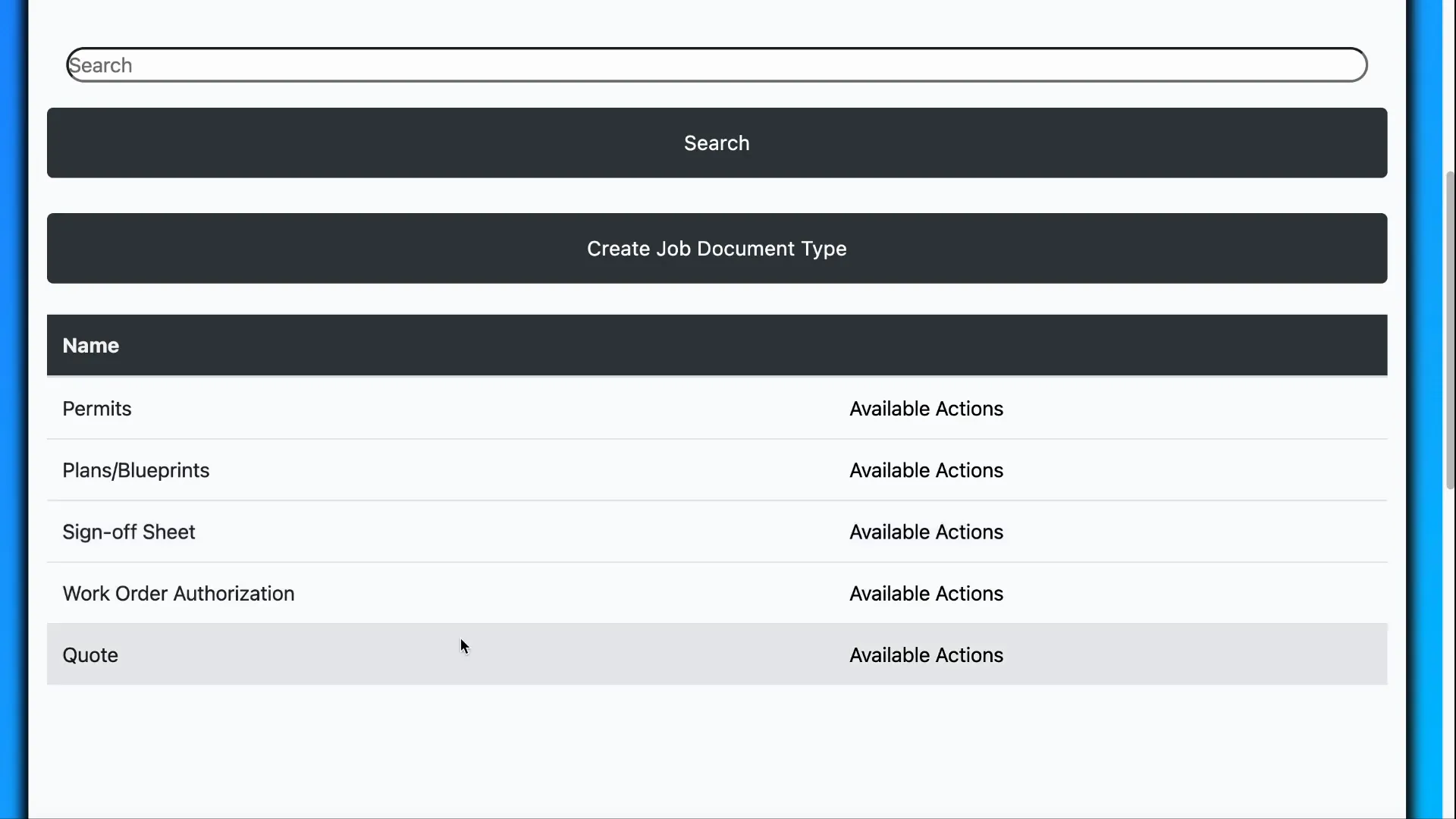
Document types serve as categories that you can customize to fit your organizational needs. The system comes with a default list, which might include types such as:
- Permits
- Plans
- Blueprints
- Sign-off Sheets
- Work Order Authorizations
- Quotes
You can view and update each type by selecting it, making changes, and saving. Additionally, you can create new document types at any time to further tailor your document management system.
Summary
In summary, customizing document templates and managing document types are straightforward but powerful tools for tailoring your system to your business needs. By using template tags in your documents, you can create dynamic templates that automatically pull in the correct data, enhancing accuracy and professionalism. Organizing documents into customizable types further streamlines document handling and retrieval.
Whether you are updating an invoice template or adding new document categories, these features give you flexibility and control over your document workflows.
Frequently Asked Questions (FAQ)
What file format should I use for document templates?
Templates should be saved in the .odt format, which is supported by Microsoft Word, LibreOffice, and OpenOffice. This ensures compatibility with the system.
How do template tags work?
Template tags are placeholders within your document template that get replaced with actual data when the document is generated, such as customer names, addresses, or invoice numbers.
Can I create my own document types?
Yes, you can customize the list of document types by adding new categories or modifying existing ones to better organize your documents.
Is it possible to set a default template for each document type?
Yes, when uploading or updating a template, you can choose to set it as the default for its respective document type.
Which document types are currently customizable?
The system supports customization for three main document types: quotes, invoices, and home improvement contracts.
