

AutoOps offers a powerful and flexible system for customizing your workflow to fit your business needs perfectly. In this guide, we’ll dive deep into how you can use custom fields within the AutoOps platform to track and manage any information specific to your customers, invoices, and properties. Whether you’re running promotions, managing job details, or organizing property data, custom fields give you the freedom to personalize your system and keep all relevant information at your fingertips.
Table of Contents
- Getting Started with Custom Fields
- Creating Customer Custom Fields
- Adding Custom Fields to Job Invoices
- Custom Fields for Properties
- Managing Custom Choices
- Why Use Data Type Constraints?
- Applying Custom Fields Based on Property Type
- Making Custom Fields Required
- Conclusion
- Frequently Asked Questions
Getting Started with Custom Fields
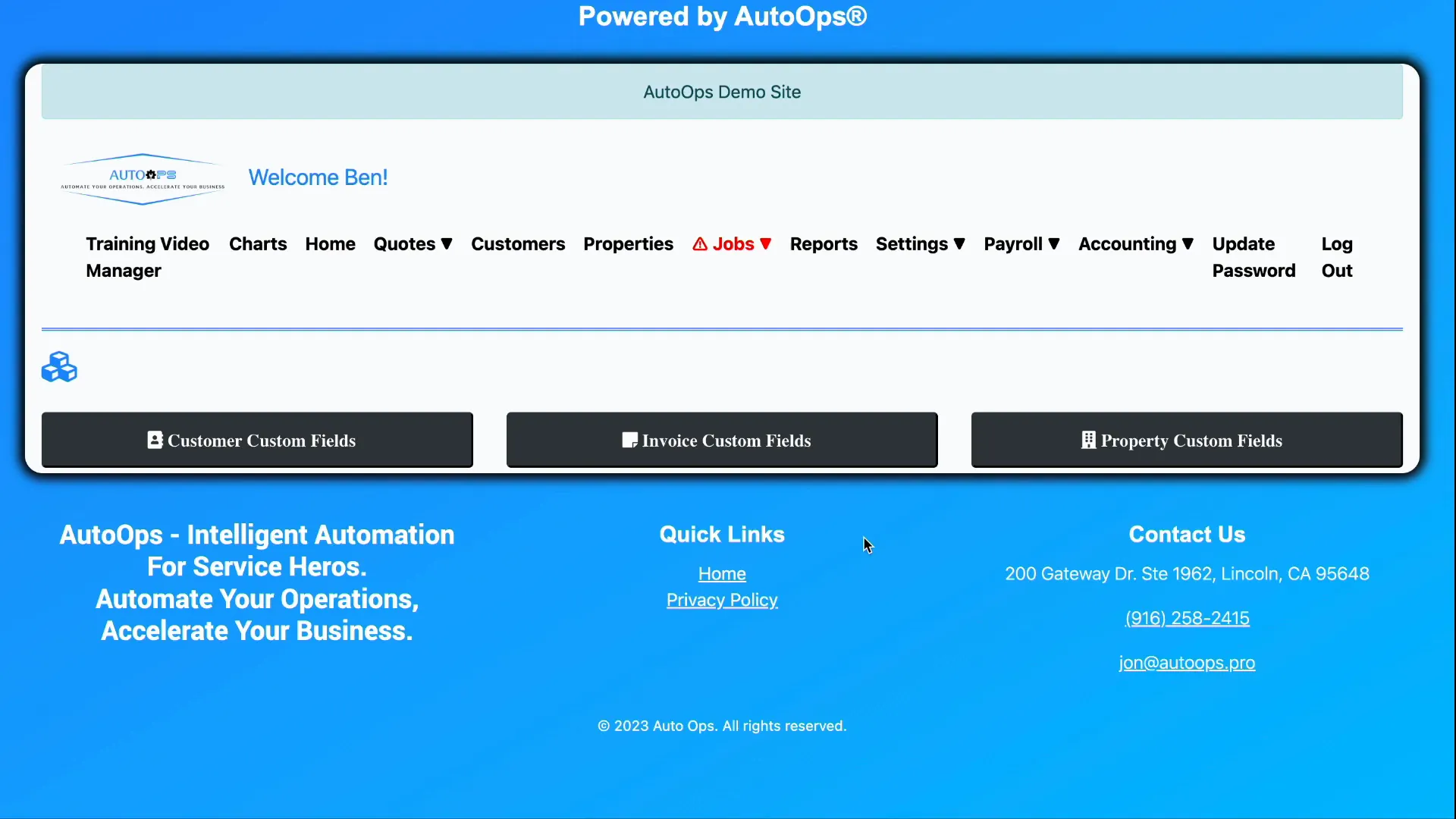
When you log in as an admin, you gain access to customization options that let you tailor AutoOps to your unique requirements. Navigate to Settings and then to Customizations. Here, you will find three main categories for custom fields:
- Customer Custom Fields
- Invoice Custom Fields
- Property Custom Fields
Custom fields allow you to attach any information you define to records in the system. This flexibility means you can track details that are important for your business but aren’t included in the default system fields.
Creating Customer Custom Fields
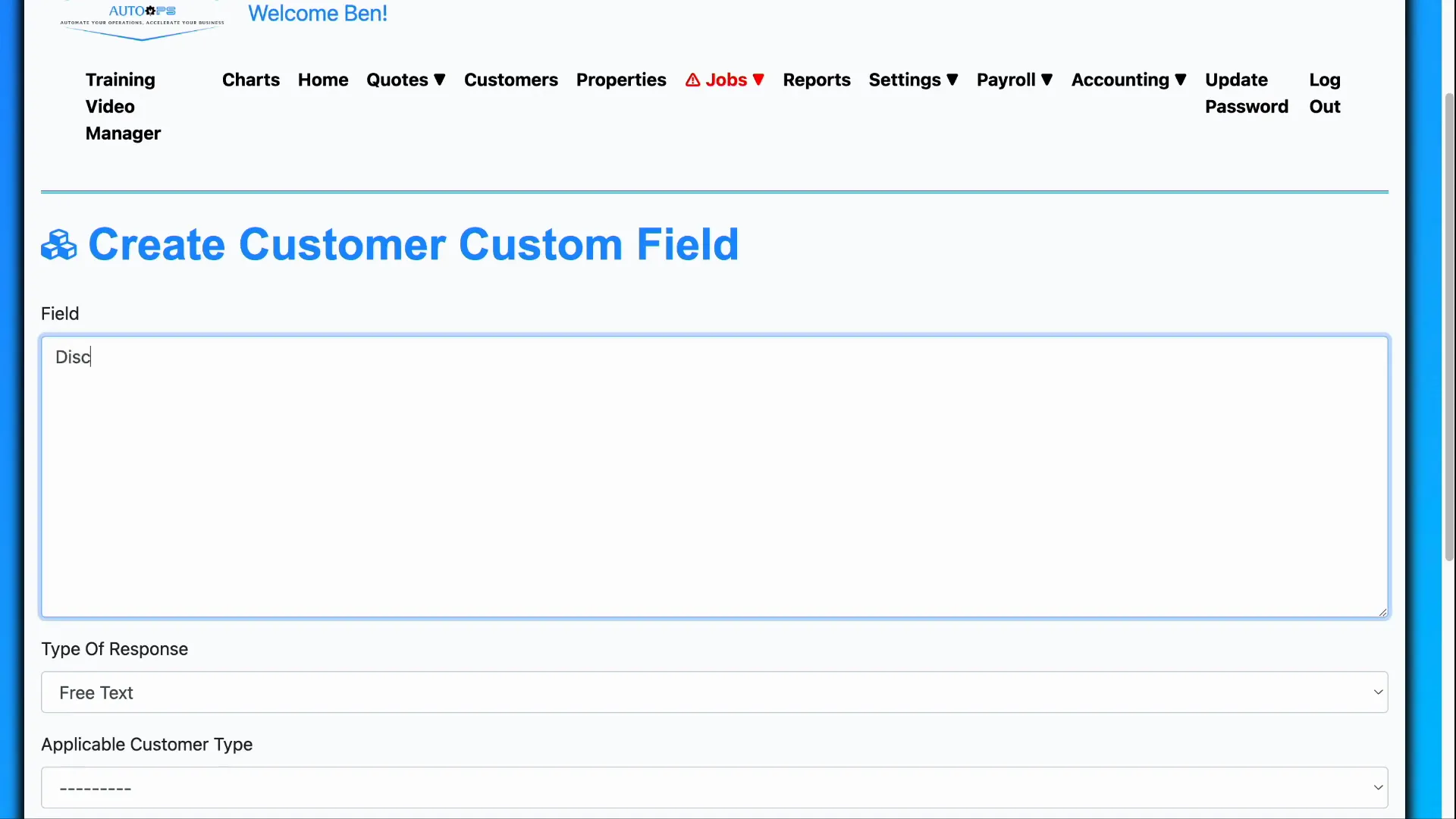
Imagine you want to run a promotion offering certain customers a discount through a coupon code. You need a way to remember which customers received which discounts. This is where customer custom fields come in handy.
To create one, go to Customer Custom Fields and click Create customer custom field. For example, name this field discount information.
Next, select the type of response you want to allow. AutoOps provides several options:
- Yes or No (Boolean): Simple true/false answers.
- Custom Choices: A predefined list of options users can pick from.
- Free Text: Any text input.
- Number: Only numerical input.
- Date: Only date input.
For discount information, free text is a good choice since you might want to enter detailed notes. You can also specify which customer types this field applies to—residential or commercial. For example, you might choose commercial.
Once saved, this field will appear whenever you create or update a customer record under the Additional Information section, allowing you to enter and track discount details easily.
Adding Custom Fields to Job Invoices
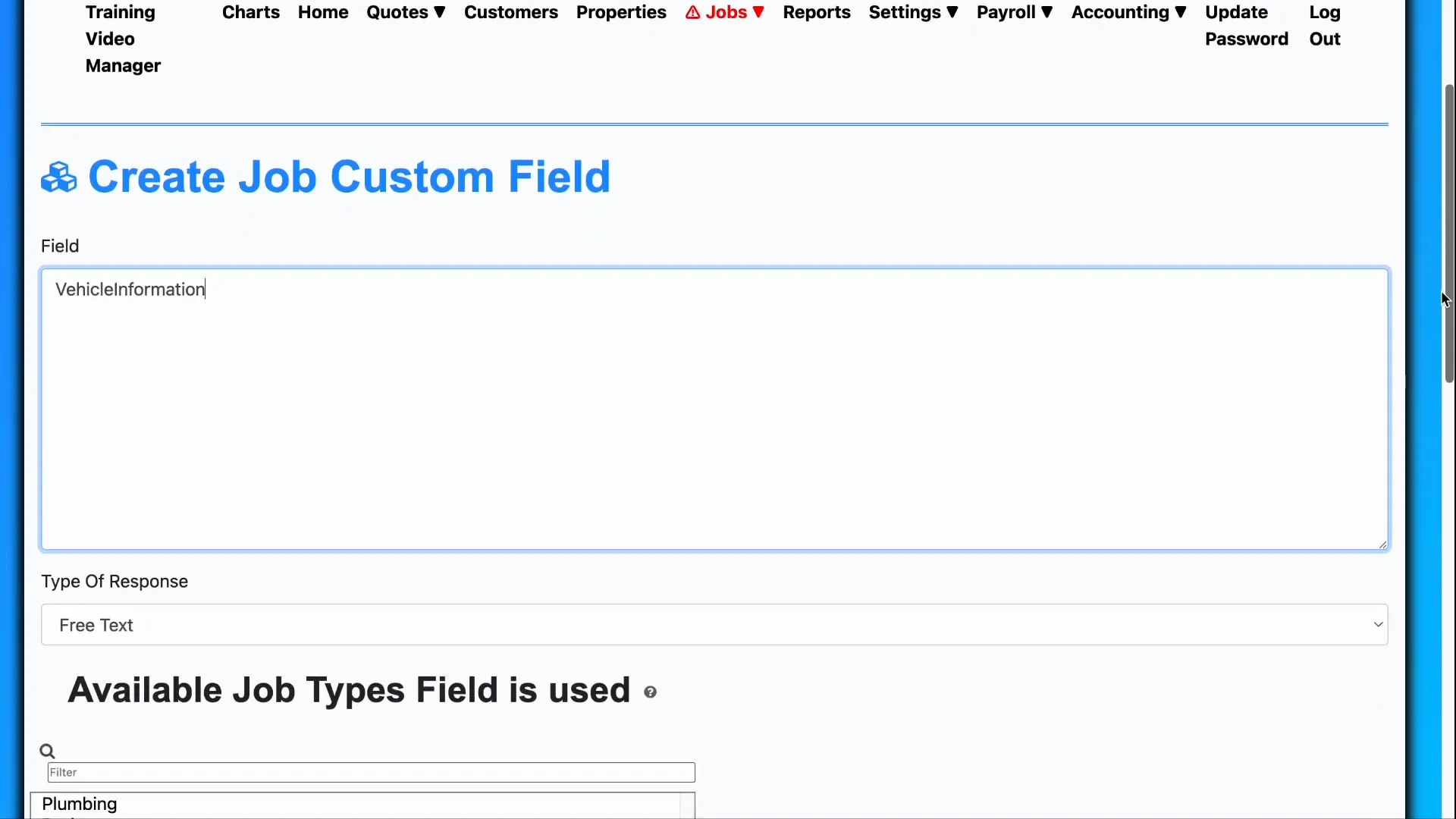
Custom fields aren’t limited to customers—they can also be applied to job invoices. For example, you may want to track what vehicle a technician used for a particular job.
To do this, go to Invoice Custom Fields and create a new field named vehicle information. Again, you might select free text as the type to allow flexible input.
Now, every time you create, view, or update a job invoice, this field will appear under additional information, letting you record relevant details about the vehicle or other job-specific data.
If your business specializes in flooring, you could add a custom field to capture the number of square yards of carpet required. In this case, choosing the number data type ensures only numerical values are entered, improving data accuracy.
Custom Fields for Properties
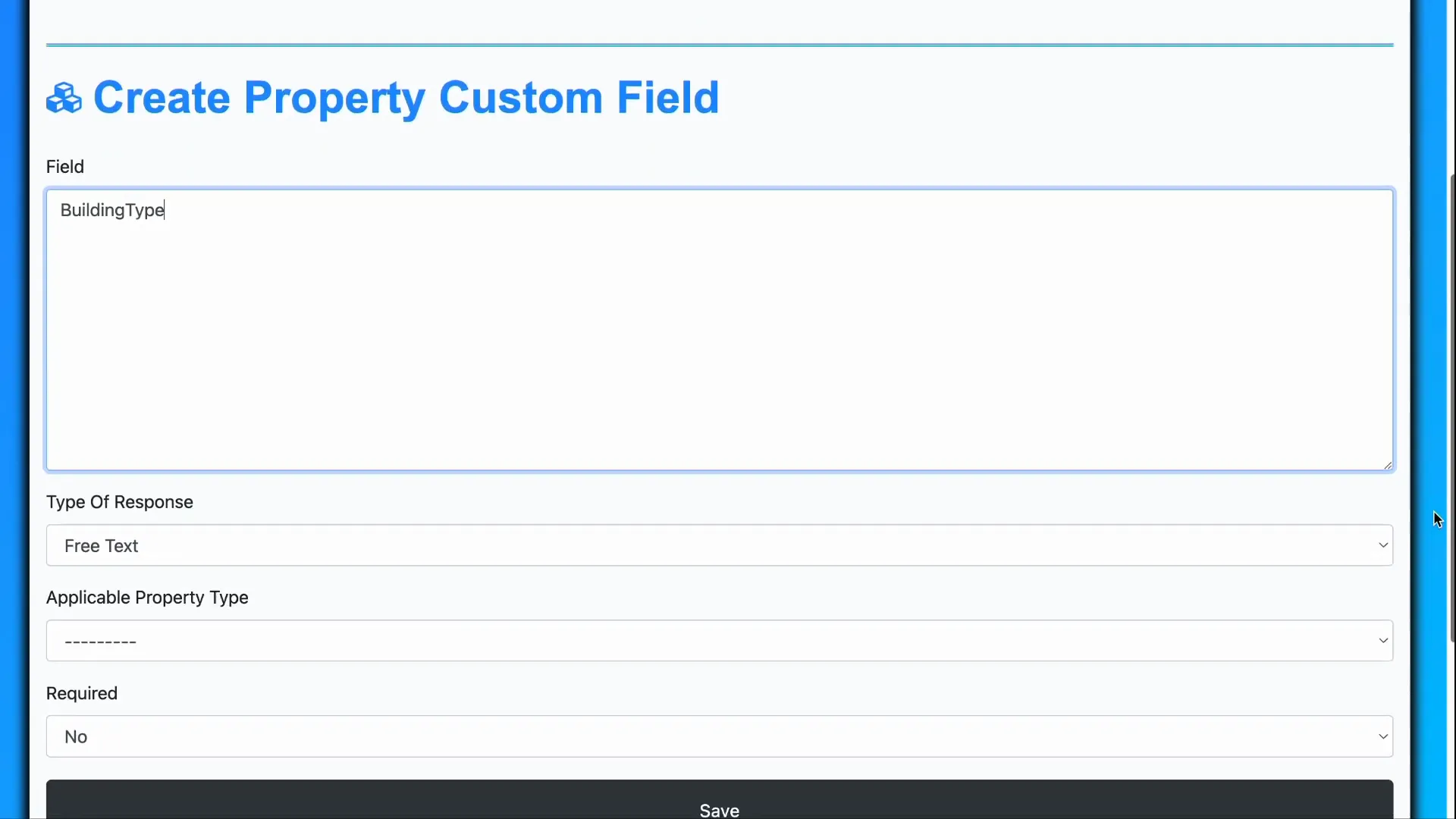
Property custom fields help you track details about physical locations relevant to your work. For instance, you might want to record the building type—such as single family, townhouse, walk-up apartments, or high rise.
When creating a property custom field, you specify the name, response type, applicable property type, and whether the field is required. For building type, using custom choices is ideal because it lets users select from a predefined list, ensuring consistent data entry.
This field will then appear whenever you create, view, or update a property record under additional information.
Managing Custom Choices
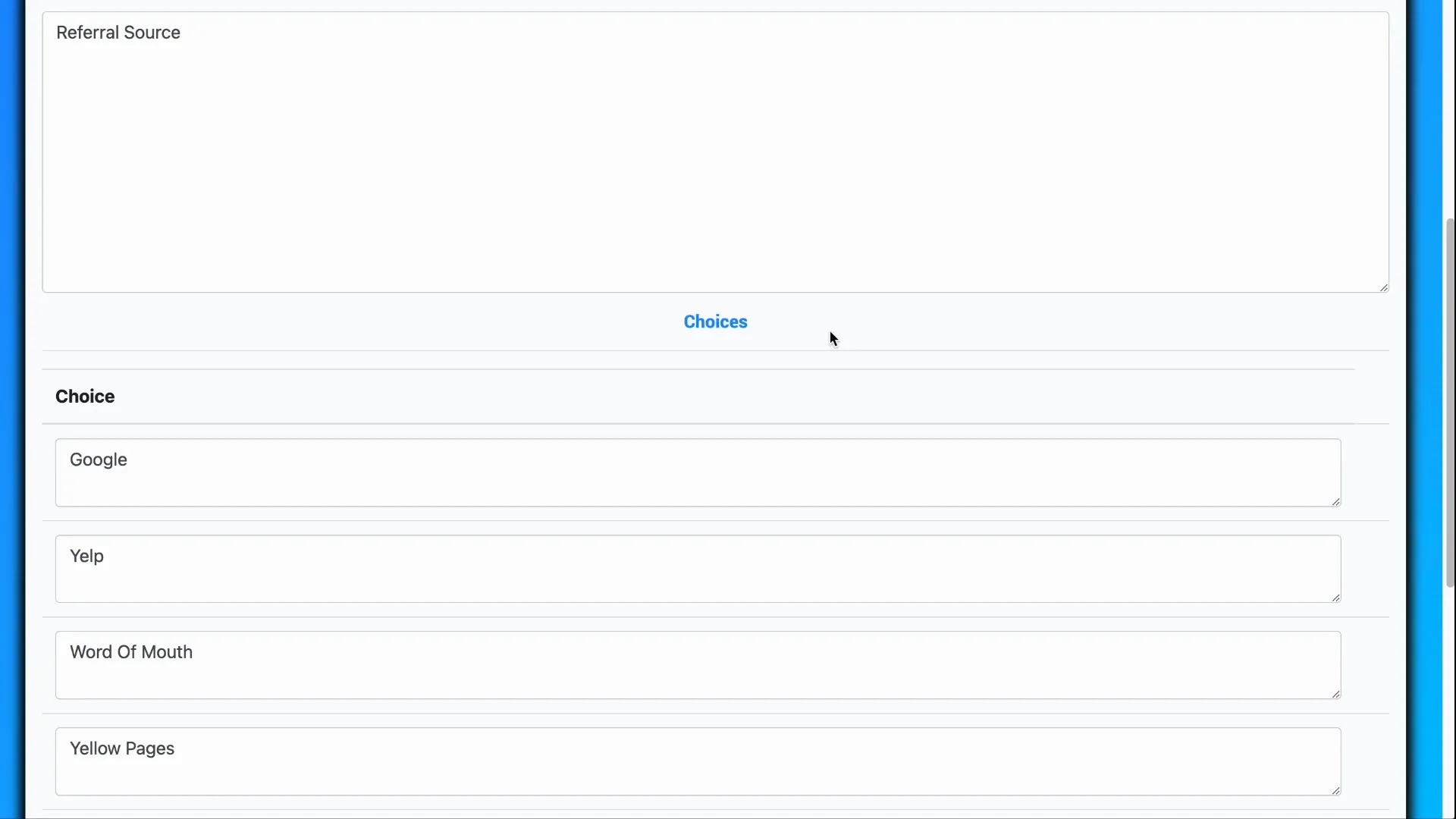
Custom choices are especially useful when you want users to select from a set list of options, avoiding typos or inconsistencies. For example, a referral source field for customers might include choices like “Friend,” “Online Ad,” or “Trade Show.”
You can add or edit these choices by navigating to the custom field in question and selecting Edit Custom Fields. Here you can modify existing choices or add new ones, then save your changes.
Why Use Data Type Constraints?
Choosing the right data type for each custom field is crucial for maintaining data quality and usability:
- Ensures accurate data entry: For example, using a number type prevents users from entering text where only numbers should be.
- Maintains uniformity: With predefined choices or Boolean fields, data is consistent, making it easier to tabulate and analyze later.
Without these constraints, free text fields might contain typos, inconsistent formats, or irrelevant data, complicating any future reporting or data management efforts.
Applying Custom Fields Based on Property Type
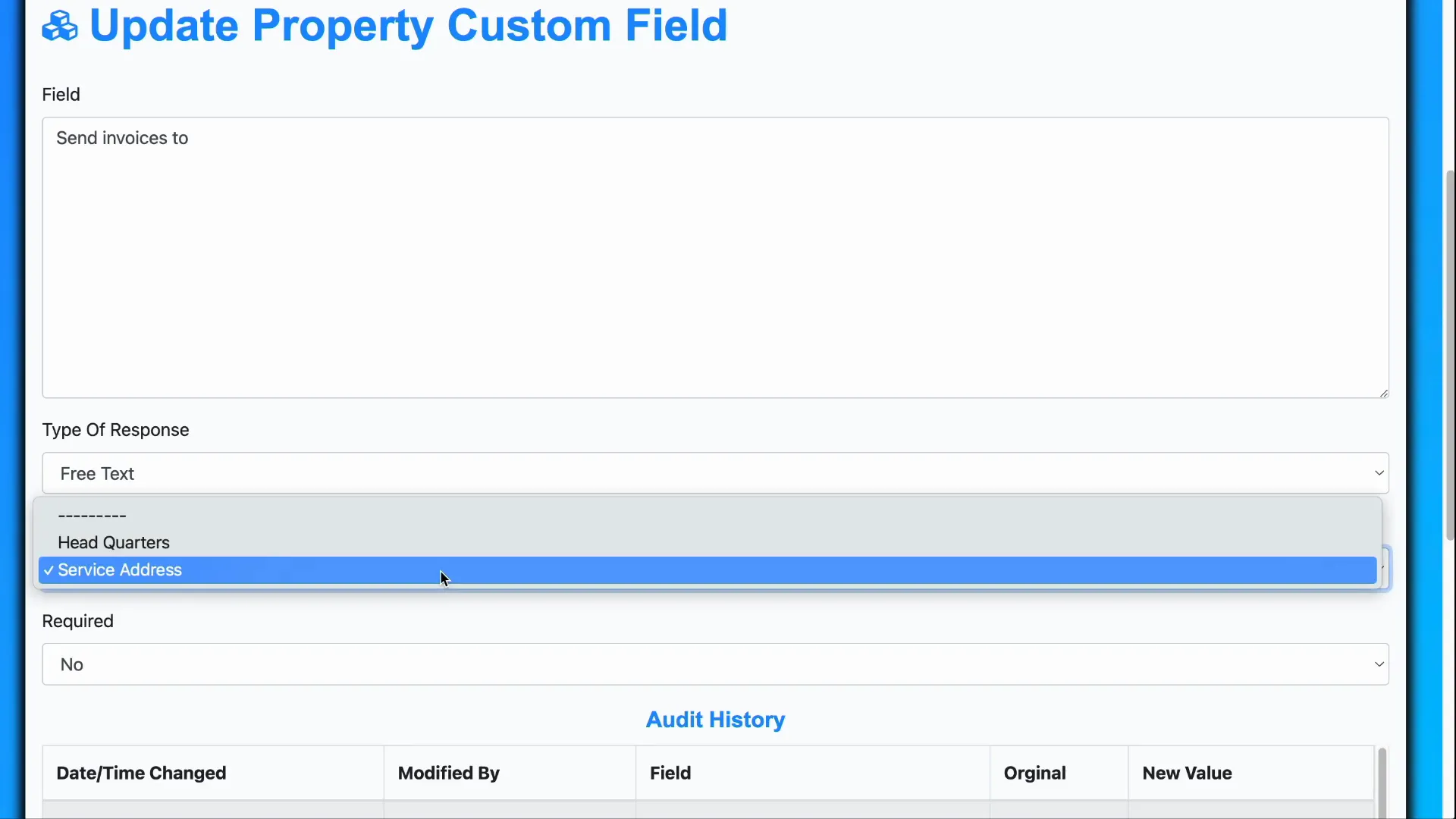
Not all custom fields apply to every record. For property custom fields, you can specify whether they apply to headquarters addresses or service addresses. For example, building type is relevant only to service addresses where work takes place, so you would set the applicable property type accordingly.
This ensures the custom field only appears where it makes sense, streamlining data entry and avoiding confusion.
Making Custom Fields Required
You can also designate a custom field as required. When set to yes, users cannot create a new record without filling in that field. This is useful for critical information that must be captured, such as where to send invoices.
If set to no, the field is optional, giving flexibility where appropriate.
Conclusion
Custom fields in AutoOps provide a versatile way to capture and track the unique data points your business needs. By tailoring fields for customers, invoices, and properties—and choosing appropriate data types and applicability—you can improve data accuracy, streamline operations, and gain better insights into your workflows.
Start exploring custom fields today to unlock the full potential of your AutoOps system.
Frequently Asked Questions
What types of custom fields can I create in AutoOps?
You can create custom fields for customers, job invoices, and properties. Each field can be set to accept responses as yes/no (Boolean), custom choices, free text, numbers, or dates.
How do I ensure data consistency when using custom fields?
Choosing the right data type—such as custom choices or Boolean fields—helps maintain uniformity and accuracy, reducing errors and making data easier to analyze.
Can I make a custom field mandatory?
Yes, you can mark custom fields as required, which means users must enter data before creating a record.
Can custom fields be limited to specific customer or property types?
Absolutely. You can specify which customer types (residential or commercial) or property types (headquarters or service addresses) a custom field applies to, ensuring relevance and clarity.
How can I edit the list of choices for a custom choice field?
Navigate to the relevant custom field and select the option to edit it. From there, you can add, remove, or modify the choices available to users.
