

Managing the overall look and feel of your application is crucial for maintaining a consistent and professional brand identity. Whether it’s for home improvement contracts, messages, or other customized features, having control over company settings ensures your application reflects your business accurately. In this article, we’ll walk you through how to edit application company settings with ease, using the admin account features provided by AutoOps.
Table of Contents
- Accessing Application Settings
- Editing Company Information
- Additional Company Details
- Saving Your Changes
- Summary
- Frequently Asked Questions
Accessing Application Settings
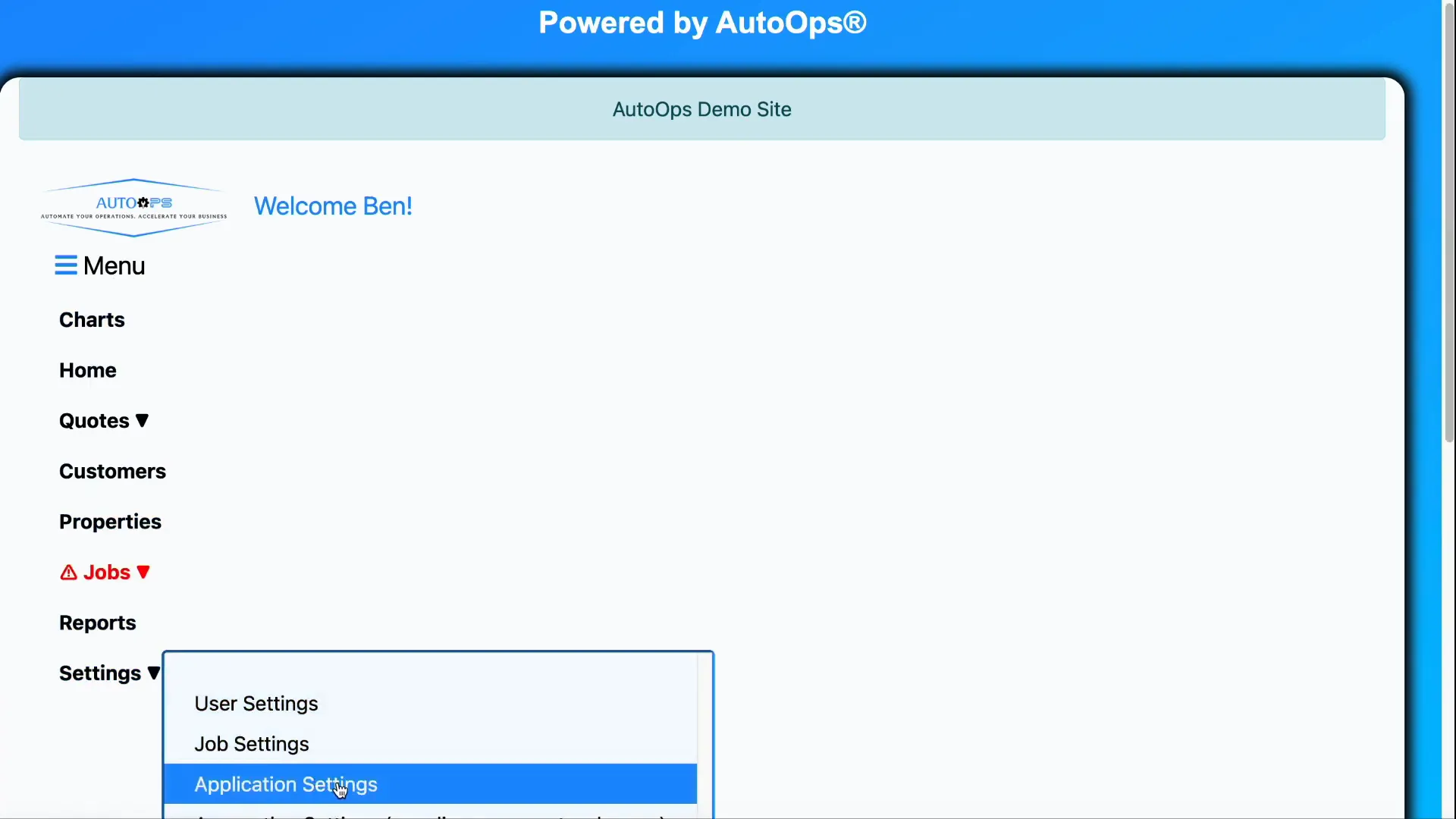
To begin customizing your application, you need to log in with an admin account. This grants you access to general settings that affect the entire application’s appearance and functionality. Once logged in, navigate to the main menu and select Settings. Within this menu, choose Application Settings to open the configuration panel where all company-related customization options are available.
Editing Company Information
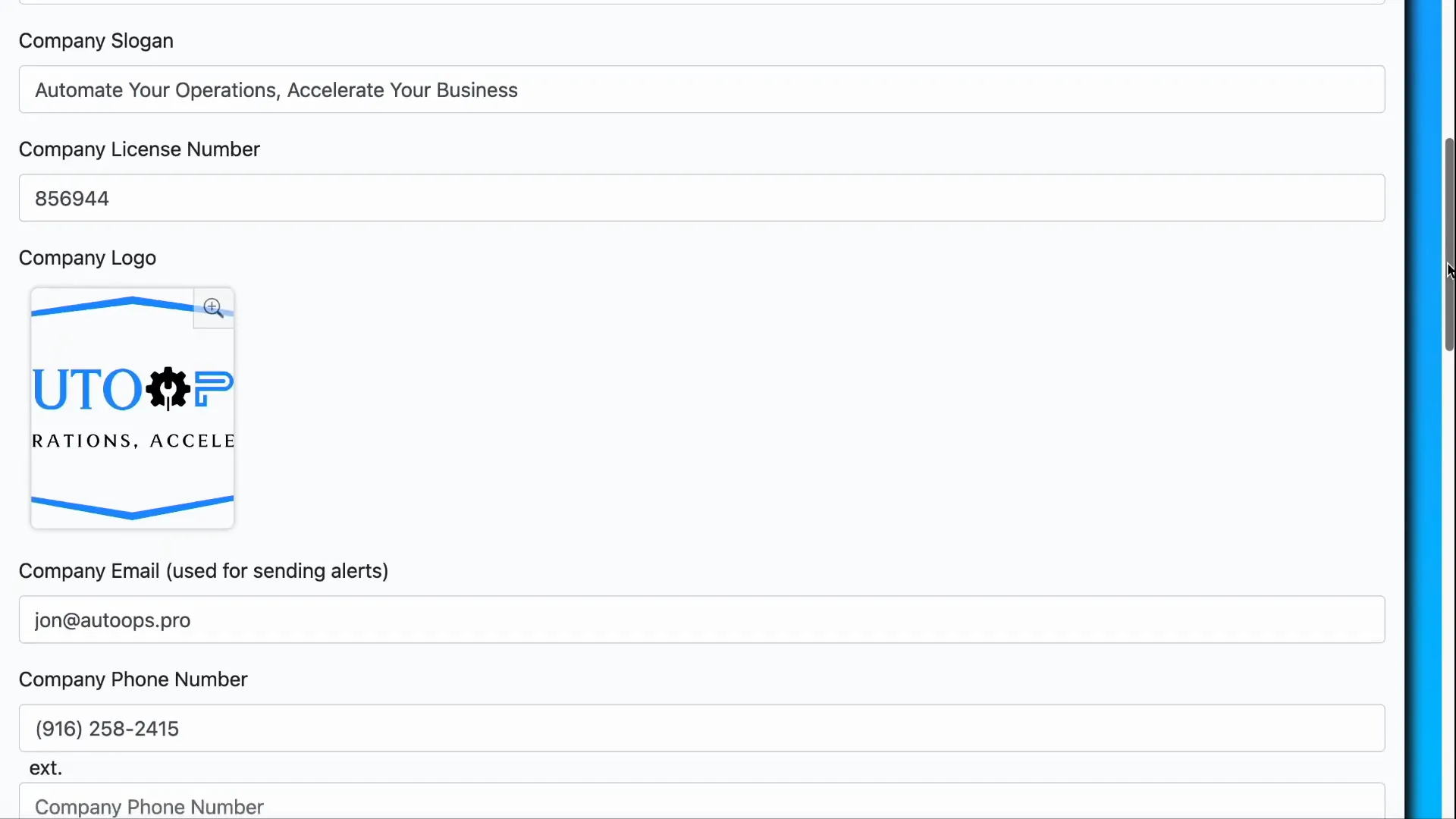
Inside the application settings, you’ll find a section titled Company Settings. This section allows you to update vital company details that appear throughout the system. Here’s what you can modify:
- Company Name: This is the name that appears in the application’s title bar and is used system-wide.
- Slogan and License Number: Add or update your company’s slogan and license number to keep your documents professional and compliant.
- Company Logo: Easily change your company logo by clicking on the logo image and selecting a new file. The updated logo will dynamically appear in the application’s corner and across all relevant pages.
These details ensure that your branding is consistent in every part of the application, from contracts to messages.
Additional Company Details
Beyond the basics, you can also provide more specific company information such as:
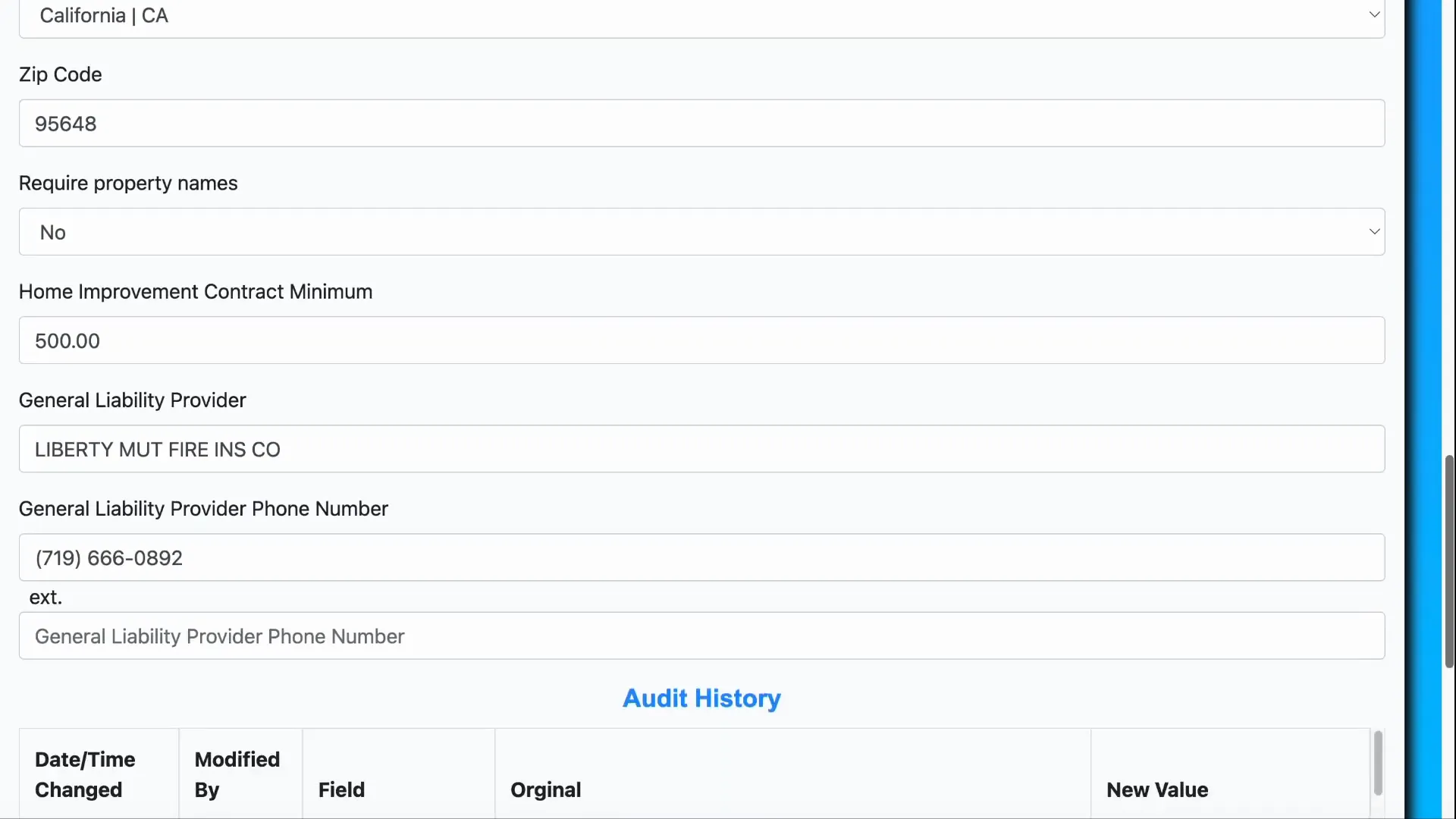
- Phone Number and Address: Essential contact details that will be displayed on documents and communications.
- Liability Provider Information: Enter the name and phone number of your liability provider to be included in relevant documentation.
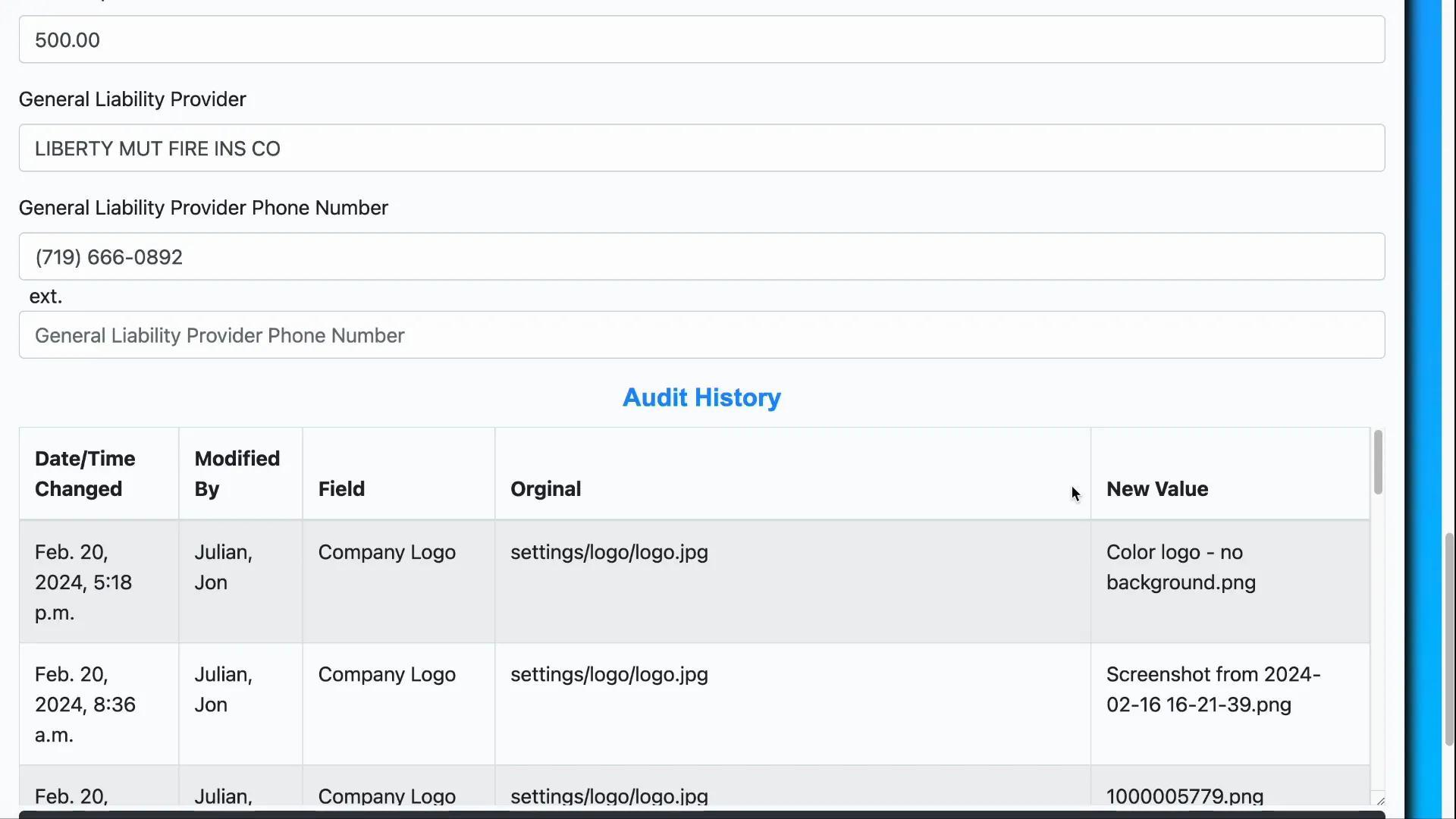
- Audit History: A useful feature that tracks changes made to the settings, helping maintain transparency and accountability.
Saving Your Changes
After updating all necessary fields, scroll down to the bottom of the page where you will find the Save button. Clicking this ensures that all your changes are applied throughout the entire system, affecting every customized document and feature that utilizes these company settings.
Summary
By following these simple steps, you can easily update your application’s company settings to reflect your current branding and contact information. This process helps maintain a professional appearance and ensures that all documents, contracts, and messages are consistent with your company’s identity.
Remember, these settings are dynamic and will be applied throughout the application, so keeping them up to date is essential for smooth business operations.
Frequently Asked Questions
Who can edit the application company settings?
Only users with an admin account have the privileges to access and modify the application company settings.
Where does the company name appear in the application?
The company name appears in the title bar of the application and is used throughout the system on various documents and features.
Can I change the company logo, and where will it be displayed?
Yes, you can change the company logo by selecting a new image in the company settings. The logo will appear dynamically in the corner of the application and other relevant areas.
What is the audit history in the company settings?
The audit history tracks all changes made to the company settings, providing a record for transparency and accountability.
Do changes to company settings affect existing documents?
Yes, the information entered in company settings is used for all customized documents, including home improvement contracts and messages, ensuring consistency across the board.
